 /SLASHPLAY
Change Minecraft settings in server.properties
Edit your Minecraft server.properties with the file manager: difficulty, game mode, max players, MOTD, view distance and more, plus the keys to leave alone.
Read the transcript
This audio was created with Boson AI's Higgs Audio: boson.ai/higgs-audio
Most of a Minecraft server’s settings live in one text file, server.properties: the difficulty, the default game mode, how many players fit, the message in the server list, how far players can see. On SLASHPLAY you edit it in the browser with the file manager, then restart the server. The file is part of every save, so your settings come back after every stop and restore.
Before you start
- The server must be live. The file manager shows the server’s files while it runs. See The file manager.
- The Control servers permission on the team, to edit files and restart. See Roles and permissions.
Steps
-
Click Manage on your server’s card and open Advanced, then Files.
-
Click
server.propertiesin the server’s main folder to open it in the editor.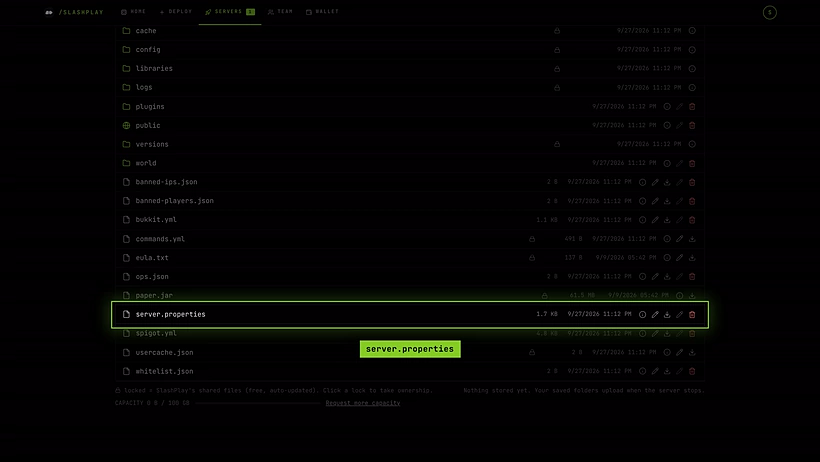
server.properties, in the server's main folder -
Change the values you want. Each line is
key=value, with no spaces around the=.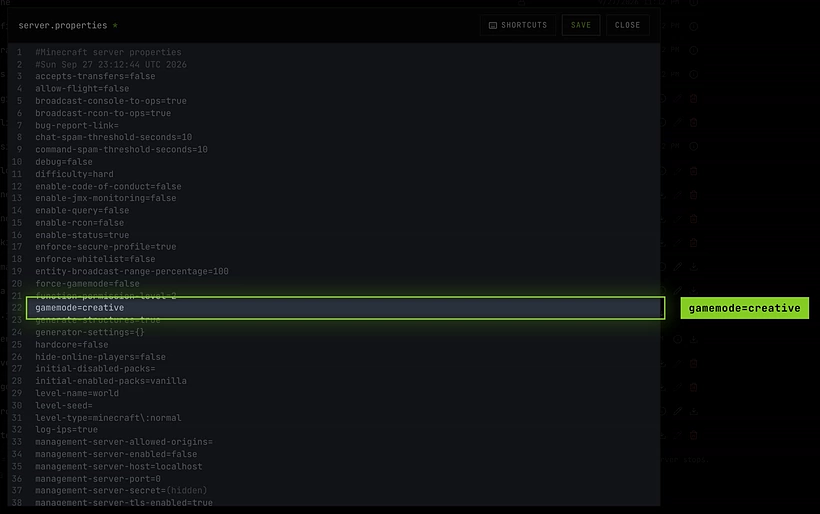
One setting per line, key=value -
Save the file.
-
Open the Console tab and run
save-all, so the world is written to disk before the restart. -
Go to the General tab and click Restart. Minecraft reads
server.propertieswhen it starts. The restart takes about 30 seconds and the address stays the same.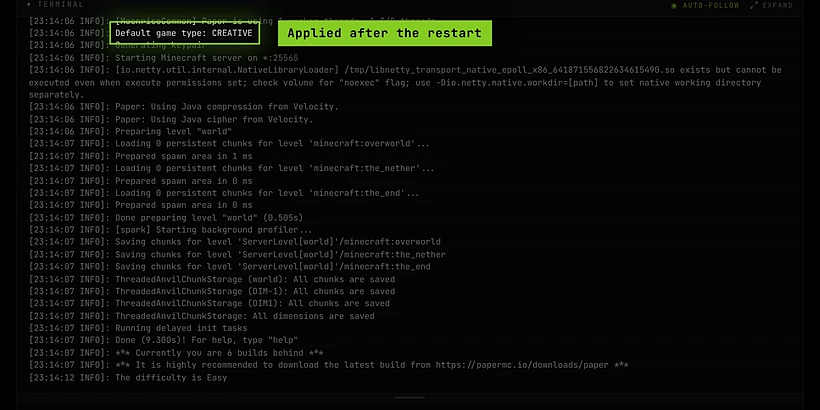
After the restart, the startup log shows the new default game mode
Some of these settings can also be changed live from the console, like difficulty hard or gamemode creative <player>. See Minecraft console commands.
Useful settings
| Key | What it does | Minecraft’s default |
|---|---|---|
difficulty | peaceful, easy, normal or hard. On Paper (latest) it only sets the difficulty of a newly generated world: for your existing world, run difficulty hard (or another level) in the console instead. | easy |
gamemode | Game mode for new players: survival, creative, adventure or spectator. Players who’ve joined before keep theirs. | survival |
force-gamemode | true puts every player into gamemode each time they join. | false |
hardcore | true for hardcore: hard difficulty, and players become spectators when they die. | false |
max-players | How many players can be online at once. | 20 |
motd | The message under the server’s name in players’ server lists. | A Minecraft Server |
pvp | false stops players from hurting each other. Newer Minecraft versions moved this to a game rule: if your file has no pvp line, look for it with /gamerule in game. | true |
view-distance | How far (in chunks) the server sends the world to players. Lower it if a SMALL server lags. | 10 |
simulation-distance | How far (in chunks) from players mobs move and crops grow. Lowering it also saves CPU. | 10 |
spawn-protection | Radius around spawn where only operators can build. 0 turns it off. It only applies once there’s at least one operator. | 16 |
allow-flight | true stops Minecraft from kicking players for flying. Turn it on if a plugin gives players flight. | false |
level-seed | The seed for the world. Only used when a new world is generated, so changing it does nothing to your existing world. | empty (random) |
The file may contain other keys, and their names can change between Minecraft versions. If a key you read about online isn’t in your file, it may have been renamed or turned into a game rule.
Managed by SLASHPLAY: don’t change
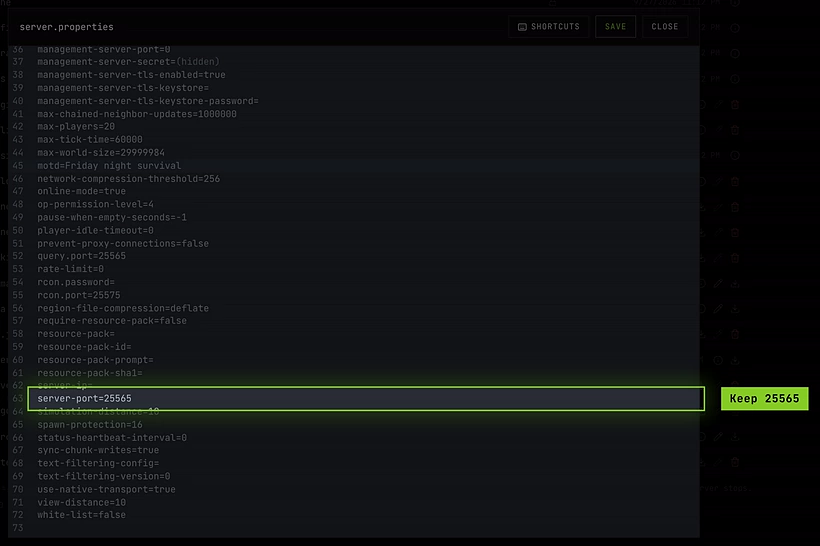
Your server relies on a few settings being exactly as they are:
| Key | Keep it at | Why |
|---|---|---|
server-port | 25565 | SLASHPLAY connects your public address to this port inside the server. Change it and nobody can join. |
level-name | world | Only the world, world_nether and world_the_end folders are saved. A different name makes Minecraft create a world in a folder that isn’t saved, and it’s lost at the next stop. To use another world, see Upload your own world. |
online-mode | true | With it on, Minecraft checks every player’s account with Mojang. Turned off, anyone can join under any name, including yours or an operator’s, which makes the whitelist and bans useless. Players’ inventories and positions are also tied to their verified account, so switching it would give everyone a fresh start. |
white-list | Leave it to the dashboard | The Whitelist switch on the Game-specific tab turns this on and off. Use the switch, so the panel and the file agree. See The Minecraft whitelist. |
enable-rcon | false | The Console tab talks to Minecraft directly, not over RCON, and an RCON port isn’t reachable from outside anyway. |
Troubleshooting
My change didn’t do anything.
Check that you clicked Restart after saving, and that nobody toggled the whitelist in between. Open the file again to see if your value is still there. For level-seed, remember it only affects a new world.
Nobody can connect after I edited the file.
Check server-port is still 25565 and online-mode is true. If the server crashed, the crash box on the server page shows the last output, which usually names the bad line.
The server list shows odd characters in my MOTD. Keep the MOTD to plain text, or look up Minecraft’s formatting codes for colours.