 /SLASHPLAY
Game updates and versions
How SLASHPLAY keeps games up to date: automatic updates, when a server picks up a new version, what Updating… means, and why players need a matching game.
Read the transcript
This audio was created with Boson AI's Higgs Audio: boson.ai/higgs-audio
You never install game updates yourself on SLASHPLAY. When a game gets patched, we update its server files for everyone, and your server picks up the new version the next time it starts. This page explains how that works, what you see while it happens, and what it means for your players.
How updates work
SLASHPLAY watches every game for new releases: Steam updates for the Steam games, and new Minecraft releases and Paper builds for Minecraft. When one appears, we build a fresh copy of the game’s standard install on the new version, automatically, and that’s what servers start from from then on.
Every game updates this way except Counter-Strike 1.6. It runs the classic legacy build of the game, which is kept as it is on purpose.
Your own files aren’t part of the update. The world, configs, plugins and anything else in your save come back exactly as you left them, on top of the new install. See What’s kept between runs.
When your server gets the new version
A running server is not updated in place. It keeps the version it started with for as long as it runs. Restart doesn’t change that either, because it restarts the same copy of the game.
The new version arrives on the next start. Stop the server, then start it again with Start (or a schedule does it for you). The fresh start uses the newest install we have. A newly deployed server always starts on the newest version too.

While a game is updating
Building a new version takes a few minutes, longer for big games like CS2. During that time, new starts for that game wait:
- On the Deploy tab, the game’s button shows Updating… instead of Deploy.
- On a stopped server’s card, the Start button shows Updating…. Hover it: This game is currently updating. Your existing world is safe, but new starts are paused for a few minutes.
- If you try to deploy just as an update begins, you’ll see is currently updating. Please try again in a few minutes.
Servers that are already running aren’t affected and keep going. Nothing in your saves changes. When the update is done, the buttons go back to normal on their own.
When an update fails
Rarely, building a new version fails. We retry automatically, and until it works:
- On the Deploy tab the game shows Not available, with a warning on the card: Update failed. This version may be a build or two behind the official release.
- Stopped servers of that game can still be started. Their card shows ⚠ Update failed, may be outdated: the server runs, but may not match the newest official version.
If it lasts, ask on Discord.
A crash after a game patch
Sometimes a game releases a patch before our update has landed, and a server on the old version crashes. When that happens, SLASHPLAY starts the update right away, and the crash box on the server page says so: We’re running the update right now; expect deploys to work again within an hour or so. Nothing on your side needs fixing. Start the server again once the game’s button no longer shows Updating…. See Troubleshooting.
Your players need a matching game
Some games only let players join a server on the same version as their own game:
-
CS2. Steam updates your players’ game as soon as Valve ships a patch. A server that was already running stays on the old version, so players may be refused until you stop and start it again. See Join and connect.
-
Minecraft. Players need the same Minecraft version as the server.
- Paper (latest) and Vanilla (latest) follow new Minecraft releases. Vanilla gets a new release first; Paper follows once Paper publishes its build. After a new release, the server can come up on the new version at its next start, and players may need to update their game.
- Paper 1.21 stays on Minecraft 1.21 and only gets new 1.21 builds, so it’s the one to pick if you want to stay put.
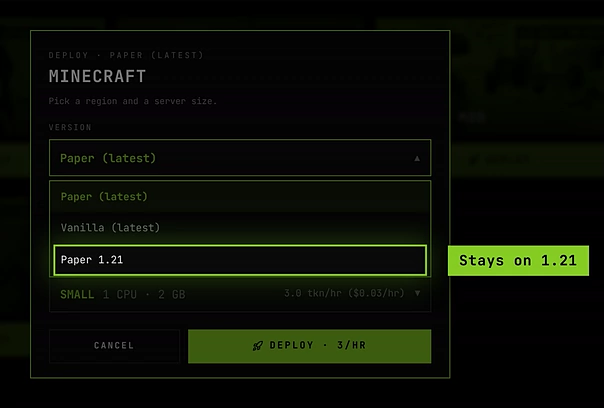
Pick Paper 1.21 to stay on one Minecraft version. A Minecraft world can be upgraded to a newer version but never back. See Paper or Vanilla?.
What you can’t change
- You can’t hold a server on an older version of a game, or turn updates off for one server. For Minecraft, Paper 1.21 is the way to stay on one version.
- Folders you took ownership of in the file manager no longer get updates: your copy always wins. If a game update breaks something in an owned folder, give it back to get the standard, up-to-date copy.