 /SLASHPLAY
Monitor and history
Read your server's live CPU and memory charts to pick the right size, and see every past run with how long it lasted and what it cost.
Read the transcript
This audio was created with Boson AI's Higgs Audio: boson.ai/higgs-audio
Two tabs on the server page tell you how your server is doing and what it has cost. Monitor shows live CPU and memory use, which is the best way to know if you picked the right size. History lists every run of the server, with its duration and cost.
Monitor: CPU and memory
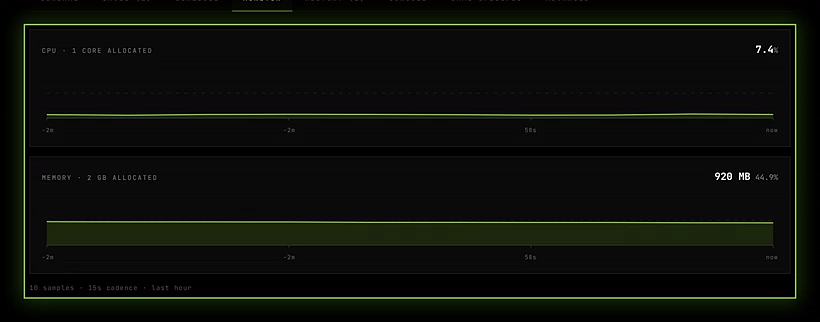
Open the server page and click Monitor. While the server is live, you see two charts:
- CPU (N core(s) allocated): how busy the server’s processors are, as a percentage of the CPU its size gives it. 100% means it’s using everything it has.
- Memory (X allocated): how much of its memory the server is using, as a percentage of its size’s memory.
Each chart shows the current value and a line for the last hour. A new sample is taken every 15 seconds; the footer shows how many samples there are (N samples · one every 15 s · last hour). When you first open the tab on a freshly started server, it says Waiting for the first sample, about 15 seconds.
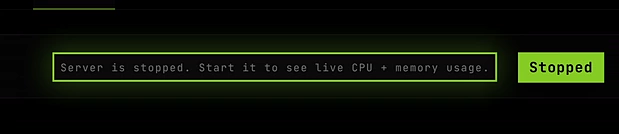
When the server is stopped, the tab says Server is stopped. Start it to see live CPU and memory use. The charts only cover the current run.
Use the charts to pick a size
The charts are most useful during a real session, with your usual number of players doing what they usually do. Then read them like this:
| What you see | What it means | What to do |
|---|---|---|
| Memory keeps climbing towards 100% | The server is about to run out of memory. When it does, it crashes instantly and may lose recent progress. | Move up one size. |
| CPU stuck near 100% for long stretches | The server can’t keep up. Players feel lag or rubber-banding. | Move up one size, or reduce bots, players or mods. |
| Short CPU spikes, like on map change | Normal. | Nothing. |
| Both stay well under half, all session | The server has room to spare. | You could save by moving down a size. |
Memory matters most, because running out of it is a crash, while running out of CPU is only lag. Sizes change while the server is stopped. See Server sizes.
History: every run and what it cost
Click History on the server page. The number in the tab is how many runs the server has had. Every start (deploy, restore or scheduled start) is one run, and each row shows:
- When the run started. The run that’s live now is marked Active now.
- The size it ran at.
- How long it ran. Very old runs may say Not recorded.
- The tokens spent on that run, with the dollar amount (or Not billed: it didn’t start, for a run that crashed at boot).
A new server with no runs yet says No runs yet.

Use it to answer questions like “how long did we play on Saturday?”, “did the schedule really stop it at 2 a.m.?” or “what did that XLARGE session cost?”.
Lifetime spend
For the total across all runs, look at the Cost panel on the General tab: it says how many tokens this server has used, across all its runs.

Across the whole team
To see all of a team’s servers together, with sessions, time played and spend per server, open the team’s Log. It keeps the records of servers that have since been deleted, and any member can read it. See Team log.
Troubleshooting
The Monitor tab is empty. The server isn’t live, or it has just started. Wait 15 seconds for the first sample.
The charts only show the last hour. That’s by design. For earlier runs, the History tab shows duration and cost, but not CPU or memory.
A run in History cost more than I expected. Check its size and duration: bigger sizes cost more per hour. A run that ran all night was probably missing a maximum run time.