 /SLASHPLAY
RCON on CS2: external tools and !rcon in chat
Find your CS2 server's RCON address and password, use them in RCON tools, run admin commands from game chat with !rcon, and choose who else may do it.
RCON (remote console) is how you send admin commands to a CS2 server from somewhere other than the server itself. On SLASHPLAY you usually don’t need it: the Console tab and Quick actions already send commands for you. RCON is for when you want to use your own tools, or run commands while you’re playing, without alt-tabbing to the dashboard.
This page covers where the credentials are, how to change the password, the ways to use them, and how to let other players run commands from chat.
Before you start
- You need the Control servers permission on the team. Without it the RCON password is hidden from you. See Roles and permissions.
- The server must be Live for any command to run.
Find your RCON details
Open the server page, then Game-specific → RCON. (The RCON section on the General tab has an Open RCON button that takes you there.)
- RCON address: the server’s IP address and port, for example
203.0.113.10:20784. It’s an IP rather than theslashplay.ggname, because RCON tools, CS2’s own included, don’t look up names. - RCON password: hidden until you reveal it, with a copy button, and Edit and Generate to change it (see below).
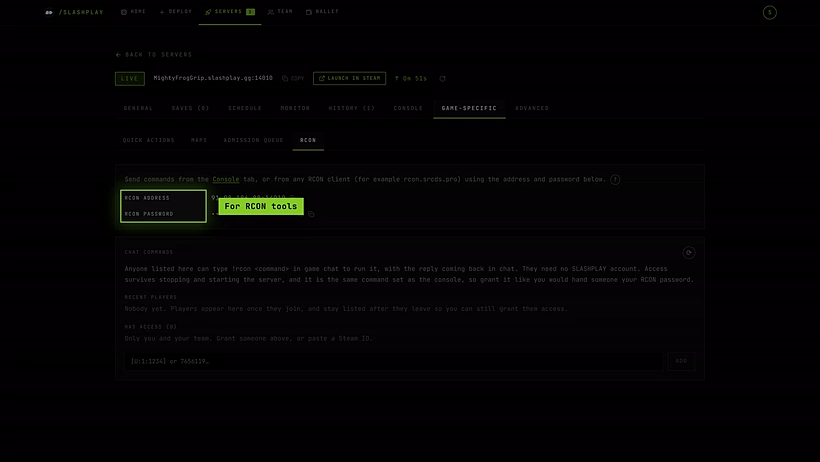
The RCON password is not the join password. The join password only lets someone play; the RCON password lets them run any server command. Keep it to yourself.
Like the game address, the RCON address can change after a stop and restore. Copy it fresh each session.
Change the RCON password
Next to the RCON password:
- Edit sets one you type. It needs 8 to 64 characters, letters and digits only: no spaces or symbols.
- Generate replaces it with a new random password, after you confirm.
On a Live server the new password works at once, with no restart. The page says SAVED, in use now, and the old password stops working. RCON tools that were connected are disconnected: connect them again with the new password. The Console tab, Quick actions, the admission queue and !rcon switch over by themselves.
On a stopped server the new password is used from its next start. Either way it stays through restarts, stops and restores.
Things to know:
- If the server doesn’t take the new password, nothing changes. The page says why, and the old password stays in use.
- Two servers can’t share an RCON password. If another server already uses the one you typed, pick a different one.
- Changing the RCON password never changes the join password.
- While the server is starting or stopping, wait until it’s Live or stopped.
- You need Control servers, the same permission as seeing the password.
Option 1: the dashboard
The Console tab sends every command over RCON for you, with autocomplete and a history of recent commands. It’s the easiest way and needs no setup. See The console and the command reference.
Option 2: an external RCON tool
Any Source RCON client works, for example the web tool rcon.srcds.pro. Enter the RCON address (IP and port) and the RCON password, connect, and type commands as you would in the server console.
Option 3: CS2’s own rcon command, from the main menu only
CS2 still has a rcon console command, but it only works from the main menu. Once you have joined a server, CS2 stops sending rcon commands at all, so no address or setting can fix that. From the main menu, open the console and type, one line at a time:
rcon_address 203.0.113.10:20784
rcon_password yourrconpassword
rcon status
Use your own address and password. rcon_address needs the IP form from the RCON panel, not the slashplay.gg name.
Option 4: !rcon in game chat
While you’re playing, type !rcon followed by a command into normal game chat:
!rcon mp_restartgame 1SLASHPLAY runs the command on your server and posts the reply back into chat. There’s no plugin involved, so it keeps working through CS2 updates.
Things to know:
- Replies are public. The answer is said in chat, so every player sees it. Don’t run commands whose output you want to keep private.
- Replies are short. Anything past 140 characters is cut off. A command with no output replies
ok: <command>. - One command every 2 seconds per player. Extra ones sent faster are ignored.
- It’s the full console. Anything the dashboard console accepts works, and the same commands are blocked (see Console commands).
Who may use !rcon
A player may run !rcon if either:
- Their Steam ID has been granted access in the Chat commands list on the RCON panel. They don’t need a SLASHPLAY account for this. Or:
- Their SLASHPLAY account is linked to that Steam account and has Control servers on the team that owns the server. So as the owner, link Steam once and
!rconjust works for you. See Sign-in methods.
Everyone else gets a polite refusal in chat:
| Reply in chat | Why |
|---|---|
| No !rcon access here. The server owner can grant it on slashplay.gg under the server’s Game Specific > RCON panel. | The Steam ID has no grant and isn’t linked to any SLASHPLAY account. |
| Your account cannot run commands on this server. The owner can grant !rcon access under Game Specific > RCON on slashplay.gg. | The Steam ID belongs to a SLASHPLAY account without Control servers on this team. |
| ”quit” is blocked. Use the Restart button instead. | The command is on the blocked list. |
| Command failed: … | The server didn’t answer, for example mid-restart. |
Give a player !rcon access
Under Chat commands on the RCON panel:
Steps
- Ask the player to join your server. They appear under Recent players with their Steam ID (and Online while connected). Players stay listed after they leave. Use the ⟳ button to refresh the list.
- Click Give RCON next to their name. They move to Has access.
- Or, without them joining: paste their Steam ID into the box ([U:1:1234] or 7656119…) and click Add. Both the
[U:1:…]form and the 17-digit form work. See Find your Steam ID.
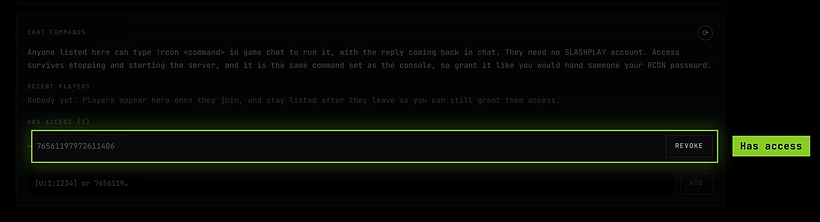
To take access away, click Revoke next to the player, in either list.
Grants belong to the server, not to one run of it: they survive stopping and restoring. With nobody granted, the list says Only you and your team, meaning team members with Control servers and a linked Steam account.
Security tips
- Never paste the RCON password in a public channel. It stays the same across stops and restores. If it leaks, click Generate for a new one.
- Change the password with Edit or Generate, not with
rcon_password. The console and!rconrefusercon_password. A.cfgfile that sets it leaves the dashboard console, Quick actions, the admission queue and!rconon the old password, and they stop working. - Prefer granting
!rconto individual Steam IDs over sharing the password: you can revoke one person without changing anything for anyone else.
Troubleshooting
The RCON password shows a lock. You don’t have Control servers on this team. Ask a team admin.
My RCON tool says the password is wrong after a change. The old password stopped working when you changed it. Copy the password again from the RCON panel.
My RCON tool can’t connect.
Use the IP address from the RCON address row, not the slashplay.gg name, and make sure the server is Live. After a restore, copy the address again.
rcon in the CS2 console does nothing while I’m playing.
That’s CS2: in-game rcon only works from the main menu. Use !rcon in chat instead.
!rcon doesn’t answer at all.
Make sure the line starts with !rcon and a space, and that you waited 2 seconds since your last command. Ordinary chat lines are ignored.