 /SLASHPLAY
Play hardcore on your Minecraft server
Turn on Minecraft hardcore on your SLASHPLAY server: start a new hardcore world, or make an existing world hardcore by editing its level.dat in the NBT editor.
In hardcore, everyone gets one life. The difficulty is locked to hard, and a player who dies stays in the world as a spectator instead of respawning. Whether a world is hardcore is saved inside the world itself, in its level.dat, so how you turn it on depends on whether the world already exists.
- A new world: set one line in
server.propertiesand let the server make a fresh world. - The world you already play on: change the same line, and also the hardcore value inside
level.dat, with the NBT editor in the file manager.
Before you start
- The server must be live. The file manager shows the server’s files while it runs. See The file manager.
- The Control servers permission on the team, to edit files and restart. See Roles and permissions.
- A save to go back to. Click Take backup now on the Saves tab first. See Take a backup now.
Start a new hardcore world
server.properties decides how a world is made, so this only works for a world the server hasn’t made yet.
Steps
- Click Manage on your server’s card and open Advanced, then Files.
- Open
server.propertiesand change the line tohardcore=true. Save the file. See server.properties for more on this file. - Delete the old world: open
world’s More actions menu and click Delete folder. On Paper, also deleteworld_netherandworld_the_end. This deletes the world for good, so only do it with a save to go back to. - Click Restart on the General tab. The server makes a fresh world, and it’s hardcore.
The hardcore setting in the command reference has the details of the line itself.
Make your existing world hardcore
Here you change two things: the line in server.properties, and the world’s own hardcore value in world/level.dat. level.dat is a binary file in Minecraft’s NBT format, so it opens in the file manager’s NBT editor instead of the text editor.
Steps
-
Click Manage on your server’s card and open Advanced, then Files.
-
Open
server.properties, change the line tohardcore=trueand save the file. -
Open the
worldfolder and clicklevel.dat. -
Download the backup. A window explains that this is a binary file and asks you to keep a copy. Click Download backup, then Open editor. Open editor stays locked until you’ve downloaded the copy, and it asks every time you open the file.
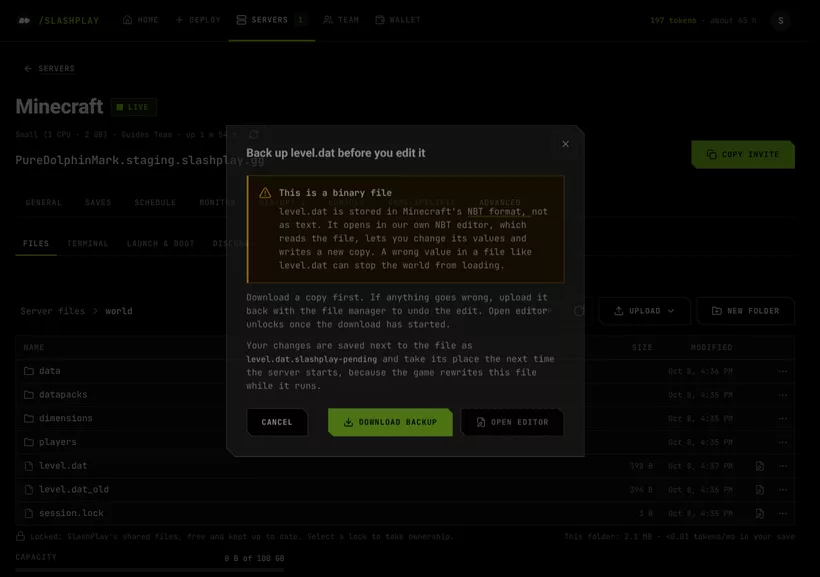
Open editor unlocks once the backup download has started. -
In Find a tag by name, type
hardcore. Change Data / difficulty_settings / hardcore from0to1. -
Type
difficultyand change Data / difficulty_settings / difficulty tohard. -
Click Save. The editor says Saved, applies when the server next starts. Your change waits next to the file as
level.dat.slashplay-pending.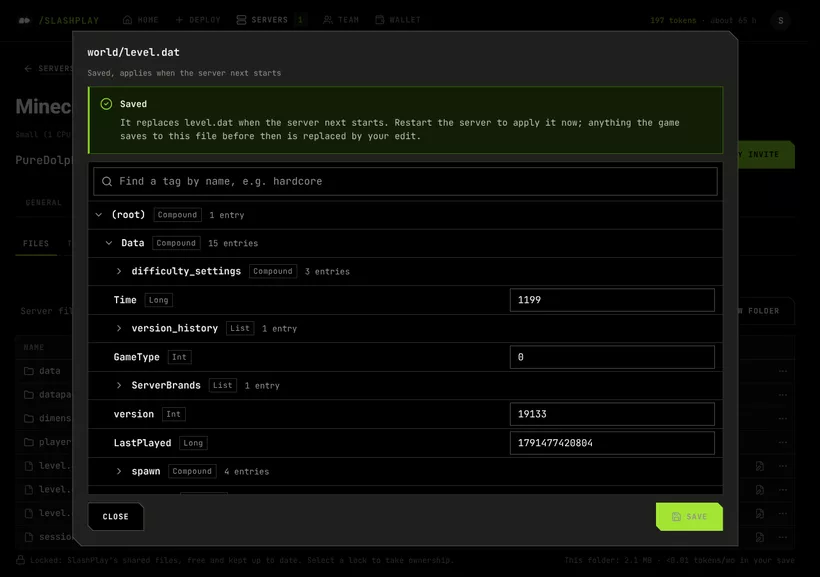
Saved: the edit is applied on the next start. -
Click Restart on the General tab. Before Minecraft starts, your edit replaces
level.dat, and the world loads as hardcore.
Turn hardcore off again
Do the same steps in reverse: hardcore=false in server.properties, and 0 for the hardcore value in level.dat, then restart. Players who died while it was on are still spectators; put them back with gamemode survival <player> in the Console tab. See Minecraft console commands.
If something goes wrong
The world won’t load after the edit. Upload the level.dat you downloaded into the world folder, replacing the one there, and restart. If you saved more than once, delete level.dat.slashplay-pending first, so the old edit isn’t applied again.
My change didn’t stick. Make sure you clicked Save in the editor and then Restart. A server that’s started from stopped also applies it, because the waiting edit is part of the save.
I want to throw the edit away before restarting. Open level.dat again: the editor shows your saved change and has Throw it away.