 /SLASHPLAY
Team Fortress 2 server console commands
The TF2 server commands worth knowing: change maps by game mode, time and win limits, tournament mode, bots, kicks and bans, plus how to make settings stick.
Read the transcript
This audio was created with Boson AI's Higgs Audio: boson.ai/higgs-audio
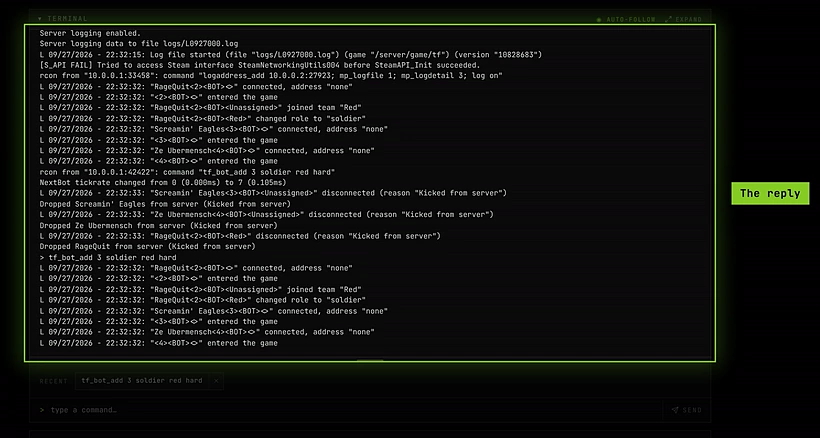
These are the Team Fortress 2 server commands you’re most likely to want. Run them in the Console tab on the server page, or from Discord with /server console. You need the Control servers permission and a Live server. Commands reach TF2 over RCON, so the server’s reply appears right under your command.
A few things to know first:
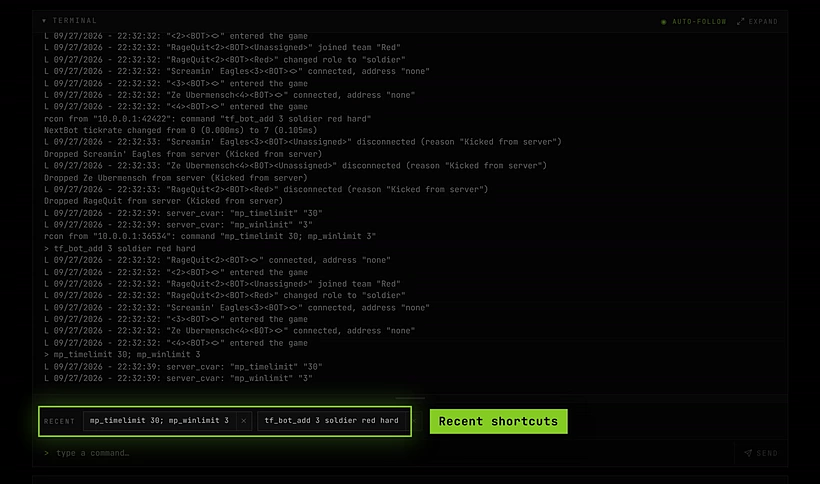
- The console doesn’t suggest commands for TF2 as you type, so type the full command. Commands you run are kept as Recent shortcuts for one-click reuse.
- Separate several commands with
;on one line:mp_timelimit 30; mp_winlimit 3. - Settings you change in the console last until the server restarts. To keep them, put them in
server.cfg(see Make settings stick).
See The console for the tab itself.
Change the map
| Command | What it does |
|---|---|
changelevel <map> | Change map, keeping players connected. |
map <map> | Load a map, reconnecting everyone. |
maps * | List every map the server has. |
nextlevel <map> | Set the map that follows the current one. |
changelevel pl_badwaterThe map’s prefix tells you its game mode. A few well-known official maps for each:
| Mode | Prefix | Maps |
|---|---|---|
| Control points | cp_ | cp_dustbowl (the default), cp_gorge, cp_granary, cp_badlands, cp_well, cp_process_final, cp_gravelpit, cp_steel |
| Capture the flag | ctf_ | ctf_2fort, ctf_turbine, ctf_doublecross, ctf_well, ctf_sawmill |
| Payload | pl_ | pl_badwater, pl_upward, pl_goldrush, pl_thundermountain, pl_hoodoo_final, pl_barnblitz |
| Payload race | plr_ | plr_hightower, plr_pipeline |
| King of the hill | koth_ | koth_harvest_final, koth_viaduct, koth_lakeside_final, koth_nucleus |
| Arena | arena_ | arena_well, arena_granary, arena_lumberyard, arena_ravine |
Use maps * to see the exact names on your server. Custom maps go in tf/maps (see Custom maps).
Match rules
| Command | What it does |
|---|---|
mp_timelimit <minutes> | Time on each map before it changes. 0 means no limit. |
mp_winlimit <rounds> | Change map after a team wins this many rounds. 0 means no limit. |
mp_maxrounds <rounds> | Change map after this many rounds in total. 0 means no limit. |
mp_restartgame <seconds> | Restart the round after N seconds, resetting scores. |
mp_tournament <0/1> | Tournament mode: teams ready up before the match starts. |
mp_disable_respawn_times <0/1> | 1 makes everyone respawn instantly. |
mp_autoteambalance <0/1> | Even out team sizes automatically. |
mp_friendlyfire <0/1> | Damage to teammates. |
Bots
TF2 has built-in bots that play most official maps.
| Command | What it does |
|---|---|
tf_bot_add <count> | Add bots. You can add a class, team and difficulty, for example tf_bot_add 3 soldier red hard. |
tf_bot_kick all | Remove all bots. Use a bot’s name instead of all to remove one. |
tf_bot_quota <number> | Keep this many bots on the server. |
tf_bot_difficulty <0-3> | 0 easy, 1 normal, 2 hard, 3 expert, for bots added from now on. |
Bots need navigation data for the map. Official maps have it. On a custom map without it, bots may stand still or not join.
Players and bans
| Command | What it does |
|---|---|
status | List connected players with their user id and Steam ID. |
kick <name> | Disconnect a player by name. |
kickid <userid or steamid> | Disconnect by user id or Steam ID. |
banid <minutes> <userid or steamid> | Ban a player. 0 minutes means permanent. |
removeid <steamid> | Lift a ban. |
writeid | Save the ban list to tf/cfg/banned_user.cfg. |
say <message> | Message everyone as the server. |
Run writeid after banning so the ban survives a restart. banned_user.cfg and banned_ip.cfg are kept between runs.
Server and practice
| Command | What it does |
|---|---|
sv_cheats <0/1> | Enables cheat-protected commands. Anyone on the server can then use them, so turn it off again when you’re done. |
sv_gravity <value> | World gravity. |
exec <file> | Run a .cfg file from tf/cfg. |
Settings SLASHPLAY manages for you
These are set when the server starts. Don’t change them in the console or in server.cfg:
| Setting | Why |
|---|---|
sv_password | The join password. Use Join password on the General tab instead. If server.cfg sets it, it overrides the dashboard, and the copied connect line stops working. |
rcon_password | The Console tab uses it, and refuses to set it. Change it with Edit or Generate next to the RCON password on the General tab: the server switches to it at once. |
sv_hibernate_when_empty | Kept at 0 so the server stays awake when nobody’s on. |
Blocked commands
A few commands are refused because they would take the server down in a way the dashboard can’t follow:
| Command | Use instead |
|---|---|
quit, exit, shutdown, _restart | Restart on the General tab, or Stop |
host_timescale below 0.05 or above 10 | A value between 0.05 and 10 |
rcon_password | Edit or Generate next to the RCON password on the General tab |
Make settings stick
Console changes are gone after a restart. For settings you want every time, put them in tf/cfg/server.cfg. It’s one of TF2’s kept files, so it’s part of your save and comes back after every stop and restore. TF2 runs it each time a map loads.
Steps
-
On the server page, open Advanced → Files and go to
tf/cfg. -
If there’s a
server.cfg, click Edit file on it. If there isn’t one, create a plain text file namedserver.cfgon your computer and Upload it.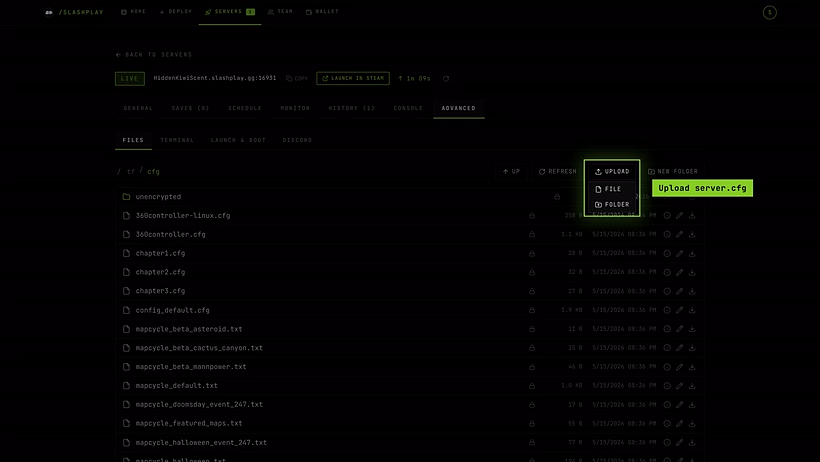
A new server has no server.cfg in tf/cfg: upload one. -
Add one command per line, for example:
hostname "Friday night TF2" mp_timelimit 30 mp_winlimit 3 tf_bot_quota 0 -
Save, then click Restart on the General tab (or change map) so TF2 reads it.
Leave sv_password and rcon_password out of it (see above). Other files you add to tf/cfg, such as a separate practice config, are kept too as long as you uploaded them yourself. See What’s kept between runs.
Custom maps
Upload a map’s .bsp file to tf/maps with the file manager. The folder is kept between runs. Then load it with changelevel <mapname>, without the .bsp. Your players need the map too: TF2 downloads it to them when they join, which can be slow for big maps.