 /SLASHPLAY
Troubleshooting servers
Fix common SLASHPLAY server problems: slow boots, crashes, servers that won't start, friends who can't connect, passwords that don't apply and locked buttons.
Read the transcript
This audio was created with Boson AI's Higgs Audio: boson.ai/higgs-audio
Something not working? Find the symptom below. Most problems explain themselves on the server page, and most fix themselves with a restart or a restore. If you’re still stuck, ask us on Discord: we’re there, and we’d rather hear about it.
Starting and booting
The server has said Starting for a while. Most servers are live within a minute. The hint under the status tells you what’s happening:
- After about 75 seconds: taking longer than usual; hang tight, we retry slow boots automatically.
- After about 4 minutes: slow boot detected, auto-restarting the server and retrying, a few more minutes.
- After about 9 minutes: this boot looks stuck; it will flip to crashed shortly, then just hit start again.
Leave it alone while it retries; stopping it only cancels a retry that was likely to work. If it ends as crashed, you weren’t charged for the boot. Click Start the game again on the crash box to try again.

The server crashed during startup. The server page shows The game crashed. The server is still open so you can fix it. and explains that it went down while starting. The boot isn’t charged. The server stays open for 30 minutes with its files and terminal, then saves and stops by itself. If you just changed a file, a mod or launch args, that change is the likely cause: Show last output in the crash box shows the lines where it went wrong. Undo the change and click Start the game again. If it crashes before you can change anything, use Restart in debug mode. See Crashes and debug mode.
The crash box says the game wasn’t updated yet. Sometimes a game releases an update before our automatic updates have caught up, and a server on the old version can crash. The crash box says so and that we’re running the update now. Deploys work again within about an hour. Nothing on your side needs fixing.
The server crashed while we were playing. The server stays open for 30 minutes so you can look at what happened and start the game again. Whether that time is billed depends on whether anyone changed the server by hand: see Who pays for the 30 minutes. If it says it ran out of memory, the server needed more memory than its size has. Move up one size while it’s stopped, or lower the player count, view distance or mods. The last few minutes of play may not have been saved. See Server sizes.
The page says “This server couldn’t start”. This appears when a scheduled start fails. SlashPlay retries after 1 minute, then 5, then 15, and stops after three failures in the same schedule window so it doesn’t keep failing in the background. The box explains the reason. If a save is to blame, it names it and says whether the next start will use an older, verified save instead. Click See your backups to pick one yourself with Restore, or Technical details for the raw error (useful when you ask us for help). See Saves and backups.
“Couldn’t start from that save”. That save couldn’t be unpacked. Pick a save marked VERIFIED. You can also download the broken save as a zip, start from a good one, and copy files across in the file manager.
Deploy and restore buttons
The button says Fund & deploy (or the card says the team is out of tokens). The team’s balance is empty. Click it to move tokens from your wallet, or buy tokens first. See Fund a team and Buy tokens.
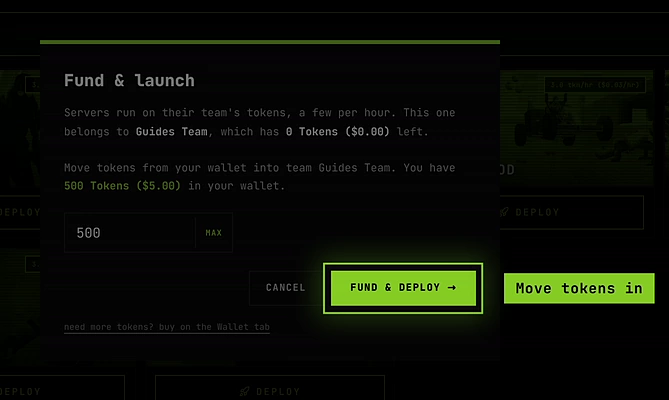
“Not enough tokens. You need at least N tokens (1 hour) to deploy.” Starting needs one hour’s worth of tokens for the size you picked. Add tokens to the team or pick a smaller size.
A game card says Updating… or Start says Updating…. The game is being updated to its newest version. Starts pause for a few minutes; your saved world is safe. Try again shortly.
A game card says Not available. That game can’t be deployed right now, for example because its latest update failed. Running servers keep working. Ask on Discord if it lasts.
Start says Not available. No machine has this game’s files ready right now. This one needs us: ask on Discord and we’ll sort it out.
A red “Your server didn’t deploy” box appeared. It shows the reason. Try again; if it repeats, use Join Discord in the box.
Connecting
My friends can’t connect. Check, in order:
- The server shows Live (not Starting).
- They’re using the address of the current run. The address and invite link change every time the server is restored. Copy them again from the card.
- For Source games, they pasted the whole line, including
connect, into the game’s console, and the console is turned on. - They included the port (the number after the colon), except in Minecraft.
- For Minecraft, they’re on the whitelist if it’s locked. See Minecraft whitelist.
See Connect and invite friends.
Launch in Steam does nothing. Steam isn’t running, or the browser blocked the prompt. Start Steam and try again, tick Always allow when asked, or copy the connect command into the console instead.
Players far away have high ping. All servers run in Germany today. See Regions and vote for yours.
Passwords
I changed the join password but the old one still works. Password changes apply after a restart. Click Restart on the General tab. See Join passwords.
Friends get “wrong password”. They’re using an old copied command. Have them copy the connect command again after the restart.
Console, files and controls
The console says “The server must be live to send commands”. Commands only work on a live server. Start it first. See The console.
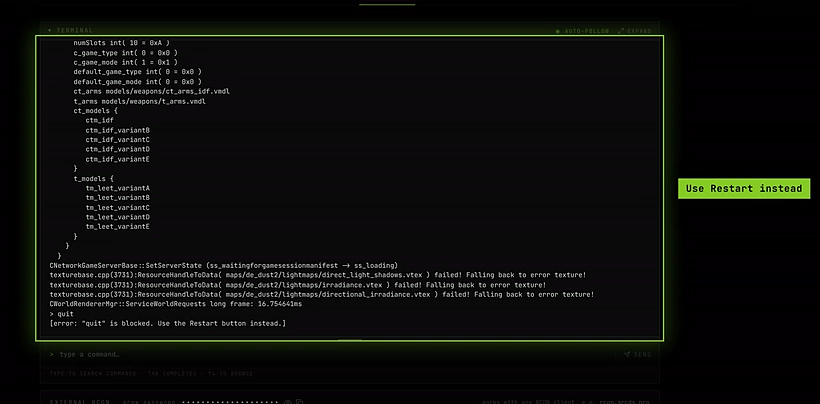
”… is blocked. Use the Restart button instead.”
Commands like quit and _restart would take the server down behind SlashPlay’s back. Use Restart or Stop.
A button is greyed out with a lock, or says you can view it but not change it. Your role in the team doesn’t allow that action. The message names the permission, for example You can view this, but changing it needs the Control servers permission. Ask a team admin. Ask a team admin to change your role. See Roles and permissions.

My change to a file disappeared after a restart. The file belonged to SlashPlay’s shared game files. Take ownership of its folder first. See File manager.
The server stopped on its own. It ran out of tokens, reached its maximum run time, or its schedule window closed. It saved first. See Schedules and auto-stop.
Still stuck?
Join us on Discord. Tell us the server’s name, what you did, and what you see. If there’s a Technical details button or a Show last output button, copy its text into your message: it’s usually the fastest route to a fix.