 /SLASHPLAY
CS2 admission queue: approve who joins
Turn on approval mode so only whitelisted players stay on your CS2 server. Approve, ban or dismiss knocks from the dashboard or Discord, and manage your lists.
Read the transcript
This audio was created with Boson AI's Higgs Audio: boson.ai/higgs-audio
A join password keeps strangers out, but anyone who has it can walk in, and passwords get passed around. The admission queue is the stricter option: with approval mode on, only players on your whitelist can stay on the server. Everyone else is removed the moment they connect and shows up as a knock that you approve, ban or dismiss.
It runs on plain CS2 RCON, with no plugin on the server, so it keeps working through CS2 updates.
Before you start
- You need the Control servers permission on the team.
- The server should be Live. Approval mode can be switched while stopped, but players are only checked while it runs.
- Know your own Steam ID in the
[U:1:12345]form, or be ready to let the queue catch it (see the warning below).
Open the server page, then Game-specific → Admission queue.
How it works
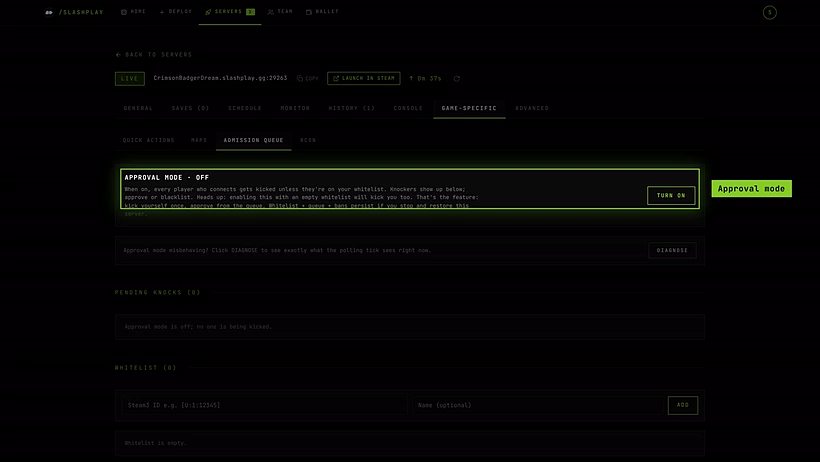
- A player connects to your server.
- SLASHPLAY checks their Steam ID against your whitelist, a few seconds after they join.
- If they’re not on it, the server bans them for the current run and kicks them with the message Awaiting host approval. The short ban stops them rejoining in a loop while you decide.
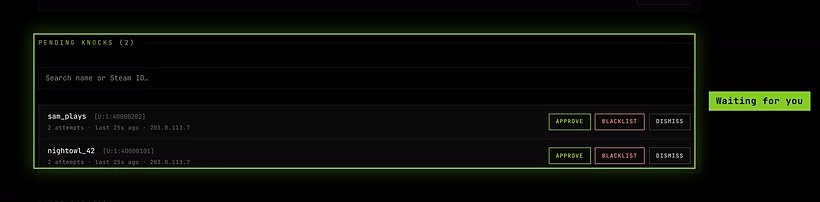
- They appear under Waiting to join with their name, Steam ID, number of attempts and when they last tried.
- You choose:
- Approve adds them to the whitelist and lifts the ban. They can reconnect straight away.
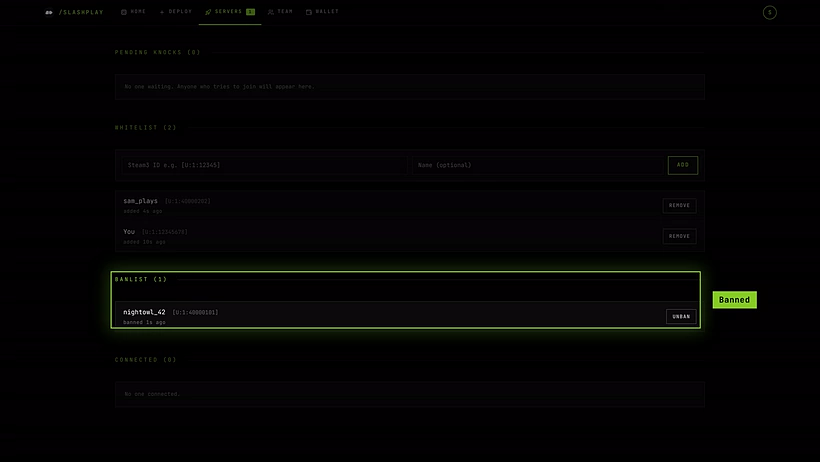
- Blacklist bans them for good and moves them to the Bans.
- Dismiss lifts the ban without whitelisting them. It means “not now”: if they connect again they knock again.
The panel refreshes every 5 seconds while it’s open.
Turn on approval mode
Steps
- Under Whitelist, add yourself and the players you already trust: paste a Steam3 ID such as
[U:1:12345]into Steam3 ID e.g. [U:1:12345], optionally type a Name, and click Add.
- At the top, turn on the Approval mode switch.
- Share the server as usual. Whitelisted players play normally; everyone else lands in the queue.
To stop checking players, turn the Approval mode switch off. Nobody is kicked while it’s off, and your whitelist and bans stay as they are.
Finding a Steam3 ID
The whitelist takes the [U:1:12345] form (the older STEAM_0:1:12345 form is accepted too). Find your Steam ID explains the formats and how to convert them. The easiest way to get someone’s ID is to let them knock once: their Steam3 ID is shown under Waiting to join and Connected, and Approve adds it for you. You can also run status in the Console tab while they’re connected; it lists every player’s Steam ID.
The panel, section by section
| Section | What it shows | Actions |
|---|---|---|
| Approval mode | Whether players are being checked. | The Approval mode switch |
| Diagnose | Approval mode misbehaving? Runs a check and shows exactly what SLASHPLAY sees on the server right now: the players it found, the whitelist, and who it would kick. | Diagnose |
| Waiting to join (n) | Everyone waiting, 10 per page, with attempts and last try. A search box (Search name or Steam ID…) appears when there are knocks. | Approve, Blacklist, Dismiss |
| Whitelist (n) | Everyone allowed in, with when they were added. | Add, Remove |
| Bans (n) | Everyone blacklisted, with when and why. | Unban |
| Connected (n) | Players on the server right now, with slot number and IP. Says Server isn’t live. when stopped. | Kick |
Kick on a connected player disconnects them with the message Kicked by host. It doesn’t ban them or change the whitelist.
It all survives a stop
The whitelist, the knock queue, the banlist and the approval mode setting belong to the server, not to one run of it. Stop the server, restore it days later, and the same rules are in force as soon as it’s live.
Approve from Discord
If your team has a Discord server connected, knocks can be posted there so you don’t need the dashboard open. In the event feed settings, tick CS2 join requests. Each knock is posted as a card, Players awaiting approval, with the player’s name, Steam ID and attempts, and three buttons: Approve, Ban and Dismiss. They do the same as the dashboard buttons.
See Announcements and event feed for setting up the feed.
Troubleshooting
I turned it on and got kicked. That’s the warning above: approve yourself under Waiting to join and reconnect, or add your Steam3 ID to the whitelist first.
Approval mode is on but nobody gets kicked. Click Diagnose and read the result. Check that the server is Live and that the player isn’t already on the whitelist. Players are checked a few seconds after they connect, not instantly.
An approved player still can’t get in. Give it a few seconds and have them reconnect. If they were blacklisted before, Unban them under Bans; approving a knock doesn’t undo an old ban.
Adding a Steam ID to the whitelist fails.
The whitelist wants [U:1:12345] (or STEAM_0:1:12345). The 17-digit 7656119… form isn’t accepted here. Let the player knock once and approve them instead.