 /SLASHPLAY
Sign in with Discord and Steam
Connect both Discord and Steam to your SLASHPLAY account, learn why Steam matters for CS2, and what unlinking a sign-in method does and doesn't change.
Read the transcript
This audio was created with Boson AI's Higgs Audio: boson.ai/higgs-audio
SLASHPLAY has no passwords of its own. You sign in with Discord or Steam, and you can connect both to the same account so either one gets you in. This page shows how to connect the second one, why it’s worth doing, and what happens if you unlink one later.
Discord or Steam: what’s the difference?
Both give you exactly the same SLASHPLAY account, with the same teams, servers and tokens. The difference is what else each one unlocks:
| Discord | Steam | |
|---|---|---|
| Sign in to slashplay.gg | Yes | Yes |
| Your Discord ID shown on the account page | Yes | No |
| Recognised by the SLASHPLAY Discord bot as you | Yes, once you link it with /link account | No |
Recognised in-game by your Steam ID, for CS2 !rcon | No | Yes |
Having both connected means you never get locked out if one of them has a problem, and every feature knows who you are.
Why Steam matters for CS2
On a CS2 server, players can type !rcon <command> in chat to run server commands while they play. The server only sees the player’s Steam ID, so it checks two things:
- whether that Steam ID has been given RCON access on the server’s Game-specific → RCON panel, or
- whether the SLASHPLAY account connected to that Steam ID has the Control permission on the server.
If your account has no Steam connected, the second check can’t find you, and the server answers No !rcon access here. Connect Steam, and team members with Control can use !rcon without anyone adding their Steam ID by hand. See CS2 RCON.
Why Discord matters
The SLASHPLAY Discord bot lets you start and stop servers with /server. If you link your account with /link account, the bot acts as you, with your own team permissions. That only works when the same Discord account is connected to your SLASHPLAY account: if you signed up with Steam, connect Discord first. See Link your account in Discord.
Connect your second sign-in method
-
Sign in to SLASHPLAY with the method you already use.
-
Click your avatar in the top right and choose Account.
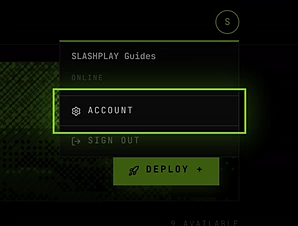
Account is in the avatar menu -
Under Sign-in methods, find the row that says Not connected (Discord or Steam) and click Connect.
-
Discord or Steam opens. Sign in there with the account you want to connect and approve it.
-
You’re sent back to the account page. The row now says Connected, with that account’s name and picture next to it.

From now on, Sign in with Discord and Sign in with Steam both open the same SLASHPLAY account.
Unlink a sign-in method
You can disconnect Discord or Steam as long as the other one stays connected.
- Open Account from your avatar menu.
- Under Sign-in methods, check the name and picture next to the one you want to remove. That’s the exact Discord or Steam account you’re about to disconnect.
- Click Unlink, then confirm with Unlink Discord (or Unlink Steam). Click Keep it if you change your mind.
The row switches to Not connected, with a Connect button to add it back.
You need at least one sign-in method
If only one method is connected, its Unlink button is greyed out and the row says You need at least one sign-in method. Otherwise you’d have an account nobody could sign in to. Connect the other method first, then unlink.
What unlinking changes
- You can no longer sign in with that Discord or Steam account.
- If you unlink Steam, CS2 servers stop recognising your Steam ID as you for
!rcon, unless your Steam ID was granted access directly on the server. - If you unlink Discord, your Discord ID disappears from the account page, and you can’t link the Discord bot to your account with
/link accountuntil you connect Discord again.
What unlinking doesn’t change
Unlinking only removes the connection. It doesn’t touch:
- your servers or their saves,
- your teams, roles or team memberships,
- your wallet or any team’s tokens,
- your purchase history.
How it works
Each SLASHPLAY account can hold one Discord account and one Steam account, and each Discord or Steam account can belong to only one SLASHPLAY account. SLASHPLAY never sees your Discord or Steam password: you approve the sign-in on their site and they tell SLASHPLAY who you are.
Your SLASHPLAY name and picture come from the account you signed in with, and are refreshed each time you sign in. If you sign in with Steam one day and Discord the next, your name follows.
Troubleshooting
“This Steam account is already linked to another SLASHPLAY account.” (Or the same message for Discord.) That Steam or Discord account already belongs to a different SLASHPLAY account, most often one created by accident by signing in with it while signed out. Accounts can’t be merged, so:
- Sign out, then sign in with the Steam (or Discord) account from the message. This opens the other SLASHPLAY account.
- If there’s anything on it you want to keep, move it first. For example, join a team your main account is on and deposit that account’s tokens there.
- Delete that account from its Account page. See Delete your account.
- Sign in with your main method and Connect the Steam (or Discord) account again. It works now.
The Unlink button is greyed out. It’s your only sign-in method. Connect the other one first.
I unlinked by mistake. Click Connect on the same row and sign in with the same Discord or Steam account. Nothing else was changed, so you’re back where you were.
!rcon in CS2 says I have no access, but I’m on the team.
Check that Steam is connected on your account page, and that it’s the same Steam account you’re playing on. Your role also needs the Control permission on that server. See Roles and permissions.