 /SLASHPLAY
Valheim admins, bans and the permitted list
Make yourself a Valheim server admin, ban players and turn on a whitelist by editing adminlist.txt, bannedlist.txt and permittedlist.txt with the file manager.
Read the transcript
This audio was created with Boson AI's Higgs Audio: boson.ai/higgs-audio
Valheim keeps three plain text lists next to your world: who’s an admin, who’s banned, and who’s permitted to join. On SLASHPLAY you edit them in the browser with the file manager, then restart the server. This page shows how, and what an admin can do in game afterwards.
Before you start
- The server must be live. The file manager shows the server’s files while it runs. See The file manager.
- The Control servers permission on the team, to edit files and restart. See Roles and permissions.
- Each player’s SteamID64, the 17-digit number that starts with
7656. See Find a SteamID64.
The three lists
All three sit in the server’s root folder, the one the file manager opens on, next to the worlds_local folder.
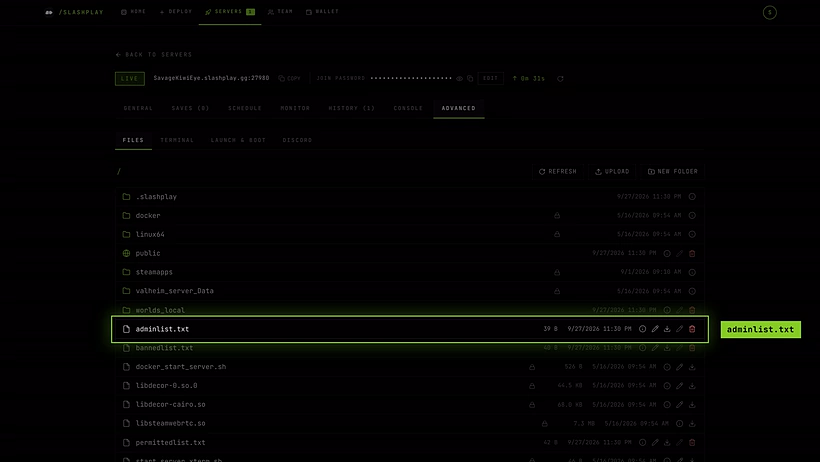
| File | What it does |
|---|---|
adminlist.txt | Players who can use admin commands in the game’s console, like kick and ban. |
bannedlist.txt | Players who can’t join. |
permittedlist.txt | If it has anyone on it, only those players can join. Empty means anyone with the address and password can join. |
Each file takes one SteamID64 per line. Lines starting with // are comments and are ignored.
// List admin players ID  ONE per line
76561198000000000
All three lists are part of every save, so they come back after every stop and restore. See What’s kept between runs.
Steps
-
Click Manage on your server’s card and open Advanced, then Files.
-
Click
adminlist.txt(or one of the other lists) to open it. -
Add each SteamID64 on its own line, below the comment. Save.
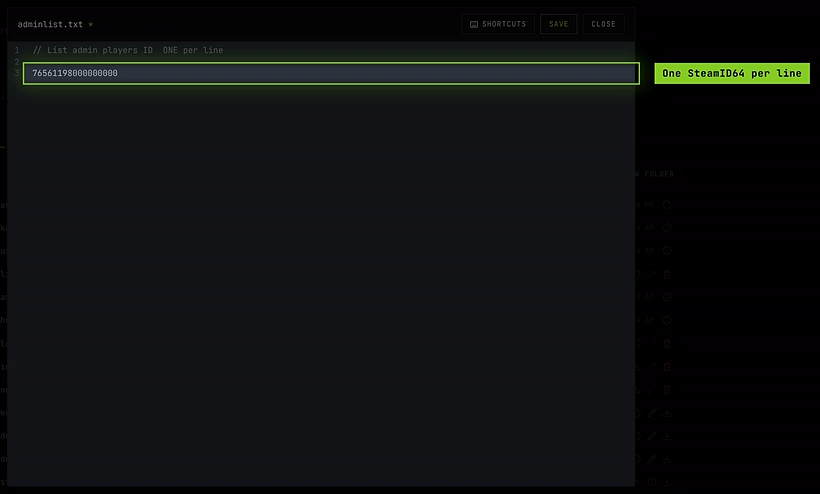
One SteamID64 per line, below the comment -
Go to the General tab and click Restart, so Valheim reads the lists fresh. The restart takes a moment and the address stays the same.
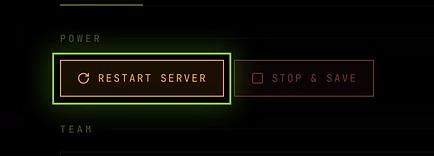
Restart, on the General tab -
Rejoin. As an admin, you can now use the admin commands below.
Find a SteamID64
- In Steam: click your name at the top right, choose Account details. Your Steam ID is shown under the account name.
- From a profile link: if the profile address looks like
steamcommunity.com/profiles/7656..., that number is the SteamID64. Profiles with a custom name in the address don’t show it; use the Account details route, or a SteamID lookup site. Find your Steam ID walks through all of it, with links to lookup sites.
Ask each friend to look up their own, it’s quicker than guessing.
Admin commands in the game
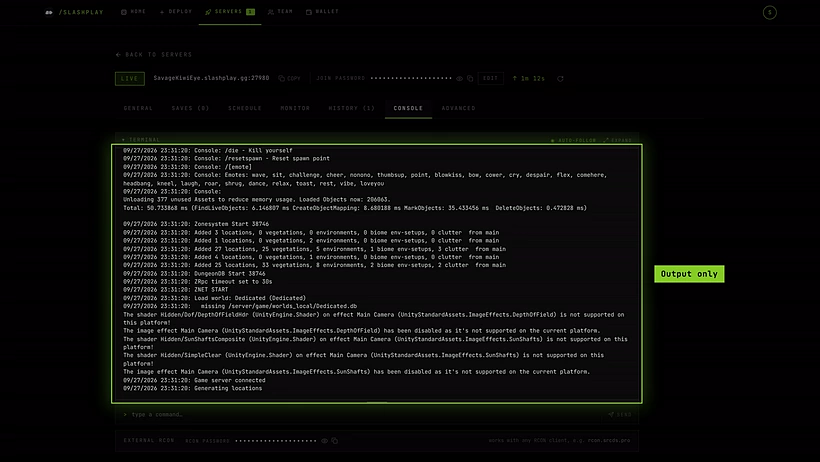
Admins use Valheim’s own in-game console. Press F5 while playing on the server. If nothing opens, add -console to Valheim’s launch options in Steam (right-click Valheim, Properties, Launch options) and start the game again.
| Command | What it does |
|---|---|
kick <name or ID> | Disconnect a player. They can rejoin. |
ban <name or ID> | Ban a player and add them to bannedlist.txt. |
unban <ID> | Lift a ban. |
banned | Show the ban list. |
save | Save the world now. |
help | List the commands you can use. |
Bans you make in game are written to bannedlist.txt, so they’re kept like the rest of the list.
Good to know
- The password stays. Valheim requires a join password, and every SLASHPLAY Valheim server has one. The permitted list is an extra layer on top: only listed players, and only with the password. See Join passwords.
- Steam players only. The server runs without crossplay, so the lists hold SteamID64s, and players need the Steam version of Valheim.
- One world. The server runs the world named
Dedicated. The lists apply to the server, not to a particular world.
Troubleshooting
I’m in adminlist.txt but the commands say I’m not an admin.
Check it’s your SteamID64 (17 digits, starting 7656), on its own line and not behind //. Then restart the server and rejoin.
Nobody can join since I edited permittedlist.txt. Only listed players get in. Add everyone who should play, or empty the file (keep only the comment line) and restart.
The lists aren’t in the file manager. Valheim creates them on its first start. If the server has never finished starting, start it and wait until it’s Live.