 /SLASHPLAY
Bot commands
Every SLASHPLAY Discord bot command: /server to list, start, stop and restart servers, plus /play, /balance, /whoami and /link, with permissions and errors.
Read the transcript
This audio was created with Boson AI's Higgs Audio: boson.ai/higgs-audio
This is the reference for everything you can type to the SLASHPLAY bot in Discord. Most people only ever need /server list, /server start, /server stop and /server join. Each command below says what it does, who sees the reply, and which permission it needs. Permissions come from your Discord roles (see Who can use it), from your own SLASHPLAY account if you’ve linked it (see Link your account), or both.
All commands at a glance
| Command | What it does | Who sees the reply | Needs |
|---|---|---|---|
/server list | Shows your servers as cards, live ones first | Only you | SEE SERVERS |
/server status name | Posts one server’s card: status, size, cost, address, who started it | Everyone in the channel | SEE SERVERS |
/server join name | Posts a Join card with the address, password and Connect to server button | Everyone in the channel | SEE SERVERS |
/server start name | Starts a stopped server from its latest save | Only you | START |
/server stop name | Saves the world, then stops the server | Only you | STOP and EDIT SAVES |
/server restart name | Restarts a running server | Only you | CONSOLE AND SETTINGS |
/server console name command | Sends a console (RCON) command and shows the reply | Only you | CONSOLE AND SETTINGS |
/server logs name | Links to the server’s live console on the dashboard | Only you | A SLASHPLAY account on the team to open it |
/play | Links to the dashboard and explains what you can do here | Only you | Nothing |
/balance | Shows your team’s token balance | Only you | A linked account |
/whoami | Shows which SLASHPLAY account you’re linked as | Only you | Nothing |
/link account | Links your SLASHPLAY account to your Discord account | Only you | Nothing |
/link logout | Unlinks it and revokes the bot’s access | Only you | A linked account |
Replies marked only you are private messages from the bot that disappear when you dismiss them.
/server
Every /server subcommand except list has a required name option. You don’t type the name from memory: pick it from the suggestions (see Picking a server).
Typical commands look like this:
/server start name: GrandOspreyFeather
/server join name: GrandOspreyFeather
/server console name: GrandOspreyFeather command: say hi
/server stop name: GrandOspreyFeather
/server list
Shows up to five servers as cards, live ones first, each with its status, game, size, hourly cost, address and an Open dashboard button. With more, the last line says Showing 5 of 12 servers and suggests typing a name in /server status to find the rest. Inside a connected Discord server it also says whose servers can be used there: SLASHPLAY is connected to this Discord. Only Klub Gaming’s servers can be used here.
/server status and /server join
Both post a card in the channel for everyone. Status shows whether the server is up, who started it and, if it has a run limit, when it stops. Join shows the address under Connect, the join password under Password if it has one, and a Connect to server button for Steam console games (CS2, Counter-Strike: Source, Counter-Strike 1.6, Team Fortress 2, Garry’s Mod). If the server isn’t live, the Join card says so and suggests /server start.
/server start
Brings a stopped server back from its latest save, like Start on the dashboard. You get a private Starting card with a progress bar, which turns into the Join card once the server is live. If the same channel also gets the team’s live announcement, your private card is removed in favour of the public one.
- If the server is already running, you get its Join card, with a reminder to use
/server restartor/server stop. - The team needs at least one hour of tokens for that server, as on the dashboard.
- It never deploys a brand-new server. New servers are created on the dashboard.
/server stop and /server restart
Stop saves the world, then shuts the server down. There’s no confirmation and no “stop without saving”. The Stopping card changes to This server has stopped. Start it again with /server start. once it’s down. Restart restarts a running server in place, keeping its address, with a Restarting progress card.
/server console and /server logs
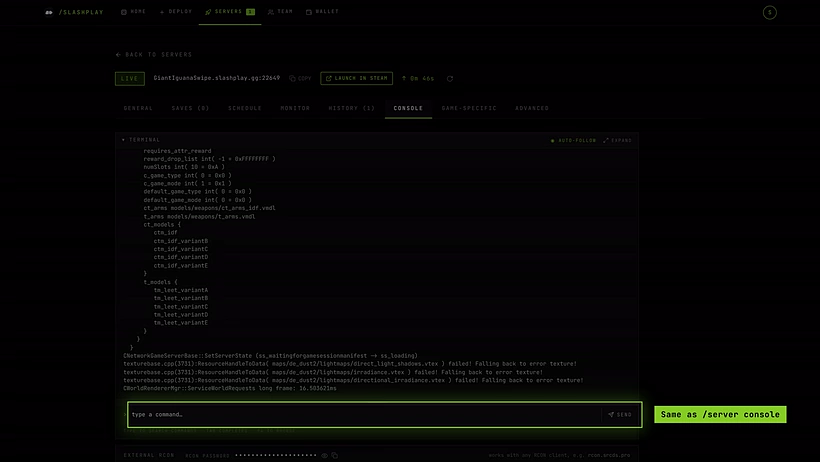
Console sends one command to the server’s console, exactly as on the dashboard’s Console tab, and shows the reply privately. Commands that would shut the server down, like quit, are blocked with a hint: use /server restart or /server stop instead. See The console.
Logs replies with a link to the server’s live console on the dashboard. Its optional tail option doesn’t change the reply. Opening the link needs a SLASHPLAY account with access to the team.
Other commands
/play
Opens a private Your servers, in Discord message with Open dashboard and Bot guide buttons, and a summary of what you can do from Discord. It’s the command to point new members at. It doesn’t create or start anything.
/balance
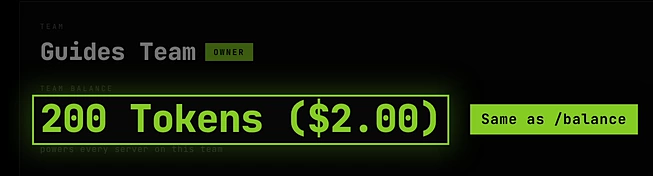
Shows Team token balance privately: how many tokens your team has, a Top up button and Open dashboard. It needs a linked account and shows the team you last opened on the dashboard’s Team tab. Top up opens your Stripe billing portal; to buy tokens, use the Wallet tab on the dashboard. See Buy tokens.
/whoami
Shows which SLASHPLAY account you’re linked as, what access you gave the bot, and whether this Discord server is connected to a team. Without a linked account it tells you so, and reminds you that /server list may still work through your roles.
/link account and /link logout
Link or unlink your own SLASHPLAY account. See Link your account.
Right-click menus
Two actions live in Discord’s right-click menu, under Apps. Both need a linked account.
- SLASHPLAY profile (right-click a person): shows their SLASHPLAY name, role and team, or No SLASHPLAY profile yet if they’ve never signed in.
- Use as RCON command (right-click a message): opens a form with the message text as the Command and a Server instance ID field. Copy the ID from the server’s page address on the dashboard, the part after
/dashboard/servers/. The command runs like/server console, so you need CONSOLE AND SETTINGS on that server.
Picking a server
When you type the name option, Discord shows suggestions from SLASHPLAY:
- Each suggestion shows the server’s name and status, like CS2 · ready, with the team’s name added when you have servers on several teams.
- Live servers come first. Up to 25 are shown; type part of a server, team or game name to narrow the list.
- You only see servers you can actually use for that command:
/server startonly offers servers you may start,/server consoleonly servers you may control. - If the suggestions come up empty, SLASHPLAY didn’t answer in time. Type another letter to try again.
Always pick a suggestion rather than typing a name by hand: the bot identifies the server by the suggestion you chose.
Common replies and errors
| Reply | What it means | What to do |
|---|---|---|
| You don’t have access to any SLASHPLAY servers here yet. | None of your roles has access, and you haven’t linked an account. | Run /link account if you have one, or ask a team admin to enable your role. |
| This channel doesn’t have SLASHPLAY access. | The team only allows /server in certain channels. | Use the channel your server admins set up for it. |
| No servers to show yet | You have access, but the team has no servers. | A team admin creates one on the dashboard. |
| Server unavailable | The server was deleted, you picked a stale name, or you lost access. | Pick it again from the suggestions or /server list. |
| Start permission needed | Your roles let you see the server but not start it. | Ask a team admin for PLAYER access. |
| Your Discord role doesn’t allow… | Your roles don’t include that permission. | Ask a team admin to check your role under Team → Discord. |
| No save to resume | The server has never been saved, so there’s nothing to start from. | Create a new server on the dashboard. |
| Your account connection is missing or has expired. | Your linked account needs linking again. | Run /link account. |
| Connect to use this action | A button like Restart needs a linked account. | Run /link account, then click the button again. |
Troubleshooting
The commands don’t appear when I type /.
The bot isn’t in this Discord server, or the server’s admins have limited which roles can use app commands in Discord’s own Integrations settings.

/server start says “Something went wrong on the server.”
A common cause is the team having less than an hour of tokens for that server. Ask someone with a linked account to check /balance, or look at the team on the dashboard, and deposit tokens. See Fund a team.
/balance replies “This bot token is not authorized for this operation”.
Check the balance on the dashboard instead: open the team on the Team tab, where Team balance is at the top.
/server list shows a different team’s servers than on the dashboard.
Inside a connected Discord server, only the teams connected to it are shown. Your other teams’ servers are available from a DM with the bot or on the dashboard.