 /SLASHPLAY
Upload your own Minecraft world
Bring a singleplayer world or one from another server to your SLASHPLAY Minecraft server: zip it, upload it, replace the world folder and restart.
Read the transcript
This audio was created with Boson AI's Higgs Audio: boson.ai/higgs-audio
Already have a world you love, from singleplayer or from another server? You can move it onto your SLASHPLAY Minecraft server and keep playing there with friends. You upload it with the file manager, swap it in for the server’s world, and restart. It takes ten minutes or so, most of it uploading. Read the whole page once before you start: the order of the steps matters.
Before you start
- The server must be live. The file manager works while the server runs. See The file manager.
- The Control servers permission on the team, for the files, the console and the restart. See Roles and permissions.
- A world from the same Minecraft version as the server, or an older one. Minecraft upgrades older worlds when it opens them, but it can’t open a world from a newer version. The upgrade can’t be undone, so keep your original copy. See Paper or Vanilla?.
- Everyone off the server, including you, while you swap the world.
Find your world
- Singleplayer: in Minecraft, select the world, click Edit, then Open World Folder. That folder, with
level.datinside, is your world. - Another server: the world folders sit in the server’s main folder, usually
world, and on Paper or Spigot alsoworld_netherandworld_the_end.
Close Minecraft (or stop the other server) before copying, so the world isn’t being written to.
How the folders fit
Your SLASHPLAY server always plays the folders named world, world_nether and world_the_end in its main folder. Those are the ones saved when it stops.
- Singleplayer and Vanilla worlds are one folder. The Nether and the End are inside it, in
DIM-1andDIM1. - Paper and Spigot keep the Nether and the End in separate folders,
world_netherandworld_the_end.
What that means for you:
| Your world | Server | What to upload |
|---|---|---|
| Singleplayer, or from a Vanilla server | Vanilla (latest) | The one folder, as world. |
| Singleplayer, or from a Vanilla server | Paper | The one folder, as world, and delete the server’s world_nether and world_the_end. On its first start, Paper is built to move the Nether and End out of world into those two folders. It only does that if they don’t exist yet. |
| From a Paper or Spigot server | Paper | All three folders, with the same names. |
Steps
-
Take a backup. On the Saves tab, click Take backup now. If anything goes wrong, you can go back to it with Restore. See Saves and backups.
-
Zip your world. On your computer, rename the world folder to
worldif it has another name (singleplayer worlds are named after the world). Then zip the folder itself (not the files inside it), so the zip holds one folder. For a Paper world, zip all three folders together. -
Stop Minecraft from saving. Open the Console tab and run
save-off. This stops the running server from writing its current world to disk while you swap folders.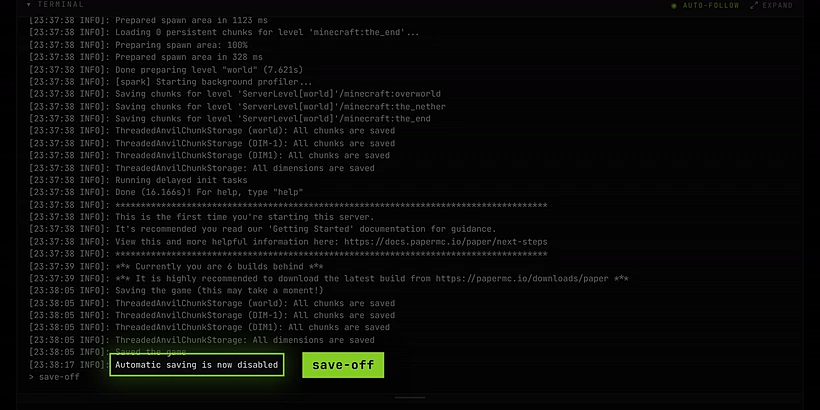
save-off: the running server stops writing its world -
Delete the old world. In Advanced → Files, open
world’s More actions menu and click Delete folder. If the table above says so, also deleteworld_netherandworld_the_endthe same way.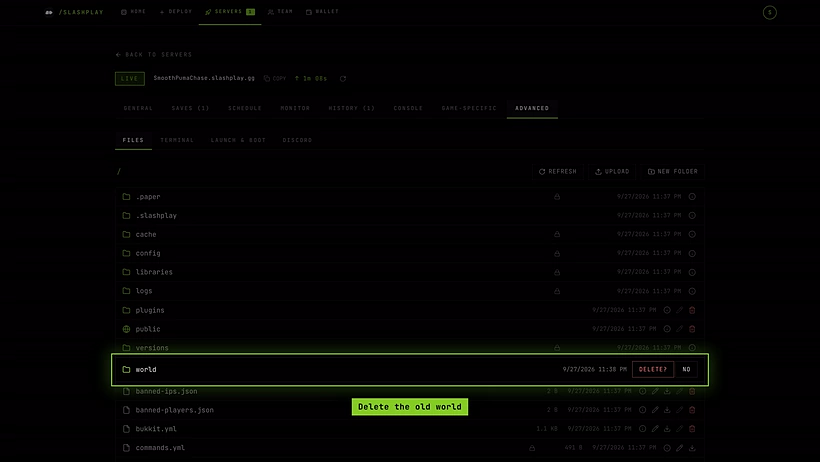
Delete the old world folder -
Upload your zip to the main folder with Upload, or drag it onto the file list. Uploads can be up to 4 GB. Then open its More actions menu and click Extract here.

Extract here unpacks the zip where it is 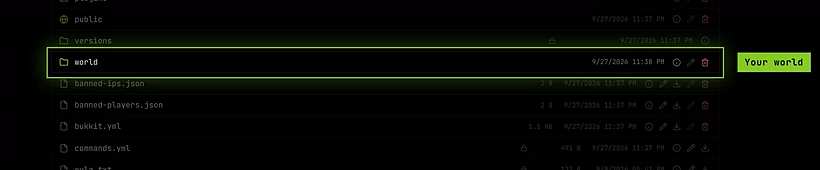
Your world, extracted as world -
Check the folder. The extracted folder must be called exactly
world, withlevel.datdirectly inside it, not one folder deeper. A folder with another name comes out of the zip locked, so the file manager can’t rename it: rename the folder on your computer, then zip and upload it again. The wrongly named copy isn’t part of your save, so it’s gone after the next stop.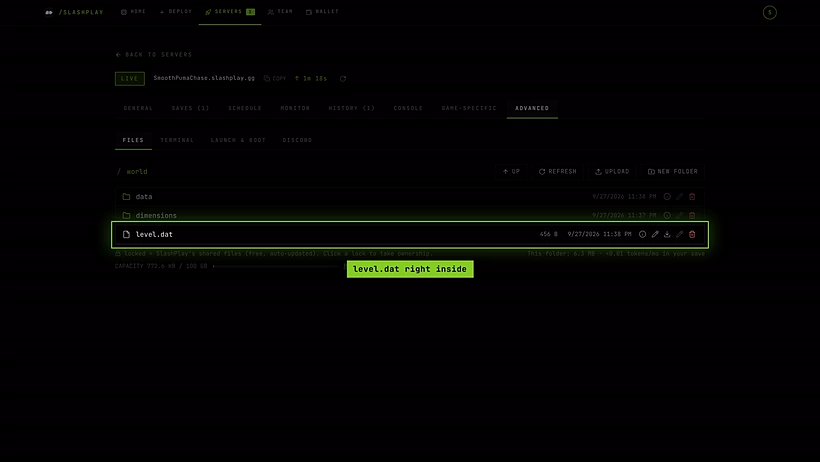
level.dat sits directly inside world -
Delete the
.zip, so it doesn’t take up storage. -
Restart. Go to the General tab and click Restart. Don’t run
save-allor join before this: the old world is still in the server’s memory until the restart. Minecraft starts with your world, and saving is back on automatically. -
Join and check. Visit your base, the Nether and the End.
What happens next
Your world is part of the server’s save from now on. It’s saved on Stop and comes back on Start, like the world the server made itself. A world’s save counts toward storage at 1 token per GB per month, and big explored worlds can be a few GB. See Storage costs.
Troubleshooting
The server made a brand-new world instead of mine.
The world wasn’t where Minecraft looks. Check that the folder is called exactly world and that level.dat is directly inside it. Also check that level-name in server.properties is still world. Then repeat from step 3.
My singleplayer inventory is gone.
In singleplayer, your character is stored in a different place from a server’s players, so on a server you usually start fresh at spawn. Give yourself items back with the console, for example give YourName diamond_pickaxe, or use creative mode for a moment.
The Nether or End is brand new on Paper.
The server’s own world_nether or world_the_end still existed when it started, so Paper didn’t move yours over. Go back to your backup and repeat, deleting both folders in step 4.
The server crashes on start. The world is probably from a newer Minecraft version than the server, or damaged. The crash box on the server page shows the last output. Go back to your backup with Restore on the Saves tab.
Players say the server is outdated. That’s about their game, not the world. See Paper or Vanilla?.