 /SLASHPLAY
What's kept between runs
When a server stops, SLASHPLAY saves only each game's kept folders and the files you own. See what's kept for every game, what resets, and what it costs.
Read the transcript
This audio was created with Boson AI's Higgs Audio: boson.ai/higgs-audio
A SLASHPLAY server doesn’t keep its whole disk when it stops. It keeps your part: the world, the configs and the add-ons that make it your server. Everything else is the standard game install, which comes back fresh and up to date on the next start. This page explains the rule, lists exactly what’s kept for every game, and shows how to keep a change that would otherwise be lost.
How it works
When a server stops (with Stop, a schedule, the maximum run time or an empty balance), SLASHPLAY packs up two things into its save:
- The game’s kept folders and files. Every game has a fixed list of them, shown in the table below. They’re always saved, whatever you change inside them.
- Anything you own. Folders and files you took ownership of in the file manager, and anything new you uploaded or created with the file manager outside the kept folders (new uploads are yours automatically).
On the next start, the server gets a fresh copy of the standard game install, then your save is unpacked on top of it. So:
- Your stuff comes back. World, configs, plugins, maps: whatever sits in a kept folder or a folder you own.
- Everything else resets. A change to a game file outside those places, for example an edit made from the terminal, is gone after the next stop.
- Game updates land for free. Because the rest of the install is fresh on every start, it’s always the latest version we have. See Game updates.
The file manager shows this at a glance: files with no padlock are part of your save, a closed padlock means SlashPlay’s shared files (these reset), and an open padlock is a folder you own. See File manager.
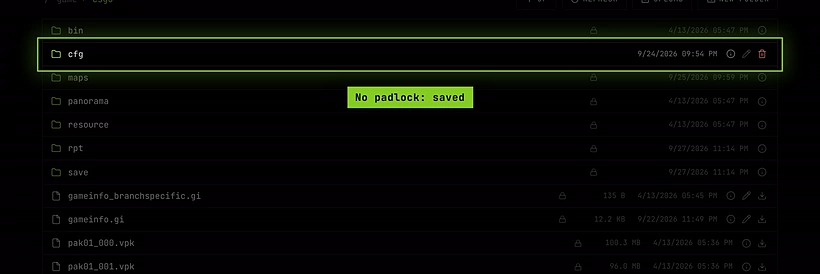
What’s kept, per game
Paths are relative to the server’s root folder, the one the file manager opens on. Every game also keeps the public folder, whose files have their own share links (see Public files).
| Game | Kept between runs |
|---|---|
| CS2 | game/csgo/cfg, game/csgo/addons, game/csgo/maps/workshop, game/csgo/demos, game/csgo/logs, public |
| Counter-Strike: Source | cstrike/cfg, cstrike/addons, cstrike/maps, cstrike/logs, public |
| Counter-Strike 1.6 | cstrike/cfg, cstrike/addons, cstrike/maps, cstrike/logs, public |
| Team Fortress 2 | tf/cfg/server.cfg, tf/addons, tf/maps, tf/cfg/banned_user.cfg, tf/cfg/banned_ip.cfg, public |
| Garry’s Mod | garrysmod/cfg/server.cfg, garrysmod/addons, garrysmod/data, garrysmod/lua, garrysmod/cfg/banned_user.cfg, garrysmod/cfg/banned_ip.cfg, public |
| Minecraft: Paper (latest) and Paper 1.21 | world, world_nether, world_the_end, server.properties, bukkit.yml, spigot.yml, ops.json, whitelist.json, banned-players.json, banned-ips.json, plugins, public |
| Minecraft: Vanilla (latest) | world, world_nether, world_the_end, server.properties, ops.json, whitelist.json, banned-players.json, banned-ips.json, public |
| Palworld | Pal/Saved/SaveGames, Pal/Saved/Config/LinuxServer, public |
| Valheim | worlds_local, adminlist.txt, bannedlist.txt, permittedlist.txt, public |
What that means in plain words
- CS2. Your configs (everything in
cfg), plugins inaddons, downloaded Workshop maps, recorded demos and logs are kept. A change to a file anywhere else in the game folder is lost at the next stop unless you take ownership of it. - Counter-Strike: Source and Counter-Strike 1.6. Configs, the whole
addonsfolder (SourceMod, AMX Mod X and their plugins), custom maps and logs are kept. One catch on CS 1.6: the game reads itsserver.cfgfromcstrike/server.cfg, outside the keptcstrike/cfgfolder, so take ownership of it before you edit it. See CS 1.6 console commands. - Team Fortress 2. Your
server.cfg, custom maps,addons(for example SourceMod) and the ban lists are kept. Other files intf/cfg, such as a separate map config, are not, unless they’re new files you uploaded yourself or you take ownership of them. - Garry’s Mod. Your
server.cfg, addons, Lua files, thedatafolder (where addons like ULX store their settings) and the ban lists are kept. - Minecraft. The world (all three dimensions),
server.properties, the ops, whitelist and ban lists are kept. On Paper, so arebukkit.yml,spigot.ymland the wholepluginsfolder with every plugin’s config. Vanilla has no plugins, so there’s nothing more to keep. - Palworld. The world save and the server settings folder (with
PalWorldSettings.ini) are kept. - Valheim. Your worlds and the admin, ban and permitted lists are kept.
Keep a change outside the kept folders
If you need to change a file that isn’t in the list, take ownership of it (or of the smallest folder around it) in the file manager first:
- Open the server page, then Advanced → Files.
- Click Take ownership on the file or folder’s closed padlock.
- Check the size and monthly cost in the window, and click Take ownership.
- Make your change. From now on it’s saved with the server.
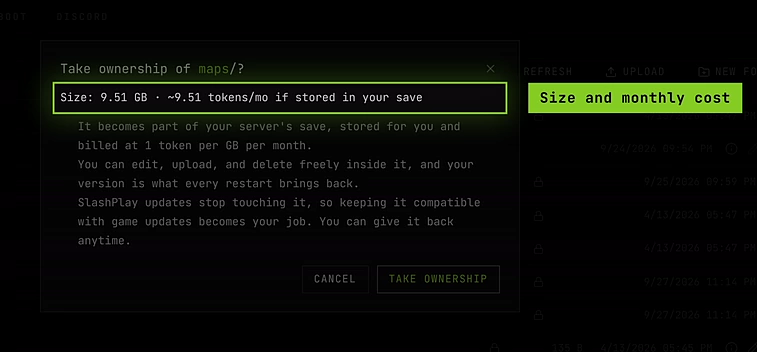
An owned folder no longer gets game updates: your copy is what comes back every time. If a game update later breaks it, give it back (the open padlock, then Give back) to return to the standard copy. See File manager.
Full Box: system changes are kept too
The rule above is about the game’s own folder. Changes you make to the rest of the container from the terminal, like packages installed with apt, tools, or edits in /etc and your home folder, are kept separately by Full Box, which is on for every server. The boot script, .slashplay/boot.sh, is kept as well. See Terminal and Full Box.
What it costs
Everything that’s kept is stored for you at 1 token per GB per month, charged from the team’s balance while the server exists. That includes the kept folders, the files you own, Full Box system changes and live public files. The standard game install is free, which is why SLASHPLAY keeps only what’s yours. A plain CS2 save is a few kilobytes; a big Minecraft world with plugins can be hundreds of megabytes. The Saves tab shows what a server stores. See Storage costs.

Troubleshooting
A file I changed is back to the original after a stop. It was outside the kept folders and you didn’t own it. Take ownership of it, then make the change again.
I uploaded a file with the terminal and it disappeared. Files created from the terminal inside the game folder aren’t claimed automatically. Upload through the file manager instead, or take ownership of the folder before you add files to it.
The file manager says At most 200 owned paths per server. Each file or folder you own counts once. Own a parent folder instead of many single files: taking ownership of a folder absorbs the owned items inside it.
My save got much bigger. Look for big folders you own, logs or demos piling up, or large Full Box installs. Delete what you don’t need, or give owned folders back.