 /SLASHPLAY
Install Paper plugins on your Minecraft server
Add Bukkit, Spigot and Paper plugins to a SLASHPLAY Minecraft server: upload the .jar with the file manager, restart, and edit the plugin's config.
Read the transcript
This audio was created with Boson AI's Higgs Audio: boson.ai/higgs-audio
Plugins add features to a Minecraft server without changing the game your players install: land claims, homes and teleports, ranks and permissions, grief rollback, and much more. On SLASHPLAY you install them yourself by uploading the plugin file, then restarting the server. It takes a couple of minutes, and your players don’t need to install anything.
Before you start
- Your server must run Paper. Plugins work on Paper (latest) and Paper 1.21. Vanilla (latest) doesn’t load plugins at all. See Paper or Vanilla?.
- Plugins, not mods. A plugin is a
.jarmade for Bukkit, Spigot or Paper. Forge, Fabric and NeoForge mods, and modpacks from CurseForge or Modrinth, don’t run on these servers. - The Control servers permission on the team, to use the file manager and restart. See Roles and permissions.
- The server running, so you can restart it and check the console afterwards.
Find a plugin
Download plugins from their official pages. The big places to look:
On the download page, check two things: that the plugin supports Paper (Bukkit and Spigot plugins usually do), and that it supports your server’s Minecraft version. You get a single .jar file. SLASHPLAY doesn’t review or support third-party plugins, so stick to well-known ones with recent updates.
Steps
-
Click Manage on your server’s card and open Advanced, then Files.
-
Open the
pluginsfolder. It sits in the server’s main folder, next toserver.propertiesand theworldfolders.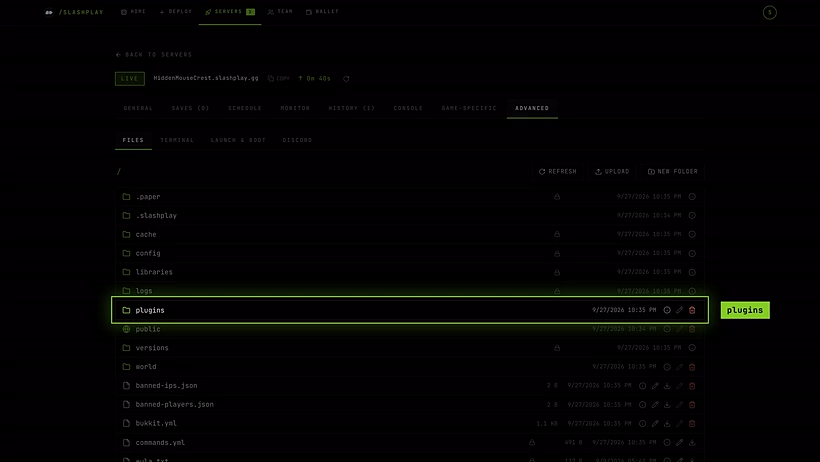
The plugins folder, in the server's main folder -
Click Upload and pick the plugin’s
.jar, or drag it onto the file list. You can upload several at once.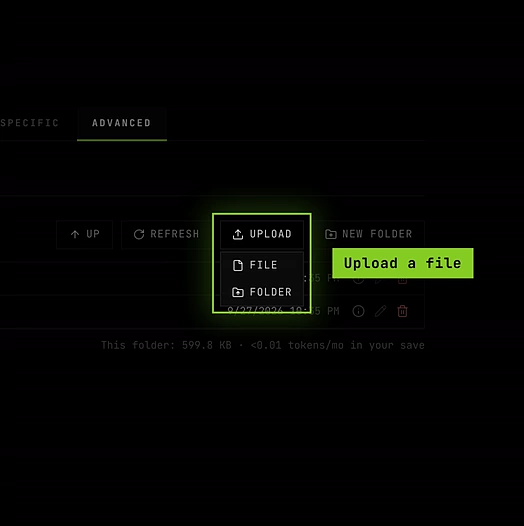
Upload, then File 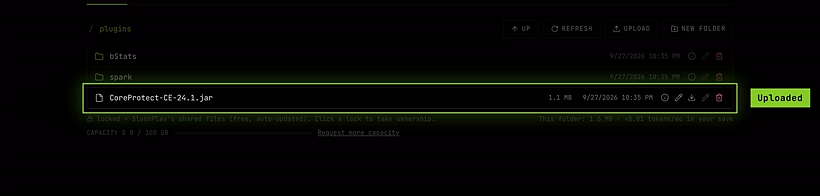
The jar, directly inside plugins -
Go back to the General tab and click Restart. The restart takes about 30 seconds, and the address stays the same.
-
Open the Console tab and watch the startup. Each plugin prints a line when it enables. Once the server is up, type
pluginsand click Send to list the plugins that loaded.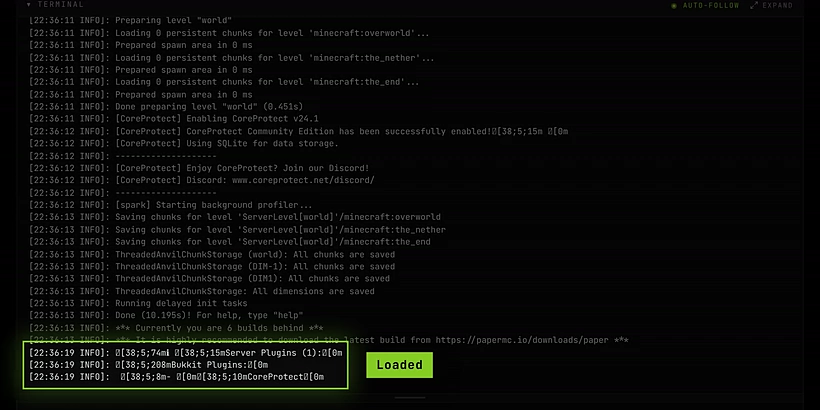
The plugin is loaded
Configure a plugin
Most plugins create a folder of their own inside plugins on their first start, such as plugins/EssentialsX/, with a config.yml inside. To change a setting:
- In Advanced → Files, open the plugin’s folder.
- Click the config file to open it in the editor. Make your change and save.
- Click Restart so the plugin reads the new settings.
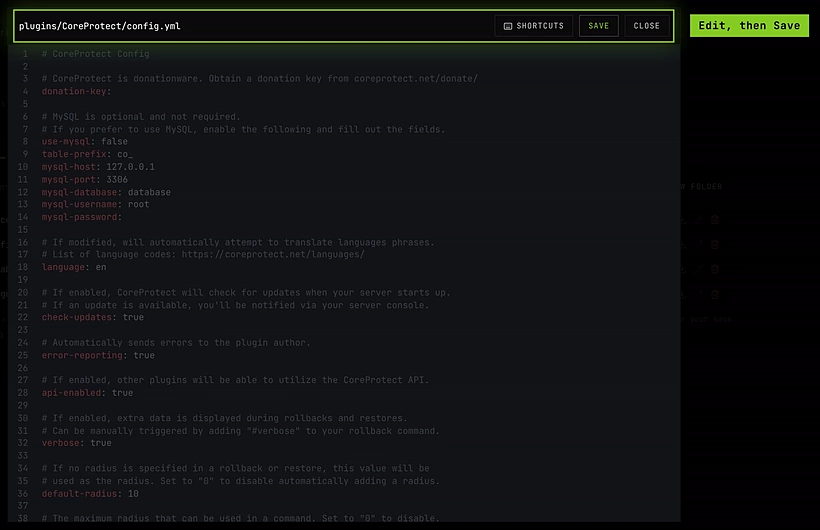
YAML files are picky about spaces: keep the indentation exactly as it was, and use spaces, not tabs. If a plugin stops loading after an edit, the console usually names the line it didn’t like.
What happens to plugins when you stop
The whole plugins folder, jars and configs, is part of your server’s save on the Paper versions. It’s saved on Stop and comes back on Start. Plugins count toward your save’s size, which costs 1 token per GB per month. Most plugins are small, but some (maps, logging plugins with big databases) grow over time. See Storage costs.
To remove a plugin, delete its .jar (and its folder, if you don’t want its data) in the file manager, then restart.
Troubleshooting
The plugin doesn’t show up in plugins.
Check that the .jar is directly inside plugins, not in a subfolder, and that you restarted afterwards. On a Vanilla server, plugins never load.
The console shows an error for the plugin. Scroll up in the Console tab to the error at startup. The usual causes are a plugin built for a different Minecraft version (download the version that matches your server), a missing dependency (the error names it), or a mod for Forge or Fabric uploaded by mistake.
The server crashes after I added plugins. Big plugin lists need more memory. If the crash box says the server ran out of memory, stop it, pick a bigger size, and restore. Otherwise remove the newest plugin and restart to find the culprit.
The plugin needs its own port. Players connect through the Minecraft address only. Plugins that expect players to open an extra port, like a web map served from the server, may not be reachable.