 /SLASHPLAY
Deploy a server
Launch any game server on SLASHPLAY: pick a team, version, region and size in the deploy window, see what it costs, and what happens after you click Deploy.
Read the transcript
This audio was created with Boson AI's Higgs Audio: boson.ai/higgs-audio
Deploying is how every SLASHPLAY server starts life. You pick a game, answer a few questions in the deploy window, and about a minute later you have a live server with its own address. This page explains every field in that window, what it costs, and what to do when something goes wrong.
Before you start
- An account. Sign in at slashplay.gg/dashboard with Discord or Steam. See Create your account.
- Tokens on your team. A server is paid for by the team it belongs to, and you need at least one hour’s worth of tokens on that team to deploy. The cheapest servers use 3 tokens an hour (1 token = $0.01). New accounts start with 6 tokens. See How tokens work.
- Permission to create servers, if the team isn’t yours. On your own personal team you can do everything. On someone else’s team, the owner decides; see Roles and permissions.
Steps
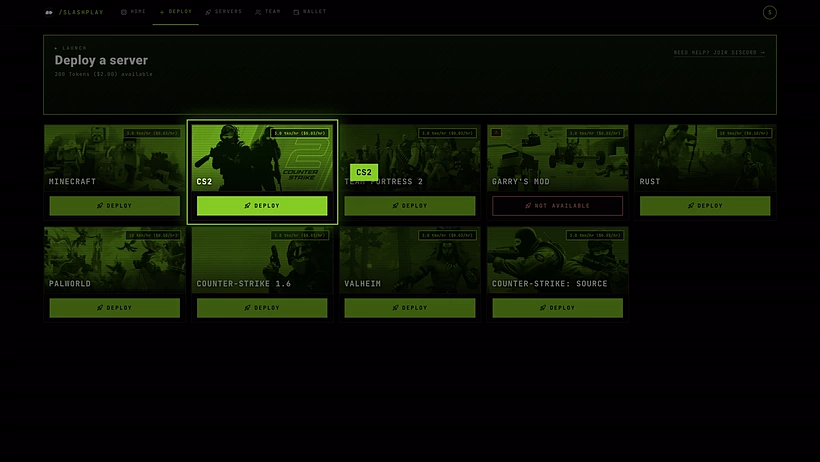
- Open the Deploy tab in the top bar of your dashboard. You can also click a game in the Game library strip on the Home tab, which opens Deploy with that game already picked.
- Find your game’s card. The badge in its corner shows its base price per hour, for example from 3 tokens an hour ($0.03).
- Click Deploy on the card. The deploy window opens.
- Fill in the fields (explained below). Most people only pick a size.
- Click the green button, which reads Deploy · 3 tokens/hr ($0.03) (the number is the hourly cost of the size you picked).
The deploy window
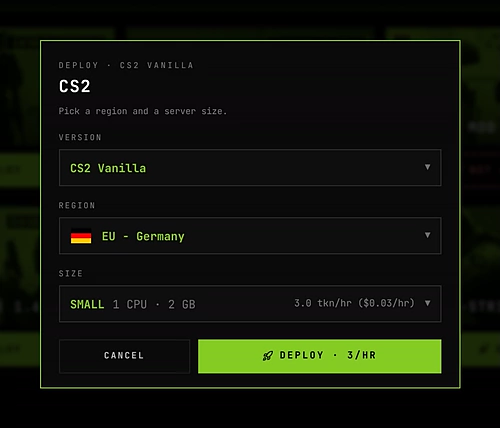
The window’s header shows Deploy and the game’s name. Below that are up to four fields. Fields that have nothing to choose are hidden.
Team. Only shown if you can deploy to more than one team. Each row shows the team’s balance. The team you pick owns the server and pays for it: a server belongs to the team, not to the person who clicked Deploy. The window remembers the team you used last. See Create and join teams.
Version. Only shown when a game comes in more than one flavour. Today that’s CS2, where CS2 Vanilla is the game as Valve ships it, and Minecraft, which offers Paper (latest) (the default), Vanilla (latest) and Paper 1.21. See Minecraft versions.
Region. Where in the world the server runs. The list has two groups: Live now, which today is EU - Germany, and Coming soon: pick one to vote. Picking a coming-soon region doesn’t deploy there; it opens a short vote form instead. Until you pick a live region, the button reads Pick a region. See Regions.
Size. How much CPU and memory the server gets: Small, Medium, Large or XLarge. Each row shows its price per hour. The window starts on the smallest size the game can run on, which is Small for most games. Sizes below a game’s minimum are greyed out, and a line under the list says what the game needs. See Server sizes for which to pick.
What it costs
You pay per hour while the server is live, from the team’s balance:
- The price is the one on the button, for example 3 tokens ($0.03) an hour for a Small CS2 server.
- Billing is exact to the fraction of a token: a 15-minute session at 3 tokens an hour costs 0.75 tokens.
- A server that crashes while booting costs nothing for the boot. When a boot succeeds, billing covers the time since you clicked Deploy. See Crashes and debug mode for the 30 minutes a crashed server stays open.
- When the team’s balance reaches 0, the server is saved and stopped automatically. It never goes into debt.
- After it stops, the saved files cost a small storage fee: 1 token per GB per month. See Storage costs.
Server names
There is no name field in the deploy window. Every server gets a random three-word name, like GrandOspreyFeather, which also becomes part of its address (GrandOspreyFeather.slashplay.gg). These names are easy to read out loud and to type.
You can give the server a display name later: open the server page and type in the Name field on the General tab. The name saves when you press Enter or click away. Renaming changes what you and your team see in the dashboard; it does not change the server’s address. See The server page.

When the team has no tokens
If the team’s balance is 0 or less, the green button reads Fund & deploy. Clicking it opens a Fund & launch window that shows the team’s balance and your personal wallet:
- If you have tokens in your wallet and may deposit into the team, type an amount (or click Max) and click Fund & deploy. The tokens move from your wallet to the team and the server deploys straight away.
- If your wallet is empty, click Buy tokens. See Buy tokens.
- If you don’t have permission to deposit into that team, the window says so. Ask the team owner to top it up.
If the team has some tokens but less than one hour’s worth for the size you picked, the deploy fails with Not enough tokens. You need at least N tokens (1 hour) to deploy. Pick a smaller size or fund the team.
What happens next
After you click Deploy, you land on the Servers tab. Your new server appears at the top of its team’s group with the status Starting, and a hint below it counts you through the boot, for example booting, usually live within a minute.

Behind the scenes, SLASHPLAY picks a machine in your region, starts the game in its own isolated container with the latest game files, gives it an address under slashplay.gg, and waits until the game actually answers before it shows Live. Then the card shows the address, Copy invite, an Invite page and Stop. From there:
Troubleshooting
The card says Updating… instead of Deploy. The game is being updated to its latest version. New deploys pause for a few minutes; try again shortly. If you try while an update starts, you’ll see is currently updating. Please try again in a few minutes.
The card says Not available. The game can’t be deployed right now, for example because its latest update failed. Existing servers aren’t affected. Ask on Discord if it lasts.
A red “Your server didn’t deploy” box appeared. The box shows the reason. Most causes are temporary; try again, and use Join Discord if it keeps happening.
The button says Pick a region. You haven’t picked a live region yet, or you picked a coming-soon region (which opens the vote form). Choose EU - Germany.
I see a “No tokens to deploy with” banner on the Deploy tab. Your team has no tokens. Click Buy tokens, then move them to the team. See Fund a team.