 /SLASHPLAY
Join passwords
Keep strangers off your server with a join password: turn it on, change it, apply it, and share it so friends still join with one click.
Read the transcript
This audio was created with Boson AI's Higgs Audio: boson.ai/higgs-audio
A join password means only people who know it can get onto your server. New servers start open (anyone with the address can join), except Valheim, which always needs a password. This page shows how to turn a password on, change it, and share it without making joining any harder for your friends.
Before you start
- A server you can manage. Turning the password on or off and changing it needs the Control servers permission. Anyone on the team can see the password, so view-only members can still join and invite. See Roles and permissions.
- Minecraft doesn’t use join passwords. See “Minecraft uses a whitelist” below.
Turn the password on
- Open the server page (Manage on its card) and stay on the General tab.
- Scroll to the Join password section. It reads Server is open; anyone can join.
- Turn on the Password protection switch. The text changes to Players need the password to join.
- Apply it:
- CS2, Counter-Strike: Source, Team Fortress 2, Garry’s Mod and Counter-Strike 1.6 take it on the running server at once: you’ll see In use on the running server now, no restart needed. Players already connected stay in.
- For other games, if the server is live, you’ll see Saved, but the running server still uses the old setting. Restart to apply it. Click Restart next to it. The restart takes about 30 seconds and keeps the same address.
- If the server is stopped, it applies the next time you start it.

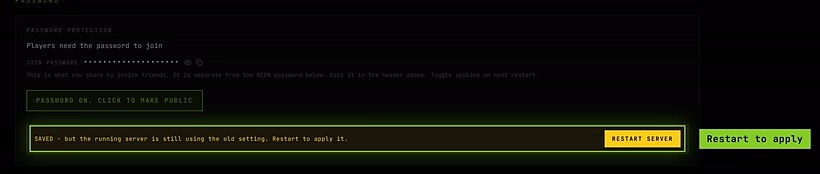
SLASHPLAY generates a random password for you, so there’s nothing to type. To turn protection off again, click the Password protection switch again.
Change the password
- At the top of the server page, find Join password next to the address. It’s masked, with a copy button.
- Click Edit. A new password field appears.
- Type the new password and press Enter (or Esc to cancel).
- You’ll see Saved, in use now (CS2, Counter-Strike: Source, Team Fortress 2, Garry’s Mod and Counter-Strike 1.6) or Saved, restart to apply for other games; restart it from the Power section on the General tab, or stop and start it again.
The Join password field is only shown while protection is on.

Password rules
| Rule | Why |
|---|---|
| At least 6 characters | Short passwords are easy to guess. |
Only letters, numbers, . _ - | Other characters break the connect command in some games. |
If a password breaks a rule, the field turns red and says At least 6 characters or Only letters, numbers, . _ -.

How players enter the password
You rarely need to tell anyone the password separately, because SLASHPLAY puts it into every way of joining:
- Copy invite on the server card, and Copy connect line on the invite page, copy the full console command with the password included, for Source and GoldSrc games (CS2, Counter-Strike: Source, Counter-Strike 1.6, Team Fortress 2, Garry’s Mod):
connect GrandOspreyFeather.slashplay.gg:30057; password yourpassword- Launch in Steam passes the password to the game for those same games.
- The invite page shows a Password field, so friends in other games can copy it.
- In Valheim and Palworld, the game asks for the password when you connect. Copy it from the invite page or the server card.
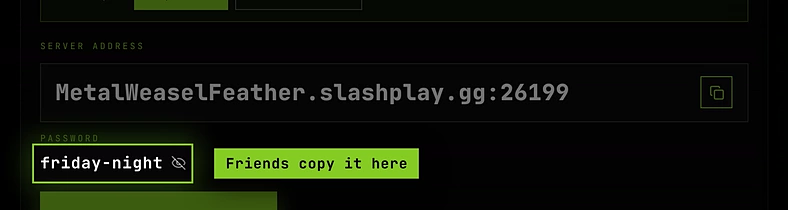
See Connect and invite friends.
Valheim always has a password
Valheim’s dedicated server won’t start without one, so Valheim servers always have a join password. The Join password section says Valheim requires a password, so it can’t be turned off, and the Password protection switch is locked on. You can still change the password itself (at least 6 characters, as above).
Minecraft uses a whitelist
Minecraft servers have no join password at all: the Join password section and the header field are hidden. To control who joins a Minecraft server, use its whitelist on the Game-specific tab. See Minecraft whitelist.
Join password vs RCON password
Many games also have an RCON password, in the RCON section of the General tab (for CS2, that section links to its RCON panel on the Game-specific tab). It’s a different thing:
| Join password | RCON password | |
|---|---|---|
| What it’s for | Letting players onto the server | Sending admin commands to the server remotely |
| Who needs it | Everyone who plays | Only admins using an RCON tool |
| Who can see it | Everyone on the team | Only members with Control servers |
| Safe to share with players? | Yes | No, never |
| How to change it | Edit in the header | Edit or Generate next to the RCON password |
Never give out the RCON password: anyone with it can run any command on your server. The server page keeps the two apart for exactly that reason. See The console and, for CS2, CS2 RCON.
Troubleshooting
My friends get a wrong password error after I changed it. Unless it’s CS2, Counter-Strike: Source, Team Fortress 2, Garry’s Mod or Counter-Strike 1.6 (instant), the server may still be using the old one until you restart it. Either way, have them copy the connect command again.
I turned the password on but people still join without it. For most games, protection only applies after a restart: look for the Restart to apply it message and click Restart. CS2, Counter-Strike: Source, Team Fortress 2, Garry’s Mod and Counter-Strike 1.6 apply it at once instead.
I can’t click the Password protection switch or Edit. You don’t have the Control servers permission on this team. Ask a team admin.
There’s no Join password section on my server. It’s a Minecraft server. Use the whitelist instead.