 /SLASHPLAY
Join and connect to a CS2 server
Every way into your CS2 server: Launch in Steam, the invite page, and the developer console with connect and password, plus fixes for common connection errors.
Read the transcript
This audio was created with Boson AI's Higgs Audio: boson.ai/higgs-audio
This page covers every way you and your friends can get into a SLASHPLAY CS2 server, and what to do when one of them doesn’t work. You need a server that shows Live and CS2 installed through Steam. Your friends don’t need a SLASHPLAY account.
If you haven’t started a server yet, do that first: Start your first CS2 server.
The three ways in
| Way | Best for | What it needs |
|---|---|---|
| Launch in Steam | You, on the computer you play on | Steam running, one browser prompt the first time |
| Invite page | Friends | Nothing. They open the link and click one button |
| Developer console | When Steam links don’t work | The console turned on once in CS2’s settings |
You don’t need the in-game server browser at all. Your server has its own address, and every method below goes straight to it.
Launch in Steam
On your server card (or at the top of the server page), click Launch in Steam. Steam starts CS2 if it isn’t running and joins your server. If the server has a join password, the link already carries it, so you won’t be asked.

The first time, your browser asks whether it may open Steam. Tick Always allow and click Open Steam. From then on every Steam link opens without asking.
The invite page
Click Invite page on the server card. A new tab opens with your server’s invite page: copy its URL from the address bar and send it to your friends.
When a friend opens it on a computer, the page tries to launch CS2 for them straight away, and shows Launching CS2 with a Did it open? check (Yes, I’m in or Nothing happened). It only tries this automatically once per server address, so reloading the page won’t keep firing Steam at them. The page also offers:
- A big Launch in Steam button to try again.
- Copy connect, the full console command, ready to paste.
- Steam not working? Join from the in-game console, a three-step guide with the command to paste.
- The server address, and the password when one is set.
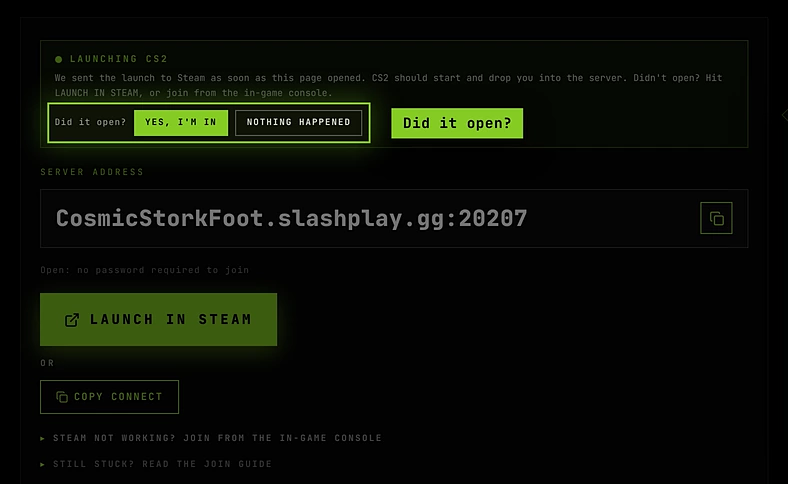
If the server is still starting, the page says Server is booting; give it 30–60 seconds. and updates itself. If a friend opens it on a phone, it tells them to open the invite on the computer they play on, because CS2 launches from Steam on a PC.
Join from the developer console
This always works, even when Steam links don’t.
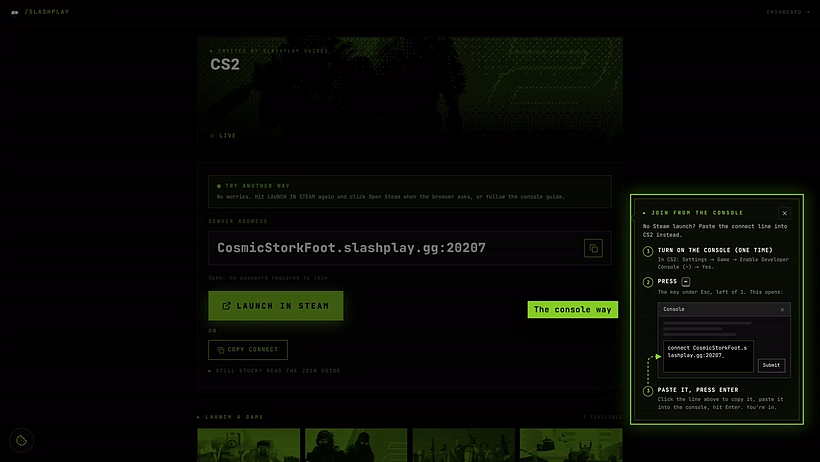
Steps
- Turn on the console (one time). In CS2 open Settings → Game → Enable Developer Console (~) and set it to Yes.
- Copy the connect command. Click Copy next to the address on your server card, or Copy connect on the invite page.
- Open the console. Press ~, the key under Esc and left of 1.
- Paste it and press Enter. CS2 connects.
The copied command looks like this for an open server:
connect GrandOspreyFeather.slashplay.gg:20784And like this when a join password is on. The part after the semicolon sends the password before connecting:
connect GrandOspreyFeather.slashplay.gg:20784; password yourpasswordYou can type either by hand if you know the address and password. The address is the server’s name, .slashplay.gg, a colon and the port. The port is part of the address: without it, CS2 tries the wrong port and never finds your server.
Join passwords, in short
A new CS2 server is open: anyone with the address can join. To make it private, open the server page, and on General under Join password, turn on the Password protection switch. It takes effect on the running server right away, no restart needed.
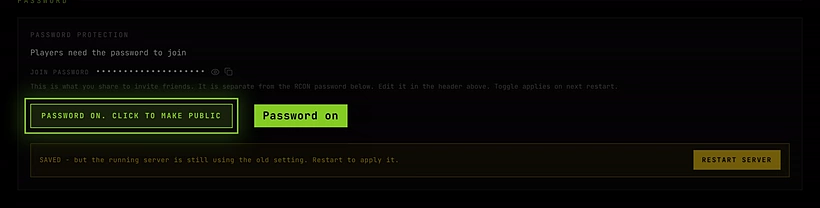
Passwords need at least 6 characters, using only letters, numbers, ., _ and -. The join password is separate from the RCON password, so sharing it with friends gives them nothing more than a seat. Full details: Join passwords.
Troubleshooting
Launch in Steam does nothing. Steam probably isn’t running, or your browser blocked the prompt. Start Steam, click again, and pick Open Steam when asked. If it still does nothing, use the console method above.
The console key does nothing. The console is off until you enable it in Settings → Game. On some keyboard layouts the key under Esc is labelled differently; it’s still the one left of 1.
CS2 says the password is wrong, or asks for one. Copy the connect command again from the card: it always includes the current password. Turning the password on or changing it takes effect on the running server right away, so a stale copied command is the usual cause.
Connection times out or the server isn’t found. Check that the server card says Live and that you’re using this run’s address. Addresses change on every restore, so an old link or a command from yesterday points to nowhere. Copy it fresh.
I get kicked right after joining with “Awaiting host approval”. The server has approval mode on. The owner has to approve you in the Admission queue.
It connects, then drops while loading a map. If the server is on a Workshop map, CS2 downloads it for you first, which can take a while for big maps. Wait, or try again once the download finishes. See Workshop maps.
Players say the server is on an old version. When Valve ships a CS2 update, a server that was already running keeps the version it started with. Stop it and restore it to pick up the new files. If the game card in Deploy shows Updating…, wait until it’s done.