 /SLASHPLAY
Your server, step by step.
Everything you need to run game servers on SLASHPLAY, from starting your first server and inviting friends to RCON, schedules and Discord automation.
Popular Saves and backupsJoin passwordsFind your Steam IDWhitelistRCON
New to SLASHPLAY? Go in this order.
- 1 What is SLASHPLAY? SLASHPLAY runs game servers on demand: pick a game, deploy in a minute, pay a few cents per hour while it's live, and save and stop it when you're done.
- 2 Create your account Sign in with Discord or Steam to create your SLASHPLAY account. You get a personal team with 6 free tokens, enough for about two hours of play.
- 3 Your first server Get any game server live on SLASHPLAY in six steps: pick a game, choose a size, deploy, invite your friends, then save and stop it when you're done.
- 4 Connect and invite Find your server's address, join with one click through Steam or a copied connect command, and share an invite page your friends can use without an account.
- 5 Start, stop and restore What each server status means and when you pay, how Save & Stop and Restore work, how to start from an older save, and what a server keeps between runs.
Every game has its own start guide.
Pick a goal.
Play with friends
Keep your world safe
Spend less
Take control
Run it from Discord
Rather watch?
 What is SLASHPLAY? 1:04
  Create your account 1:09
  Your first server 1:57
  Connect and invite 2:02
  Start, stop and restore 1:44
  Getting started 1:04
  Join a friend's server 1:48
  Dashboard tour 1:28
 Show all 86 video guides
 Deploy a server 1:55
  Server sizes 1:44
  Regions 1:48
  Join passwords 1:45
  The server page 1:56
  Saves and backups 1:23
  What's kept 1:40
  Schedules and auto-stop 1:17
  Game updates 1:41
  Console 1:26
  File manager 1:54
  File scripts 1:03
  Mods and plugins 1:52
  Public files 1:27
  Monitor and history 1:30
  Terminal and Full Box 1:29
  Launch options 1:31
  Delete a server 1:15
  Troubleshooting 1:55
  Minecraft 2:39
 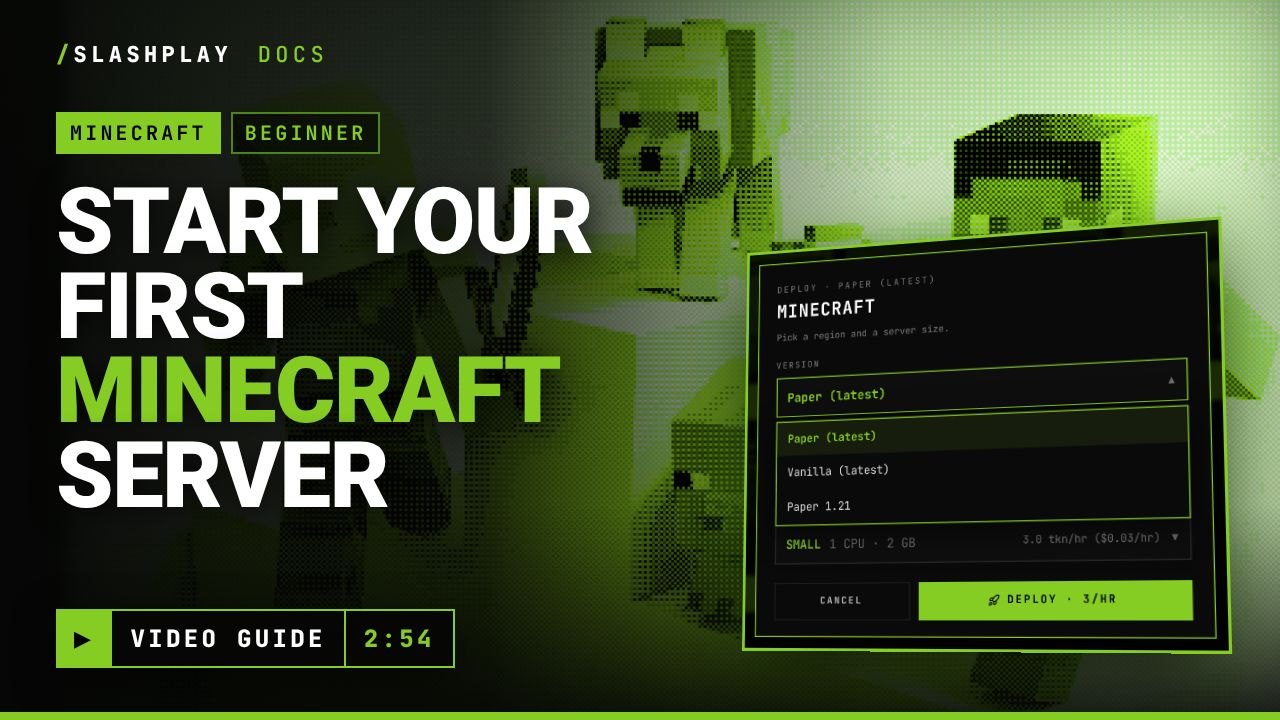 Start a server 2:39
  Versions 1:57
  Whitelist 1:57
  Plugins 1:49
  server.properties 1:54
  Console commands 1:38
  Upload your world 1:49
  CS2 2:47
  Start a CS2 server 2:47
  Join and connect 1:41
  Game modes and maps 1:44
  Workshop maps 1:15
  Admission queue 1:11
  Console commands 2:01
  Launch options 1:25
  Counter-Strike: Source 1:54
  Start a CS:Source server 1:54
  Quick actions 1:31
  Modes 1:15
  RCON 1:25
  Counter-Strike 1.6 1:53
  Start a server 1:53
  Team Fortress 2 1:52
 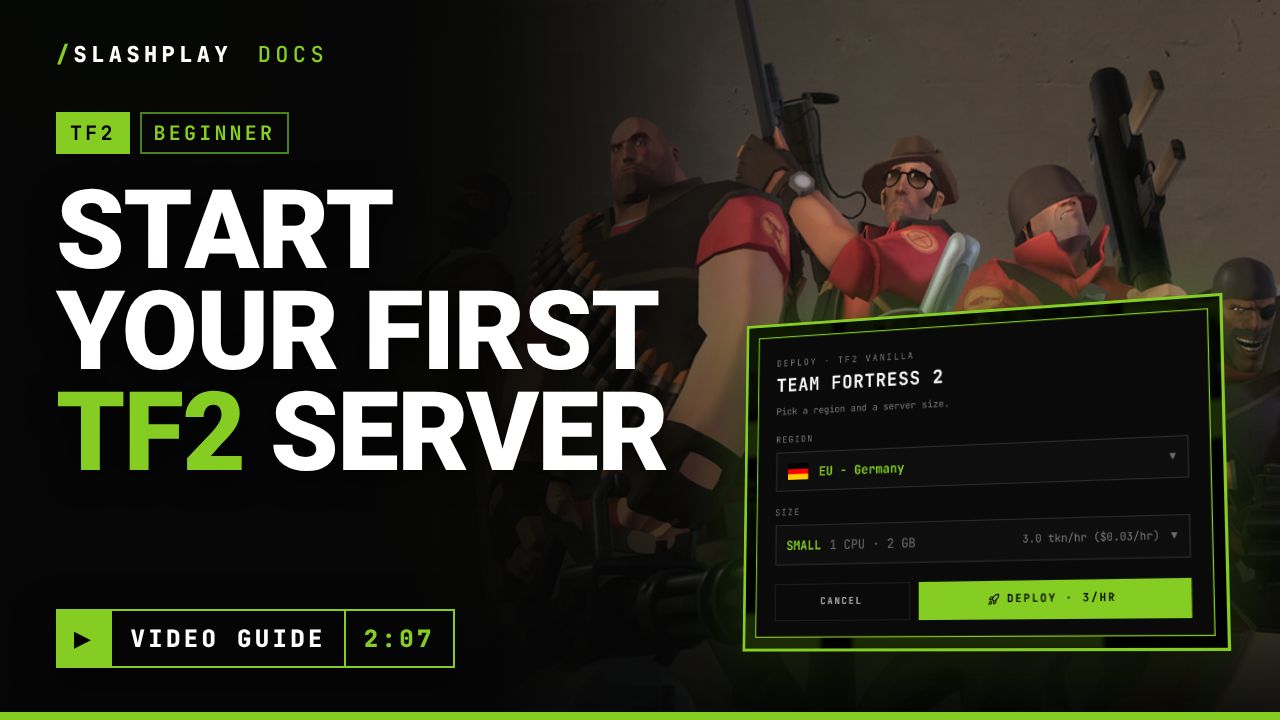 Start a server 1:52
  Console commands 1:35
  Console commands 1:26
  Addons and gamemodes 1:24
  Valheim 1:52
  Start a server 1:52
  Admins and bans 1:32
  Palworld 1:51
 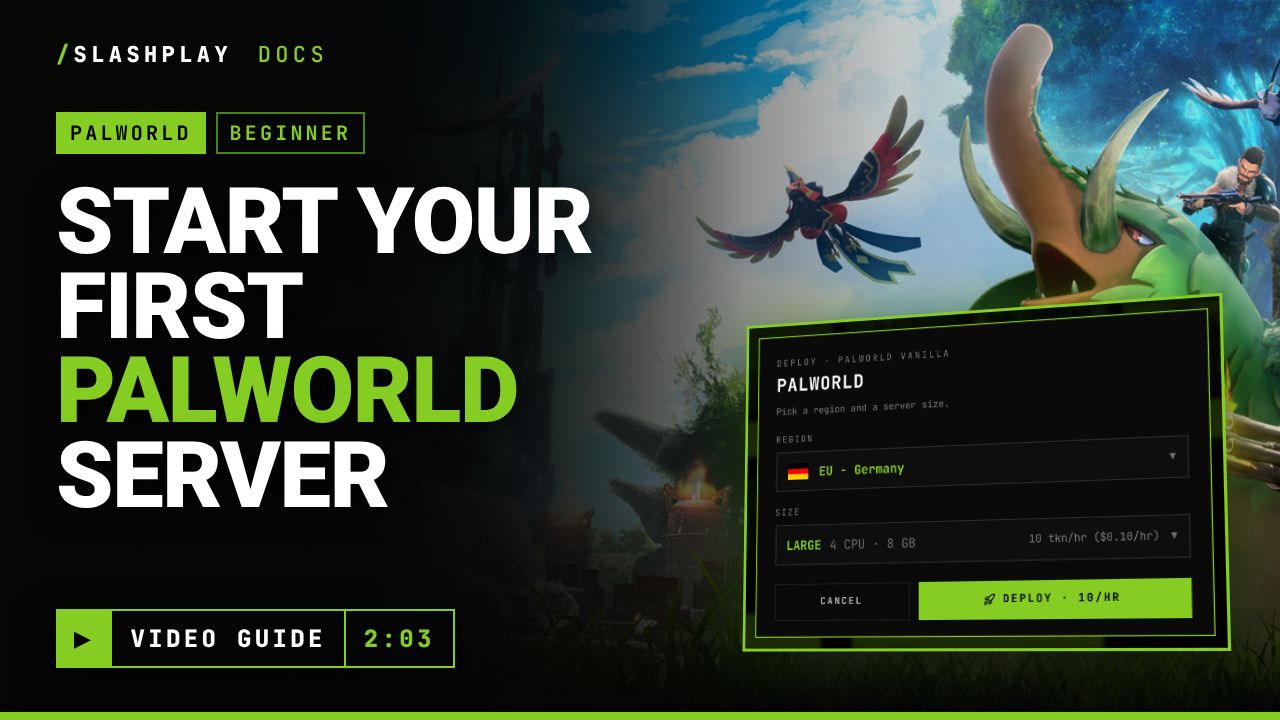 Start a server 1:51
  World settings 1:48
  Admin commands 1:41
  Teams 2:14
  Create and join 1:56
  Roles and permissions 2:05
  Invite codes 1:57
  Fund a team 1:53
  Team log 1:28
  Team settings 1:51
  Billing 1:50
  How tokens work 1:50
  Buy tokens 1:37
  Redeem a code 1:23
  Storage costs 1:37
  Automatic stops 1:53
  Discord 1:55
  Connect a Discord server 1:55
  Who can use it 1:59
  Announcements and event feed 1:34
  Per-server settings 2:01
  Bot commands 1:22
  Link your account 1:33
  Account 1:25
  Sign-in methods 1:25
  Find your Steam ID 1:25
  Delete your account 1:31
 Browse by topic.
New to SLASHPLAY? Learn what it is, create your account, find your way around the dashboard and get your first game server live in a few minutes.
Everything that works the same for every game on SLASHPLAY: deploying, joining, saving, stopping, restoring, schedules, files and the console.
Every game SLASHPLAY hosts, with its versions, the size it is built for, what it costs per hour, and what its Game-specific tab adds.
How teams work on SLASHPLAY: a team owns servers and a token balance, members get roles, and you can belong to as many teams as you like.
How you pay for SLASHPLAY: tokens at one cent each, spent by the hour only while a server runs, with no subscription, no plans and nothing that expires.
Connect your team to Discord: members start and stop servers with /server without an account, live servers get announced, and an event feed logs the rest.
Manage your SLASHPLAY account: connect Discord and Steam as sign-in methods, see your profile details, or delete your account for good.
How these docs are organised
Every topic has its own page, and every page has its own link you can share. The docs are split into seven sections:
- Getting started: what SLASHPLAY is, creating your account, a tour of the dashboard and your first server. Start here if you’re new.
- Servers: everything that works the same for every game. Deploying, sizes, joining, passwords, saves, schedules, the console, files and troubleshooting.
- Games: only what’s specific to each game, such as CS2 game modes and Workshop maps, the Minecraft whitelist or Counter-Strike: Source plugins.
- Teams: sharing servers and tokens with friends, roles, invites and the team log.
- Billing: how tokens work, buying them, redeeming codes, storage and automatic stops.
- Discord: connecting a Discord server so your members can start and stop game servers with
/server, announcements and bot commands. - Account: sign-in methods and deleting your account.
Were you sent an invite link by a friend? You don’t need an account: see Join a friend’s server.
If a page covers something that works for every game, it lives under Servers. The game pages link back to it instead of repeating it.
Levels
Each page carries a badge that tells you who it’s written for:
- Beginner: you’ve never run a game server before. We explain every click.
- Intermediate: you’ve got a server running and want to tune it.
- Advanced: shell access, launch options, RCON grants and other things you can break.
Within a section, pages go from beginner to advanced, so reading top to bottom works.
Video guides
Some pages have a video at the top. Videos are split into chapters that match the steps on the page, and they come with a transcript: click any line to jump the video to that moment. The written steps below the video cover the same ground, plus the details the video skips.
Can’t find it?
Press Ctrl + K (or /) on any docs page to search. On a Mac, use Cmd + K.
Still stuck? Ask us and other players on the SLASHPLAY Discord. We read everything, and questions that come up often end up as new pages here.