 /SLASHPLAY
CS2 Quick actions
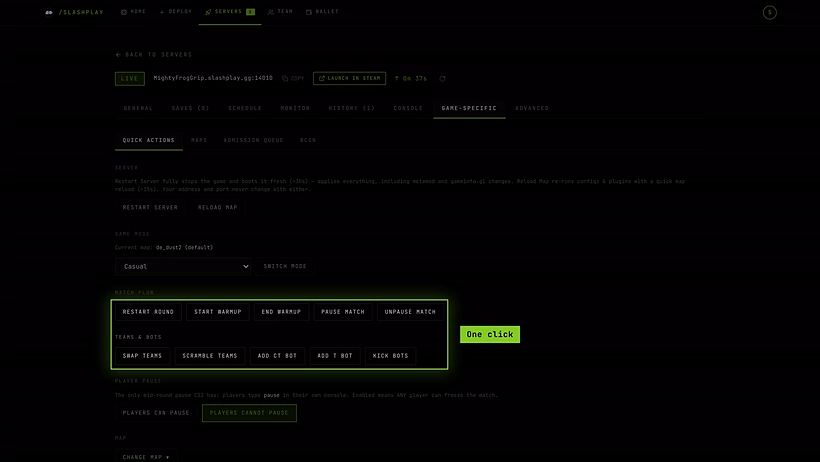
Run a CS2 match in one click: restart the server or reload the map, switch game mode, warmup and pause, swap or scramble teams, bots and map changes.
Quick actions is the panel that saves you from typing console commands in the middle of a game. Each button sends a real CS2 server command to your live server, so a click does exactly what an admin typing in the console would do. This page lists every button, what it does, and the command behind it.
To find it, open your server’s page, click the Game-specific tab, then Quick actions (it’s the first panel, so it opens by default).
Before you start
- The server must be Live. While it’s stopped or starting, the buttons are greyed out.
- You need the Control servers permission on the team. Without it you can see the panel but not use it, and it says Needs the Control servers permission. Ask a team admin. See Roles and permissions.
When you click a button it lights up green for a moment. The command and the server’s reply also appear in the Console tab, so you can always check what was sent. Buttons don’t lock while a command is in flight: you can fire several in a row.
Server
Two ways to reset things, depending on how much you need to reset. Neither changes your address or port.
| Button | What it does | Takes |
|---|---|---|
| Restart | Stops CS2 completely and boots it fresh. Applies everything, including changes to MetaMod files and gameinfo.gi. Asks Restart server? first. | About 30 seconds |
| Reload map | Loads the current map again (changelevel <current map>, or host_workshop_map <id> on a Workshop map). Re-runs your configs and reloads plugins. Players get a brief reconnect. Asks Reload map? first. | About 15 seconds |
Use Reload map after editing a .cfg file. Use Restart when something is really stuck, or after changing files the game only reads at boot.
Game mode
Shows the Current map and a list of every CS2 game mode, grouped as Classic, Gun Game, Co-op, Other and Skirmish. Pick one and click Switch mode. After you confirm Switch game mode?, the server reloads the current map in the new mode, which briefly disconnects everyone.

Behind the button it sets game_type, game_mode, sv_game_mode_flags and sv_skirmish_id for that mode, then reloads the map. Some maps don’t support every mode. The full list and what each mode is: Game modes and maps.
Match flow
| Button | Command | What it does |
|---|---|---|
| Restart round | mp_restartgame 1 | Restarts the match after one second: scores and money reset. |
| Start warmup | mp_warmup_start | Puts the server back into warmup. |
| End warmup | mp_warmup_end | Ends warmup now and starts the match. |
| Pause match | mp_pause_match | Pauses at the next freeze time, not mid-round. |
| Unpause match | mp_unpause_match | Resumes a paused match. |
Teams and bots
| Button | Command | What it does |
|---|---|---|
| Swap teams | mp_swapteams | Swaps CT and T sides. |
| Scramble teams | mp_scrambleteams | Reassigns players to teams at random. |
| Add CT bot | bot_add_ct | Adds one bot to the Counter-Terrorists. |
| Add T bot | bot_add_t | Adds one bot to the Terrorists. |
| Kick bots | bot_kick | Removes all bots. |
Want a set number of bots, or harder ones? Use bot_quota and bot_difficulty in the console. See Console commands.
Player pause
The only mid-round pause CS2 has is one that players trigger: they type pause in their own console, and the match freezes. A dedicated server can’t do this itself, so this setting hands the ability to your players.
- Players can pause turns it on (
sv_pausable 1). - Players cannot pause turns it off (
sv_pausable 0). This is the default.
The lit button is the current setting. When it’s on, any player on the server can freeze the match, which is great for a practice with friends and a bad idea on a public server.
Unlike the other buttons, this is a saved setting. It applies to the running server straight away, and SLASHPLAY applies it again every time the server boots, so it survives restarts and restores.
Map
The map list under Change map has: de_dust2, de_mirage, de_inferno, de_nuke, de_overpass, de_anubis, de_ancient, de_vertigo, de_train, cs_office, cs_italy and de_cache. Pick one and click Change map: it sends changelevel <map> and keeps the current game mode.
For a picture gallery, more official maps and Steam Workshop maps, use the Maps panel instead. See Game modes and maps.
The server remembers the last map you loaded. When you stop and restore it, it boots straight back onto that map.
Troubleshooting
The buttons are greyed out. The server isn’t live, or you don’t have Control servers. Wait for Live, or ask a team admin for the permission.
I clicked a button and nothing seemed to happen. Open the Console tab. The command is listed there with the server’s reply, or an error such as Server is not ready. Match commands like Pause match also wait for the right moment in the round.
Switching mode dropped everyone. That’s expected: a mode only takes effect when the map loads again. Players reconnect on their own.
The mode went back to Casual after a restart or restore. A mode you pick here lasts until the game process stops. Restart, a stop and a restore all boot the server’s default mode again (the map is remembered, the mode isn’t). To boot into a mode every time, add it to Launch options.