 /SLASHPLAY
File manager
Browse, upload, edit and download your server's files in the browser, extract archives, and understand locked SlashPlay files, ownership and what storage costs.
Read the transcript
This audio was created with Boson AI's Higgs Audio: boson.ai/higgs-audio
The file manager lets you work with your server’s files straight from the browser: upload a map or plugin, edit a config, download a log, or unpack a zip. It lives on the server page under Advanced → Files. This page explains how to use it, and the one idea that makes it make sense: which files are yours, and which are SlashPlay’s.
Before you start
- The server must be live, in debug mode, or open after a crash to browse its files. See “Files while the server is stopped” below.
- Anything that changes files (upload, edit, rename, delete, extract, ownership) needs the Control servers permission. The first change on a server asks you to confirm that changes are on your own terms. See Changes on your own terms. See Roles and permissions.
Browse
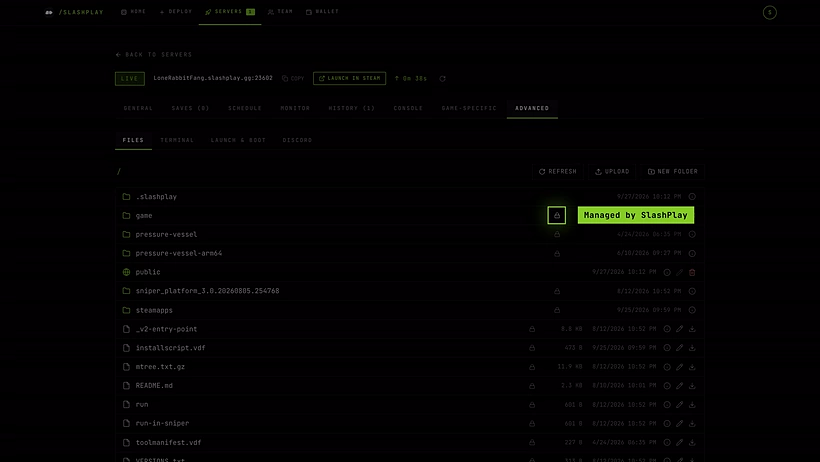
The file manager opens at the server’s root folder. Click a folder to open it, and use the path at the top to go back up. Each row shows the name, size and last change. The public folder has a globe icon; it’s special, see Public files.
Below the list, a Capacity line shows how much disk this server uses out of its limit (100 GB unless we’ve told you otherwise). It turns amber when it’s getting full. Click Request more capacity if you need more room.
Yours, or SlashPlay’s?
A game server is mostly the game itself: gigabytes of files that are identical on every server. SlashPlay keeps one shared, up-to-date copy of those and gives it to every server for free. On top of that, your server has its own files: the world, configs, and anything you add. Only your own files are saved and billed.
The file manager shows which is which:
| Icon | Meaning |
|---|---|
| Closed padlock | Managed by SlashPlay. Shared game files: free, read-only, kept up to date automatically. |
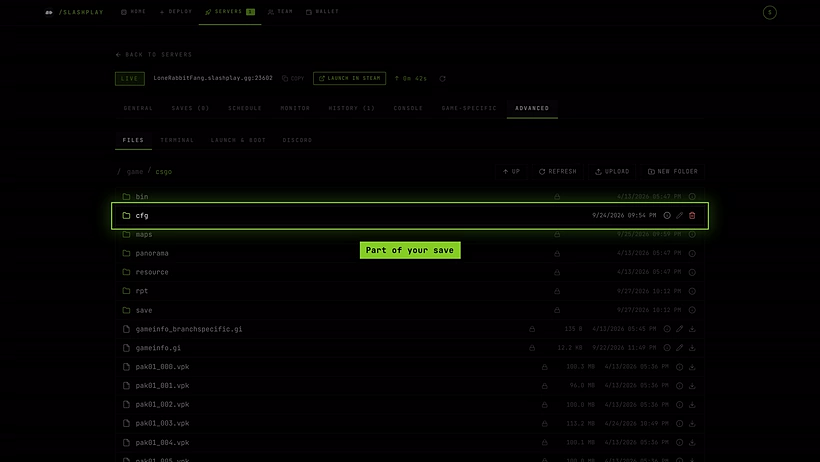
| No padlock | Part of your server’s save. Backed up on stop, restored on start, billed as storage, yours to edit. |
| Open padlock | Owned by you. A folder you took over. Saved with your server, billed as storage, and SlashPlay updates no longer touch it. |
| Script icon | Changed by a script. A script in .slashplay/scripts changes this file (or something inside this folder) before every start. Lit while the script is on. See File scripts. |
Open More actions → Details on any row for its Details, including its size and what it would cost to store.
Take ownership
To change something inside a locked folder, for example a game’s default config folder, you take ownership of it first:
- Click Take ownership on the folder or file’s closed padlock.
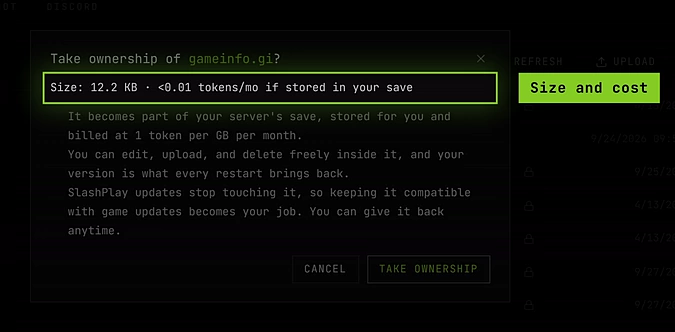
- Read the window. It shows the size and the monthly storage cost, and what changes:
- It becomes part of your server’s save, stored for you and billed at 1 token per GB per month.
- You can edit, upload and delete freely inside it, and your version is what every restart brings back.
- SlashPlay updates stop touching it, so keeping it compatible with game updates becomes your job.
- Click Take ownership.
Give it back
Click Give back on the open padlock, and confirm. SlashPlay’s standard, up-to-date copy replaces yours right away, and if SlashPlay has no copy of it because you added it, it’s deleted. It stops being saved with your server and its storage cost goes away. Your changes are gone, so download anything you want to keep first.
Only need a line or two changed? Add a script to the file instead of owning it: SlashPlay makes your change before every start, and the file keeps getting game updates. See Keep a change to a game file with a script.
New things are yours automatically. Uploading a file or creating a folder somewhere new claims it for your save without asking. You only need Take ownership to change files SlashPlay put there.
Upload
- Click Upload, then File or Folder.
- Or drag files or a whole folder from your computer onto the list.
A single upload can be up to 4 GB. A folder can hold up to 2,000 files in one go; for more, zip it and use Extract here. System clutter like .DS_Store and Thumbs.db is skipped.
Create, edit, download and more
Each row has Edit right on it (for text files under 2 MB), and the rest behind More actions:
| Action | What it does |
|---|---|
| New folder (top bar) | Creates a folder here. |
| Edit | Opens the file in a code editor. Any file up to 2 MB can be opened; unusual types ask first. The keyboard button lists the editor’s shortcuts, including find and replace. |
| More actions → Details | Shows its size and what it would cost to store. |
| More actions → Download | Downloads the file to your computer. |
| More actions → Extract here | Unpacks a .zip, .tar, .tar.gz, .tgz, .tar.xz or .tar.bz2 into the current folder. |
| More actions → Rename | Renames in place. Press Enter to confirm, Esc to cancel. |
| More actions → Delete file / Delete folder | Deletes the file or folder. |

Most changes to config files, plugins or maps only take effect after Restart on the General tab.
Minecraft .dat files: the NBT editor
Minecraft keeps some files, like the world’s level.dat, in a binary format called NBT. Clicking a .dat, .dat_old or .nbt file opens it in the NBT editor instead of the text editor.
- Backup first, every time. A window explains that the file is binary and asks you to keep a copy. Open editor unlocks once you’ve clicked Download backup. If an edit goes wrong, upload that copy back to undo it.
- Change values, not structure. The file opens as a tree. Numbers and text can be changed in place, and each keeps its type, so a value the game stores as a byte only takes a byte. Find a tag by name jumps to a value anywhere in the file.
- Applied on the next start. The game rewrites these files while it runs, so Save keeps your change next to the file as
name.slashplay-pending. It replaces the file when the server next starts, before the game loads. Opening the file again shows the waiting change, with Throw it away to drop it.
See Play hardcore on your Minecraft server for a walkthrough.
Files while the server is stopped
When a server stops, its files are packed into its save, so there’s nothing to browse. The Files tab says Server is stopped; its files are packed into your save and unpack on start. To change files without the game running, click Start the server without launching the game to start it in debug mode. While starting or stopping, it shows a short message and fills in by itself once the server is up.
Two things still work while stopped:
- The public folder stays open, and you can upload to it. See Public files.
- You can download a whole save as a zip from the Saves tab. See Saves and backups.
What files cost
Everything in your save (including owned folders) and your live public files costs 1 token per GB per month, charged continuously from the team’s balance. SlashPlay’s locked files are free. The bottom of the file manager shows how much is stored. See Storage costs.
Troubleshooting
I can’t edit or delete a file. It’s managed by SlashPlay. Take ownership of it first, or you’re missing the Control servers permission.
My upload was refused. It’s over 4 GB, or the server ran out of capacity. Zip large folders, delete what you don’t need, or request more capacity.
My change disappeared after a restart. The file was in a SlashPlay folder you didn’t own, or you gave the folder back. Take ownership, then make the change again.
The server crashed right after I changed a file. The crash box on the server page shows the server’s last output, which usually names the culprit. Fix or delete the file and restart.