 /SLASHPLAY
The server page
A tour of a SLASHPLAY server's own page: the header with its address and password, and what every tab (General, Saves, Schedule, Console and more) is for.
Read the transcript
This audio was created with Boson AI's Higgs Audio: boson.ai/higgs-audio
Every server has its own page where you manage everything about it. Open it with Manage, in the Servers tab. This page is a tour: one stop per section, with links to the full guides.
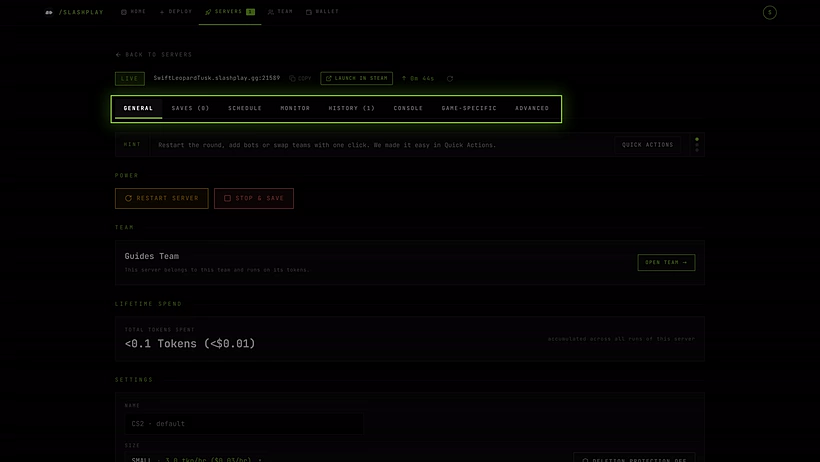
The header
The top of the page is always visible, whichever tab you’re on:
- Servers (with a back arrow) returns you to the Servers tab.
- The status pill: Starting, Live, Debug mode, Saving, Stopped or Crashed. See Start, stop and restore.
- While starting, the boot hint; while live, the address with Copy invite and, for Steam games that support it, Launch in Steam. See Connect and invite friends.
- Join password, masked with a copy button and Edit, when password protection is on. See Join passwords.
- The uptime of the current run, and a refresh button that reloads the server’s state without reloading the page.

If the game crashed, a box under the header says The game crashed. The server is still open so you can fix it., with a countdown to when it stops by itself, whether that time is billed, and buttons to open files and the terminal, restart in debug mode or start the game again. See Crashes and debug mode. If the whole server went down, a This server crashed box says what happened, what to do, and whether you were charged. Show last output shows the last lines the server printed, and Hide in its corner folds the box down to one line (Show opens it again). It goes away when you start the server again. If it keeps failing to start, a This server couldn’t start box explains why. See Troubleshooting.
The tabs
General. The everyday controls. Power (only while live) has Restart and Stop. The Cost panel shows what the server has used across all its runs, with Open team to the team that pays for it. Settings has the server’s Name, its Size (changeable while stopped) and Deletion protection. Password protection turns the join password on or off. RCON shows the RCON address and password for games that have RCON; for CS2 it points to the RCON panel on the Game-specific tab instead. For games with a Game-specific tab, a rotating hint at the top points to features people often miss. See Server sizes and Delete a server.
Saves (n). Every backup of this server, with its health badge and size, plus Take backup now, the Backup policy (auto-save interval and how many saves to keep), and how much storage the server uses. Start from any save, download it as a zip, or delete it. See Saves and backups.
Schedule. The Scheduler mode (run until stopped, or time-based weekly windows) and the Maximum run time, a safety net that stops a forgotten server. See Schedules and auto-stop.
Monitor. Live CPU and memory charts for the last hour, while the server is live. See Monitor and history.
History (n). One row per run of this server: when it started, its size, how long it ran, and what it cost. See Monitor and history.
Console. The server’s live output, and a command line to send it commands, with autocomplete for CS2, Counter-Strike: Source, Counter-Strike 1.6 and Minecraft. See The console.
Game-specific. Only for games that have their own controls: today that’s CS2, Counter-Strike: Source and Minecraft. Other games don’t show this tab. CS2 has Quick actions, Maps, Admission queue and RCON; Counter-Strike: Source has Quick actions, Modes, Plugins and RCON; Minecraft has its Whitelist. See CS2 quick actions, Counter-Strike: Source quick actions and Minecraft whitelist.
Mods. Only appears for Counter-Strike: Source today: popular plugins, your team’s mod library, and uploads. See Counter-Strike: Source plugins and mods. For what you can add to other games, see Mods, plugins and custom gamemodes.
Advanced. The power-user tools, in four sub-tabs:
- Files: the file manager, including the public folder for share links. See File manager and Public files.
- Terminal: a real shell inside the server. See Terminal and Full Box.
- Launch & boot: launch args and Full Box mode. See Launch options.
- Discord: how this server shows up in your connected Discord servers, and the switch to mute it. See Per-server Discord settings.
Locked controls
What you can change depends on your role in the team. When you can see something but not change it, the control is locked and says which permission it needs, for example Control servers required. You can view this, but not change it. Ask a team admin. See Roles and permissions.