 /SLASHPLAY
Create and join a team
Create a new team for your friends or club, join someone else's with an invite code, move between your teams, hand a team you own to someone else, and leave a team you no longer need.
Read the transcript
This audio was created with Boson AI's Higgs Audio: boson.ai/higgs-audio
This page shows you how to start a team of your own, how to join a friend’s team with an invite code, how to move between the teams you’re in, how to hand a team you own to someone else, and how to leave one. All of it happens on the Team tab of your dashboard, and none of it costs anything.
Before you start
- A SLASHPLAY account. You already have a personal team from the moment you sign up, so you only need a new one when you want a separate group. See Create your account.
- To join a team: an 8-character invite code from someone on that team, like
3F9A1C7E.
Steps
Create a team
- Open the Team tab. You see Your teams: one card per team you’re in, with its balance and your role.
- Click New team, above your team cards.
- Type a name in the Team name box. Names can be 1 to 50 characters, and you can change them later.
- Click Create, or press Enter.
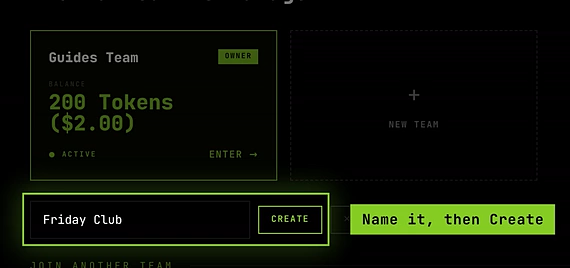
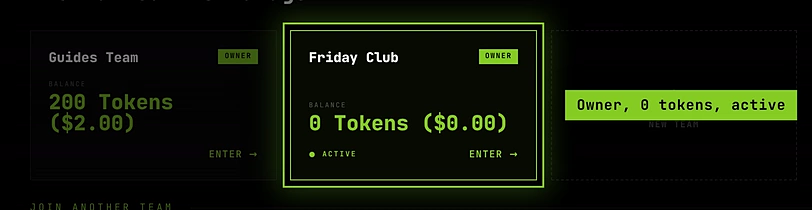
The new team appears in your list with you as its OWNER, and it becomes your active team. It starts with 0 tokens: before anyone can deploy on it, move some tokens in from your wallet. See Fund a team.
Join a team with an invite code
- Open the Team tab.
- Under Join another team, paste the code into the Invite code box. Codes aren’t case-sensitive.
- Click Join.
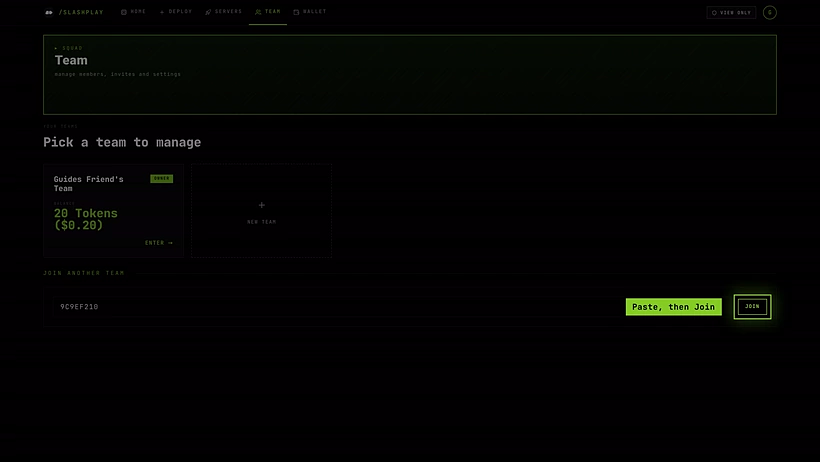

You see a green line: Request sent to Team Name! Waiting for owner approval. Joining is a request, not an instant pass: the team’s owner, or a member allowed to manage members, has to approve you on the team’s Members tab. Until then the team doesn’t appear in your list.
Once you’re approved, the team shows up under Your teams and becomes your active team. You start with the VIEW ONLY role: you can see the team’s servers, their status, their addresses and join passwords, but you can’t change anything. Ask a team admin if you need more. See Roles and permissions.
Enter and switch teams
- Open the Team tab.
- Click a team’s card (Open).
You’re now inside that team, with its Members, Log, Invites, Discord and Settings tabs. The team you opened last is your active team, and its card is marked Active. To go back to the list, click All teams.
You don’t need to switch teams to play. The Servers tab always shows servers from every team you’re in.
Hand a team over
Only the owner can hand a team over, and only to someone already on it. Someone who has only asked to join has to be approved first.
- Enter the team and open Members.
- Click Make owner on the row of the person who should take over.
- A window says what changes. Type
TRANSFERin capitals and click Make owner, or Cancel to back out.
They become the OWNER, with every permission: withdrawing tokens, team settings, handing the team on and deleting it. You become an ADMIN, and Leave appears next to the team’s name. Everything else stays with the team: its servers (running ones keep running), its balance, its invite codes and its Discord connection. Only the new owner can make you the owner again.
Leave a team
- Enter the team.
- Click Leave, next to the team’s name at the top.
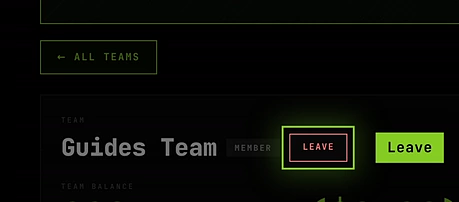
It asks once (Leave or Stay), then you’re out straight away. An owner can’t leave: hand the team over first, then leave. You lose access to the team’s servers, and the team keeps everything: its servers, its saves and its tokens, including any you deposited. To come back, you need a new invite code and a new approval.
How it works
The owner. Whoever creates a team owns it until they hand it over, and a team has exactly one owner. The owner has every permission, can’t be kicked, and is the only one who can withdraw tokens, hand the team over or delete it. The owner can’t leave their own team: hand it over first, or delete it if you’re done with it. If the owner deletes their SLASHPLAY account, every team they own is deleted with it, for everyone on it. See Delete your account.
Your role badge. On each team card, OWNER means the team is yours, and ADMIN or MEMBER means it’s someone else’s. What a member can actually do depends on their role, set by an admin on the Members tab.
Team names. Any 1 to 50 characters. Names don’t have to be unique. Rename a team under Settings if you have the SETTINGS permission. See Team settings.
Kicked from a team. A member who can manage members can remove you with Kick. The effect is the same as leaving.
Troubleshooting
I pasted a code and got “Invalid invite code”. Check you copied all 8 characters, with no spaces in the middle. If it still fails, the code has been revoked: ask for a new one. See Invite codes for every error message.
It says “You’ve already requested to join this team”. Your request is waiting for approval. Ask the team owner or an admin to open Members and click Approve.
I was approved but I can’t start any servers. New members join as VIEW ONLY. Ask an admin to give you the PLAYER role or higher.
There’s no Leave button on my team. You’re its owner, and owners can’t leave. Hand it over to another member first, or delete the team from Settings if you no longer need it.
There’s no Make owner button. Only the owner sees it, and only on other people’s rows. Someone who has only asked to join has to be approved first.
My new team can’t deploy anything. New teams start empty. Move tokens in from your wallet on the team page: Fund a team.