 /SLASHPLAY
Delete your SLASHPLAY account
Permanently delete your SLASHPLAY account: what gets deleted, why the teams you own go with it, how to hand a team over first, and what teams you share keep.
Read the transcript
This audio was created with Boson AI's Higgs Audio: boson.ai/higgs-audio
You can delete your SLASHPLAY account yourself, at any time, from the account page. Deleting is immediate and permanent: your servers, saves, tokens and profile are gone, and nobody, including us, can bring them back.
Read this page before you start. Every team you own is deleted with your account, for everyone on it. A few minutes of preparation can keep your friends’ team alive and save your leftover tokens.
What gets deleted
When you confirm, SLASHPLAY:
- Deletes every team you own, your personal team and any team you created for friends, for everyone on it. Its servers are stopped (running ones first) and deleted with their saves, and their addresses stop working straight away. Its members lose the team, and its token balance is lost. To keep a team, hand it over before you delete.
- Deletes any other team that has nobody left on it once you’re removed, with everything on it.
- Deletes your wallet, including any tokens still in it. Tokens aren’t paid out.
- Erases your profile and purchase history: your name, picture, connected Discord and Steam accounts, redeemed codes, and the record of what you bought.
- Signs you out everywhere, and removes any Discord bot access you approved with
/link account.
People who were on one of your teams keep their accounts and their other teams. If your team was the one they had open, the dashboard moves them to another team they’re on.
The warning before you delete
The Delete your account? window lists every team that will be deleted with your account. For each one it shows how many other members it has, how many servers (and how many are running), and its balance.
A team with other people on it has a Hand it over link. It opens that team, where you can make someone else its owner. Once you have, the team no longer appears in the list.
What happens on teams you share
If you’re on someone else’s team, the team stays, with its balance and all of its servers, including the ones you deployed or restored. You’re removed from it, and what you set up there passes to the team’s owner:
- Servers you deployed or restored keep running, with their saves. The team’s log still shows what they cost.
- Invite codes you created keep working.
- Discord servers you connected stay connected, with their role, channel and announcement settings.
- Mods you uploaded and maps you saved stay in the team’s library.
- On CS2 servers, whitelist entries and bans you added in the admission queue, and RCON access you granted to players, stay as they are.
Before you delete
Work through this list. Skip anything that doesn’t apply to you.
1. Hand over the teams you want to keep
Every team you own goes with your account, even one your friends play on every week. To keep one alive, make another member its owner first:
- Open the team’s Members tab.
- Click Make owner on the row of the person who should take over.
- Type
TRANSFERin capitals and click Make owner.
They get every right, including the balance and deleting the team. You become an admin, and the team carries on without you when your account goes. See Hand a team over.
If you’d rather let a shared team go, tell its members first, so they can download the saves they want.
2. Download saves you want to keep
Open each server’s Saves tab and click Download on the saves you care about. You get a .zip of the server’s files. This is the only way to keep a world, a map collection or your configs. See Saves and backups.
3. Decide what happens to your tokens
Tokens in your wallet and on every team you own are deleted with your account. A team you hand over keeps its balance. If you’d rather your tokens go to your friends:
- On a team you own, use Withdraw to move its balance back to your wallet. Only the owner can withdraw.
- Open a shared team that will outlive you and use Deposit to move your wallet into it. You need the Deposit permission there.

See Fund a team.
4. Keep your receipts
If you need copies of past invoices, open Wallet → Stripe billing portal and download them first. Your purchase history is erased from SLASHPLAY when you delete your account.
Steps
-
Click your avatar in the top right of the dashboard and choose Account.
-
Scroll down to the Danger zone. It reads: Permanently delete your account. This deletes every team you own, for everyone on it, with its servers, saves and balance, and erases your profile, wallet and purchase history. Hand a team over first to keep it. This cannot be undone.

The Danger zone on the account page -
Click Delete my account. A Delete your account? window opens and lists the teams that will be deleted with your account. Check it: if a team you want to keep is there, click Hand it over and come back afterwards.
-
Type
DELETEin capitals in the box. The Delete my account button unlocks only when the text matches exactly.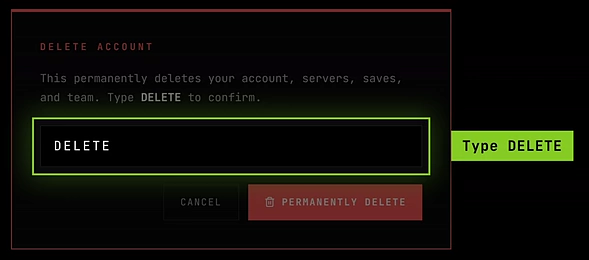
Type DELETE to unlock Delete my account -
Click Delete my account, or Keep my account to back out.
It takes a few seconds. When it’s done you’re signed out and sent to the SLASHPLAY home page.
What happens next
Your account is gone, and so are the teams you owned. If you ever sign in with the same Discord or Steam account again, SLASHPLAY treats you as a new player and creates a fresh, empty account with a new personal team and starter tokens. The same happens if you use the SLASHPLAY bot in a Discord that’s connected to a team. Nothing from your old account comes back.
If you only want to stop using one of your sign-in methods, you don’t need to delete anything: unlink it instead. See Sign-in methods.
Troubleshooting
The Delete my account button in the window stays greyed out.
The box must contain exactly DELETE, in capitals, with no spaces. The button also waits until the list of teams has loaded.
The window lists a team I want to keep. Click Keep my account, then Hand it over next to that team (or open the team yourself) and make another member its owner. Open the window again: the team is no longer listed.
A team I own isn’t offered for hand-over. There’s nobody else on it. Invite someone and approve them first, or let the team go with your account.
The deletion failed with an error. Your account wasn’t deleted: it’s only removed if every part of it can be. Running servers may already have been stopped, though, because that happens first. Try again in a minute. If it keeps failing, ask on the SLASHPLAY Discord.
I just want to leave a team, not delete my account. Open the team and click Leave. Your account, wallet and other teams stay as they are. Owners can’t leave their own team: hand it over first, then leave. See Create and join teams.
I only want to stop paying. There’s nothing to cancel: SLASHPLAY has no subscription. Stop your servers and you won’t be charged again, apart from a tiny storage cost for saves you keep. Delete the servers too and even that stops. See Delete a server and Storage costs.