 /SLASHPLAY
Announcements and the event feed
Choose where the bot posts live server cards and who it pings, set up a quiet event feed for joins, stops and crashes, and see what every message looks like.
Read the transcript
This audio was created with Boson AI's Higgs Audio: boson.ai/higgs-audio
The bot posts two kinds of messages about your team’s servers. Announcements are the loud ones: a card with the address and a join button, posted when a server goes live, optionally pinging a role. The event feed is the quiet one: a running log of players joining and leaving, servers starting and stopping, and crashes, which never pings anyone. This page shows how to set up both and what each message looks like.
Both are sections of a connected Discord server’s card on the team’s Discord tab. You need the SETTINGS permission on the team to change them. See Connect a Discord server if you haven’t connected one yet.
Announcements
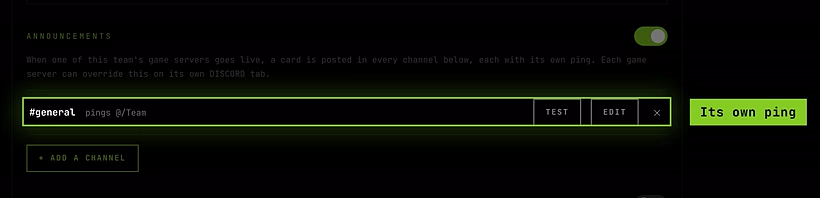
When one of this team’s game servers goes live, a card is posted in every channel below, each with its own ping. Each game server can override this on its own DISCORD tab.
The switch at the top of Announcements turns them on or off for the whole team in this Discord server. It’s on after you connect. When it’s off, the card’s summary says Announcements off.
Manage the channels
The channel you picked during setup is the first row, like #general · pings @players or #general · pings nobody. You can have several channels, each with its own ping.
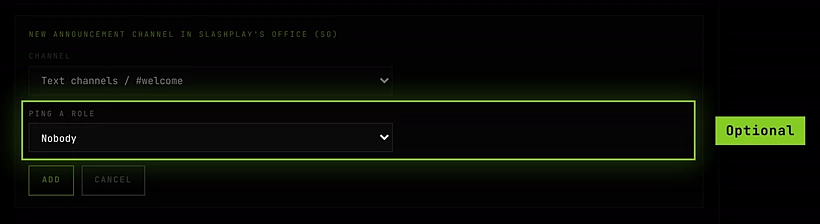
- Add a channel: click Add a channel, pick a Channel, optionally a role under Ping a role, and click Add. Each channel can only be listed once (That channel is already in the list.).
- Change a row: click Edit, change the channel or ping, click Save.
- Remove a row: click ×. There must always be at least one channel: removing the last one is refused with A Discord server needs at least one announcement channel. Use the switch to turn announcements off instead.
- Test it: click Test on a row. The bot posts a sample card for a server called Test Server in that channel, with that ping. You see Test sent to #general., or Couldn’t post there: and the reason, usually missing permissions.
What an announcement looks like
When a server goes live, each announcement channel gets a card:
- Join and the server’s name as the title, then the game and Status.
- Connect: the address in a copyable box, with Copy the address into your game’s server browser to join.
- Password: the join password in a copyable box, if the server has one switched on.
- A Connect to server button for Steam console games (CS2, Counter-Strike: Source, Counter-Strike 1.6, Team Fortress 2 and Garry’s Mod). It opens the server’s invite page, which launches the game and joins in one click. See Connect and invite friends.
- Small print naming who started it, like Started by @Sam, and, if the server has a run limit, when it stops: stops at 22:30 · in 4 hours.
- The role ping, if the channel has one.
The card keeps itself honest. When the server stops, the same message is rewritten to say This server has stopped. Start it again with /server start., and the address and password disappear, so nobody tries to join a server that isn’t there. If it crashed, it says so.
If someone ran /server start in the same channel, their private progress message is replaced by this public card, so they don’t see the same thing twice.
Event feed
A running log of what happens on this team’s game servers. Best kept in quiet channels. Separate from announcements: the feed never pings, and changing it never moves the ‘server is up’ card.
The feed starts switched off. To set it up:
-
Turn on the switch at the top of Event feed. If there’s no feed channel yet, the first announcement channel is filled in for you (Using #general. Change it here if you like.).
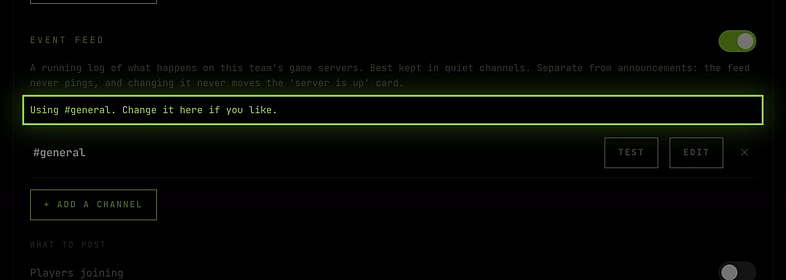
Switched on: the feed starts in your first announcement channel -
Add, edit or remove channels exactly like announcements. Feed channels have no ping. A dedicated channel like
#server-logworks best. -
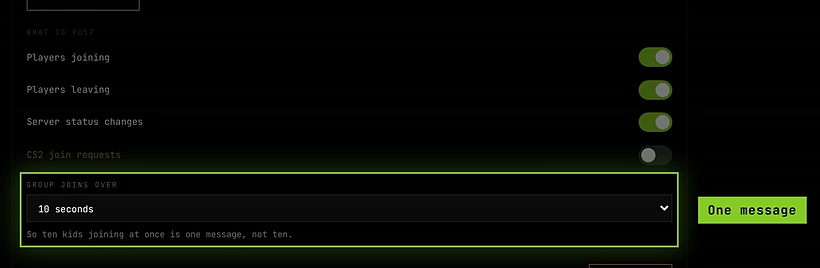
Under What to post, switch on the events you want:
- Players joining
- Players leaving
- Server status changes
- CS2 join requests
-
If joins are on, pick Group joins over: 5 seconds, 10 seconds, 30 seconds or 1 minute. So ten kids joining at once is one message, not ten.
If the switch is on but the list is empty, the section says The event feed has no channel here, so nothing is posted. Add one.
What the feed posts
| Switch | Message | What it says |
|---|---|---|
| Server status changes | CS2 is starting, is online, is shutting down, is offline | Your CS2 server is online. When it’s online, the connect address follows. When it stopped by itself, the reason is added: the team ran out of tokens, it hit its maximum run time or it’s outside its scheduled hours. |
| Server status changes | CS2 crashed | CS2 crashed unexpectedly, with the last lines of the server’s log when available, and a Restart button. |
| Server status changes | CS2 failed to start | The server couldn’t start after several attempts, scheduled starts have stopped for this window, and the Reason. |
| Server status changes | World saved | CS2 finished saving. Snapshot size: and the size. |
| Players joining | Player joined or 3 players joined | One line per player, with their Steam ID where the game provides one, grouped by your Group joins over setting. |
| Players leaving | Player left | The player’s name, and Steam ID where available. |
| CS2 join requests | Players awaiting approval | A player knocking on a CS2 server that has the admission queue on, with Approve, Ban and Dismiss buttons. See Admission queue. |
Each feed message carries a small footer with the server’s instance ID and the time.
One server, different rules
Everything on this page applies to every server on the team. On a single server’s Advanced → Discord tab you can:
- Announce it in different channels, or not at all, in one Discord server.
- Send its feed somewhere else, or switch its feed off there.
- Mute it completely: no announcements and no feed anywhere, while members can still use it with
/server.
See Per-server Discord settings.
Troubleshooting
Test says “Couldn’t post there”. The bot can’t post in that channel. In Discord, give the bot’s role View Channel, Send Messages and Embed Links there.
A server went live but nothing was announced. Check the Announcements switch is on, the server isn’t muted on its Advanced → Discord tab, and that server doesn’t have Don’t announce here set for this Discord server.
The feed shows starts and stops but no players. Turn on Players joining and Players leaving under What to post.
The role ping doesn’t notify anyone. Discord only lets a bot ping a role that allows it. In your Discord server’s role settings, turn on Allow anyone to @mention this role for that role.