 /SLASHPLAY
Per-server Discord settings
Give one game server its own Discord rules: mute it, announce it elsewhere, give extra roles access, hide it from channels, or add a Discord the team isn't in.
Read the transcript
This audio was created with Boson AI's Higgs Audio: boson.ai/higgs-audio
By default, every server on your team behaves the same way in Discord: it follows the settings on the team’s Discord tab. Sometimes one server needs to be different. The tournament server should announce in #tournaments, the staff test server should be invisible to students, or one server should never post at all. This page covers the server’s own Discord tab, where you override the team’s settings for one server, one Discord server at a time.
Before you start
- The SETTINGS permission on the team. Without it, the tab says Changing Discord settings for this server needs the TEAM SETTINGS permission. You can look, though. See Roles and permissions.
- The server must be on a team. Every server deployed today is.
Open the tab
- Open the server from the Servers tab (Manage).
- Open Advanced, then Discord.
At the top, a summary says in a sentence or two what this server does in Discord right now, for example Announces in #general on Klub Gaming (pinging @players). Usable from every channel. It updates as you change things.
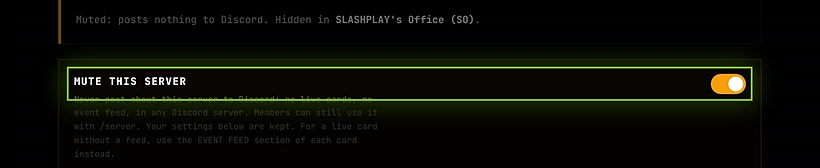
Mute this server
The Mute this server switch is the big hammer: Never post about this server to Discord: no live cards, no event feed, in any Discord server. Members can still use it with /server. Your settings below are kept, so turning it off restores everything. A muted server’s card on the Servers tab shows Discord · Muted.
To drop just the event feed but keep the live card, set the feed to Off here on each card instead.
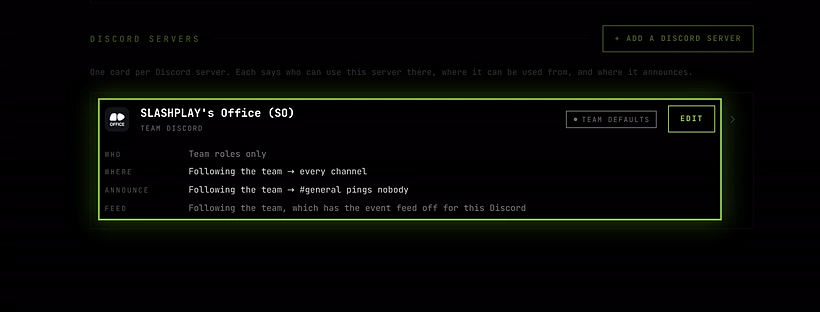
One card per Discord server
Under Discord servers there’s one card for each Discord server this server appears in:
- Every Discord server connected to the team has a card, tagged Team Discord. It reads Team defaults while it follows the team entirely, and Customised once you override anything.
- Discord servers you add for this server alone are tagged Not connected to this team (see Add another Discord server).
Collapsed, a card shows one line per section: Who, Where, Announce and Feed, like Following the team → #general. Click Edit to open it. Several cards can be open at once.
If the team’s connection has the master switch off, the card warns Members of that server can’t use SLASHPLAY yet, so visibility and roles here do nothing, with a link to the team settings.
Follow the team, or override
An open card has the same four sections as the team’s card, in the same order. Each section is either Following the team or Overridden, shown on a chip next to its heading. While a section follows, it tells you what it inherits, starting with From the team:. When it’s overridden, Reset to team puts just that section back.
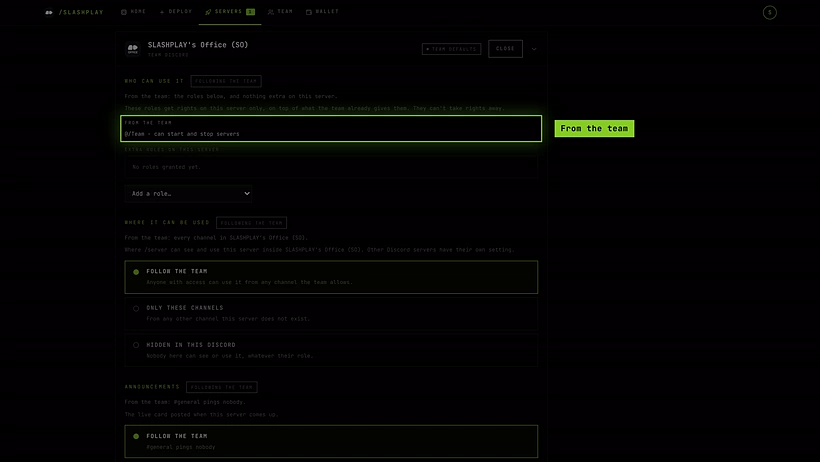
Who can use it: extra roles
The From the team block lists what roles already get from the team, like @players - can start and stop servers. Under Extra roles, add roles that get rights on this server only, on top of what the team already gives them. They can’t take rights away. Add a role with Add a role, then pick a level:
| Level | On this server |
|---|---|
| NO ACCESS | Nothing extra on this server. |
| VIEW ONLY | Can see this server, its status, connect address and join password. |
| PLAYER | Start, stop and save this server. No console, bans, or deleting. |
| CONTRIBUTOR | Everything a player can do, plus console, settings and deleting saves. |
| ADMIN | Full control of this server. |
Customise permissions offers six boxes: SEE THIS SERVER, START, STOP, CONSOLE AND SETTINGS, EDIT SAVES and DELETE SAVES.
Typical use: give @tournament-crew CONTRIBUTOR on the tournament server only, so they can run matches from the console without touching anything else.
Extra roles only work while the team’s connection lets members use /server (its master switch is on), and only in channels where this server can be used.
Where it can be used
This decides where /server can see and use this server inside this Discord server only.
- Follow the team: wherever the team’s connection allows, every channel or its own list.
- Only these channels: click channels to pick them. From any other channel this server does not exist. Removing every channel puts it back to following the team.
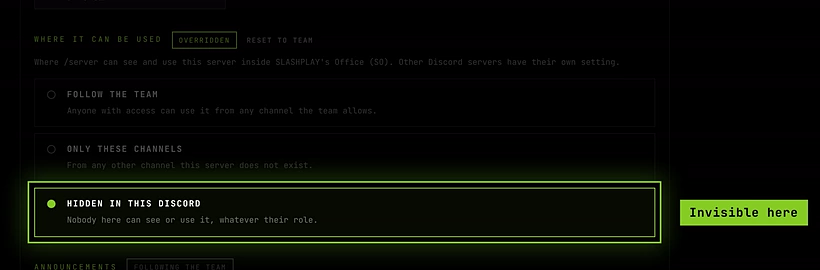
- Hidden here: Nobody here can see or use it, whatever their role. It doesn’t appear in
/server listor the name suggestions, in any channel.
This can only narrow the team’s own channel limit, never widen it. A server that’s limited to some channels or hidden shows Discord · Channels only on its card on the Servers tab.
Announcements
The live card posted when this server comes up.
- Follow the team: the team’s announcement channels and pings.
- Custom channels: Pick one or more channels and who to ping in each. Posts even if the team has announcements off here. The first time you choose it, the team’s channels are copied in for you to edit. Add, edit, test and remove channels exactly as on the team card.
- Don’t announce here: no live card in this Discord server. Other Discord servers are unaffected.

Event feed
Joins, leaves and status changes for this server. What gets posted stays the team’s choice; this only says where.
- Follow the team: the team’s feed channels.
- Custom channels: Pick the channels the feed goes to here. Posts even if the team has the feed off for this Discord. The team’s What to post switches still decide which events appear.
- Off here: No event feed in this Discord. Other Discord servers are unaffected.
Reset to team defaults
At the bottom of a customised card, next to Customised by … and the date, click Reset to team defaults. The confirmation lists what goes: custom channels, the event feed, channel limits and any extra roles. Click Reset and the card goes back to Team defaults.
A team Discord card can’t be removed from a server, only reset. To stop this server appearing there at all, use Hidden here and Don’t announce here, or mute it.
Add another Discord server
A server can also announce in a Discord server the team isn’t connected to, for example a partner community that wants to know when your event server is up. You need Manage Server in that Discord server.
- Click Add Discord. A box titled New Discord server for your server opens, with two steps: 1 Choose Discord › 2 Channel and ping.
- Which Discord server should this server announce in? Pick one from your Discord servers and click Use. Servers that already have a card read Already listed. If the bot isn’t there yet, use Add bot first, as in Connect a Discord server.
- Which channel, and who to ping? Pick a channel and an optional ping role.
- Click Add Discord server.
The new card is tagged Not connected to this team. It only posts:
- Announcements and Event feed work, with Custom channels or off. There’s no team to follow.
- Who can use it and Where it can be used are struck through with Needs a team connection. Nobody there can use the server with
/server. To allow that, connect the Discord server to the team on the team’s Discord tab instead. - It must keep at least one announcement channel: A Discord server needs at least one channel. Remove the whole card instead.
To take it away, click Remove this Discord at the bottom of the card and confirm. It stops posting there. Nothing changes for the team.
How it works
A card’s Discord server never changes: to move announcements elsewhere, reset or remove one card and set up another. Restoring a server keeps its mute switch and cards. Disconnecting a Discord server on the team’s tab deletes every server’s customisations for it.
Troubleshooting
The server doesn’t appear in /server list in one channel.
Check Where it can be used on this server’s card and on the team’s connection. Hidden here hides it everywhere in that Discord server.
I set Custom channels but nothing is posted. Make sure the list has at least one channel (the card warns Custom, but no channel chosen, so nothing is posted here) and the server isn’t muted.
An extra role can’t start the server. Check the team connection’s master switch is on and the command was run in a channel where the server can be used.
Adding a Discord server says “We need to re-check that you still manage” it. Your Manage Server check is more than 15 minutes old. Click Confirm with Discord and try again.