 /SLASHPLAY
RCON on Counter-Strike: Source
Find your CS:Source server's RCON host, port and password, and use them from an RCON tool or from the in-game console while you play.
Read the transcript
This audio was created with Boson AI's Higgs Audio: boson.ai/higgs-audio
RCON (remote console) lets you send server commands from outside the dashboard: from an RCON app, a bot, or the Counter-Strike: Source console while you’re playing. You don’t need it for the basics, because the Console tab and Quick actions already send commands for you. Use RCON when you want your own tools, or admin commands without leaving the game.
Before you start
- You need the Control servers permission on the team. Without it the details stay hidden. See Roles and permissions.
- Commands only run while the server is Live.
Find your RCON details
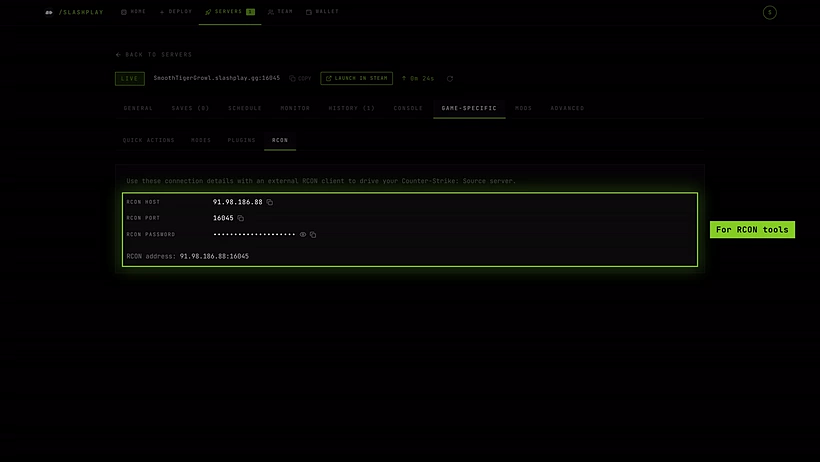
Open the server page, then Game-specific → RCON. You’ll see:
| Field | What it is |
|---|---|
| RCON host | The machine your server runs on. |
| RCON port | Your server’s port. It’s the same port as in the game address. |
| RCON password | Hidden until you reveal it. Use the copy button. Edit and Generate change it (see below). |
| RCON address | Host and port together, host:port, for tools that want one field. |
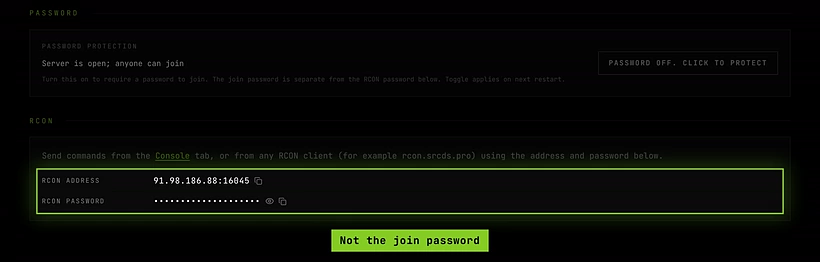
The General tab also has an RCON section with the address and password.
The RCON password is not the join password. The join password only lets someone play; the RCON password lets them run any command on the server, so keep it to yourself.
The host and port can change when you stop and restore the server. The password stays the same until you change it. Copy the details fresh each session.
Change the RCON password
Next to the RCON password, here and on the General tab:
- Edit sets one you type. It needs 8 to 64 characters, letters and digits only: no spaces or symbols.
- Generate replaces it with a new random password, after you confirm.
On a Live server the new password works at once, with no restart. The page says Saved, in use now, and the old password stops working. RCON tools that were connected, and anyone who typed the old rcon_password in their game console, need the new one. The Console tab, Quick actions and Modes switch over by themselves.
On a stopped server the new password is used from its next start. Either way it stays through restarts, stops and restores.
If the server doesn’t take the new password, nothing changes: the page says why, and the old password stays in use. Two servers can’t share an RCON password, and changing it never changes the join password. While the server is starting or stopping, wait until it’s Live or stopped.
Use an RCON tool
Any Source RCON client works, for example the web tool rcon.srcds.pro.
Steps
-
Open your RCON tool.
-
Enter the RCON host and RCON port (or paste the RCON address).
-
Enter the RCON password.

The password stays hidden. The copy button copies it without showing it. -
Connect and type commands, for example
statusorchangelevel de_inferno.
Use RCON from the game console
Unlike CS2, Counter-Strike: Source still sends rcon commands while you’re connected to a server. Once you’ve joined your server, open the console with ~ and type:
rcon_password yourrconpasswordThen put rcon in front of any server command:
rcon changelevel de_dust2
rcon mp_friendlyfire 1
rcon sm plugins list
Use your own password. It’s remembered until you quit the game, so you only enter it once per session. If the console isn’t enabled yet, turn it on in Options → Keyboard → Advanced → Enable developer console.
What you can run
Everything the server console accepts, including SourceMod’s sm commands.
Don’t run quit, exit, shutdown or _restart. The dashboard console blocks them because they take the server down without saving, but a direct RCON connection won’t stop you. Use Stop or Restart instead. See The console.
Security tips
- Don’t paste the RCON password in a public chat. If it leaks, click Generate for a new one.
- Change the password with Edit or Generate, never with
rcon_passwordinserver.cfg,autoexec.cfgor the console. The dashboard console refuses it. A config file that sets it leaves the dashboard console, Quick actions and Modes on the old password, and they stop working. - For friends who help run the server, a SourceMod admin entry is safer than sharing RCON: see Plugins and mods.
Troubleshooting
The RCON panel shows an error or stays on “Loading RCON details…”. Reload the page. If the error mentions permission, you need Control servers on the team.
My tool says the password is wrong.
Copy it again from the panel: if someone changed it, the old one stopped working. If it still fails, something set a different rcon_password: remove every rcon_password line from cstrike/cfg/server.cfg and autoexec.cfg, save, and click Restart.
My tool can’t connect at all. Check the server is Live and that you’re using this run’s host and port. They can change after a restore.
rcon in the game says “Bad RCON password”.
Run rcon_password again with the password from the panel. Watch for spaces at the start or end when pasting.