 /SLASHPLAY
Automatic stops
Why SLASHPLAY stops a server by itself: the team ran out of tokens, a maximum run time, a closed schedule window, or a crash nobody fixed. It always saves first.
Read the transcript
This audio was created with Boson AI's Higgs Audio: boson.ai/higgs-audio
Sometimes a server stops without anyone pressing Stop. On SLASHPLAY that only happens for the reasons below, and each one saves your world before the server goes down, so nothing is lost. This page explains the reasons, how you’ll be told, how to avoid surprises, and how to get the server back.
The reasons
SLASHPLAY checks every running server every 30 seconds. It stops a server when one of these is true:
| Reason | What it means | Where it’s set |
|---|---|---|
| The team ran out of tokens | The team balance reached zero. Every running server on that team stops. | Not a setting: keep the team funded. See Fund a team. |
| It hit its maximum run time | The server has been up for its limit in one stretch, like 4 hours. | The team’s Auto-stop limit (Team settings), or the server’s own Maximum run time on its Schedule tab. |
| It’s outside its scheduled hours | The server runs on a weekly Time based schedule and its window has closed. | The server’s Schedule tab. See Schedules and auto-stop. |
| The game crashed | The game crashed and nobody started it again, stopped it or kept it running in the 30 minutes after. The card says Stopped by itself: the game crashed, and it was stopped and saved 30 minutes later. | Not a setting. See Crashes and debug mode. |
There is no idle stop today: a server with nobody on it keeps running, and keeps costing tokens, until one of these applies or someone stops it.
Out of tokens
A team balance never goes below zero. The moment it reaches zero, SLASHPLAY saves and stops every running server on the team. Tokens in your personal wallet are never used automatically, even if you have plenty there: they have to be deposited into the team.

Maximum run time
A limit counts one continuous run. When the server has been up that long, it stops. Starting it again gives it a fresh run with the full limit.
If the team has an Auto-stop limit, it applies to every server on the team and replaces each server’s own Maximum run time, which then shows Set by team. Otherwise each server uses its own setting, from 30 min to 12 hours, or No limit.

Schedule window
A server in Time based mode starts when one of its weekly windows opens and stops when it closes. Two details:
- If you start the server by hand outside every window, SLASHPLAY respects that and doesn’t stop it just because no window is open.
- If you change the schedule while the server is running, the new schedule applies right away. Removing the current window stops the server.
It always saves first
Every automatic stop works exactly like Stop: the world is saved, then the server shuts down. The save appears on the Saves tab like any other, and Start brings the server back from it.
How you’re told
On the dashboard. The server shows Stopped on the Servers tab, and the run appears on its History tab with its duration and cost.
In Discord, if the team is connected to a Discord server:
- The live announcement card for that run is updated to say the server has stopped, and its address is removed so nobody tries to join a server that’s gone.
- If the event feed posts Server status changes, it posts a line saying the server is offline, followed by the reason: the team ran out of tokens, it hit its maximum run time, or it’s outside its scheduled hours.
- While a server with a run limit is live, its announcement already says when it will stop, like stops at 22:30 · in 2 hours.
See Announcements and event feed.
How to avoid surprises
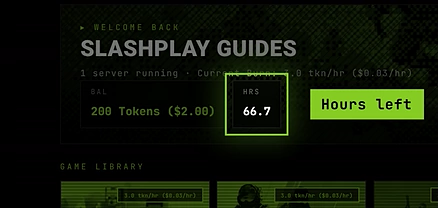
- Watch the hours left. The balance on the Home tab also shows roughly how many hours it lasts at your current burn rate.
- Top up before a long session. Deposit enough tokens into the team for the whole evening. A small server needs 3 tokens an hour.
- Tell your players. If you set a run limit, the Discord announcement shows the stop time for everyone.
- Check the schedule’s timezone. Windows are in the timezone shown on the Schedule tab, which may not be yours if someone else set it up.
- Use a limit as a safety net, not a timer. Pick a limit comfortably longer than your usual session, so it only catches the server someone forgot.
Get the server back
- If it ran out of tokens, move tokens into the team first. A server needs at least one hour of tokens on its team to start. See Fund a team.
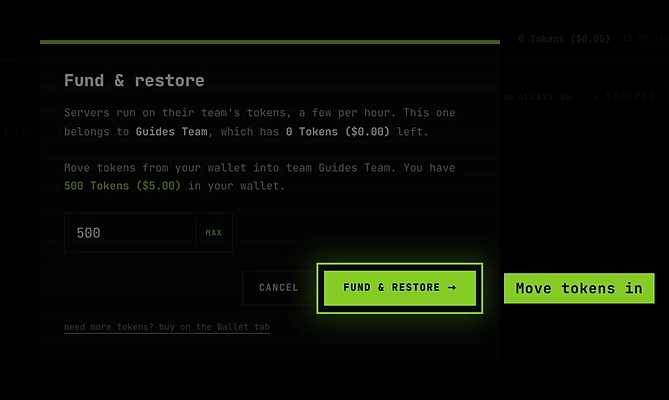
- On the Servers tab, click Start on the stopped server. If the team is still short, the Fund & restore window opens so you can move tokens in and restore in one step.
The server comes back from its newest good save, with the same settings, usually within a minute. Its address and invite link are new, so share them again.
A scheduled server also starts by itself when its next window opens, as long as the team holds at least one hour of tokens by then. If it doesn’t, that start is skipped.
Troubleshooting
My server stopped and I still had tokens. Check the team’s balance, not your wallet: servers only spend the team balance. If the team has tokens, look at the team’s Auto-stop limit and the server’s Schedule tab.
My server stopped after exactly a few hours, every time. That’s a maximum run time: the team’s auto-stop limit or the server’s own. Change it, or pick No limit.
My scheduled server didn’t start. The team probably had less than an hour of tokens when the window opened. Deposit tokens and start it by hand, or wait for the next window.
My server says Crashed, not Stopped. The game itself went down. The server stays open for 30 minutes so you can fix it, then saves and stops by itself. Crashes that happen while starting aren’t billed. See Crashes and debug mode.