 /SLASHPLAY
Roles and permissions
What each team role can do, the full permission table, custom permissions and allowed games, owner-only actions, and how Discord roles add rights on top.
Read the transcript
This audio was created with Boson AI's Higgs Audio: boson.ai/higgs-audio
Every member of a team has a role, and the role decides what they can do with the team’s servers and tokens. There are four ready-made roles, from VIEW ONLY to ADMIN, and eleven individual permissions underneath them that you can tick one by one. The team’s owner has every permission and can’t be restricted. This page lists them all, shows how to change a member’s role, and explains what a locked control looks like.
The four roles
A role is a one-click set of permissions. Pick the one that fits and you rarely need anything else.
| Role | What it means |
|---|---|
| VIEW ONLY | Can see servers, status, connect address and join password. Cannot change anything. Everyone starts here when they join. |
| PLAYER | Create, start, stop and save servers. No console, bans, or deleting. |
| CONTRIBUTOR | Everything a player can do, plus console and RCON, mods, players and deleting. |
| ADMIN | Contributor, plus managing members, invites and team tokens. |
The owner is not a role you can hand out: it’s whoever created the team. See Owner-only actions below.
The full permission table
The permissions are grouped the same way as on the Members tab.
| Group | Permission | What it allows | VIEW ONLY | PLAYER | CONTRIBUTOR | ADMIN | Owner |
|---|---|---|---|---|---|---|---|
| Servers | CREATE | Deploy new servers | ✓ | ✓ | ✓ | ✓ | |
| Servers | START | Start and restore servers | ✓ | ✓ | ✓ | ✓ | |
| Servers | STOP | Stop running servers | ✓ | ✓ | ✓ | ✓ | |
| Servers | CONTROL | Console and RCON, restart, mods, maps, server settings, players and bans | ✓ | ✓ | ✓ | ||
| Saves | EDIT | Save a running world: take backups, stop with a save, start from an older save | ✓ | ✓ | ✓ | ✓ | |
| Saves | DELETE | Delete saves and delete servers | ✓ | ✓ | ✓ | ||
| Games | ANY GAME | Deploy any game, not just an allowed list | ✓ | ✓ | ✓ | ✓ | |
| Team | MEMBERS | Approve join requests, remove members and edit their permissions | ✓ | ✓ | |||
| Team | INVITES | Create and revoke invite codes | ✓ | ✓ | |||
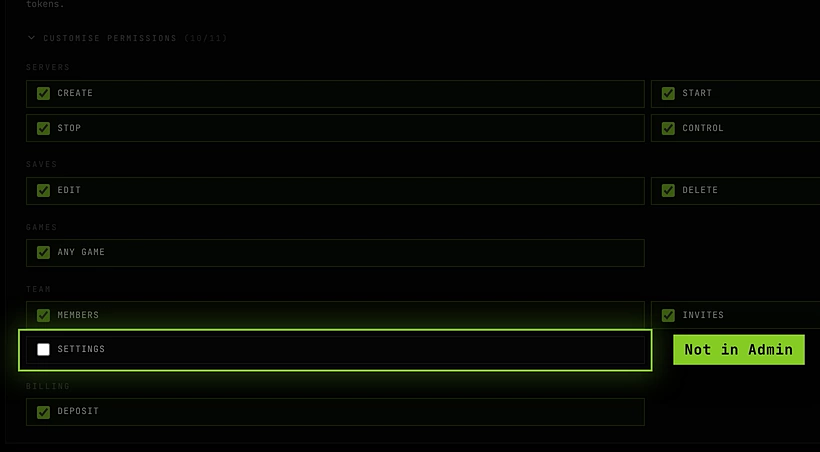
| Team | SETTINGS | Rename the team, edit its settings and its Discord connections | ✓ | ||||
| Billing | DEPOSIT | Move tokens from your own wallet into the team | ✓ | ✓ |
Every member, whatever their role, can see the team’s servers and read the team log.
A few combinations are worth knowing:
- Stopping saves first, so stopping a server needs both STOP and EDIT. Every ready-made role that has one has the other.
- CONTROL is the powerful one. It covers everything that reaches into a running server: the console, RCON, restart, mods and maps, the server’s settings (name, size, join password, schedule), and game-specific tools like the Minecraft whitelist and CS2 bans and admission queue.
- DEPOSIT only moves the member’s own wallet tokens into the team. Nobody but the owner can take tokens out.
Change a member’s role
You need the MEMBERS permission, or to be the owner.
- Open the Team tab and enter the team.
- On the Members tab, click the arrow at the start of the member’s row. Their permission editor opens.
- Under Role, click VIEW ONLY, PLAYER, CONTRIBUTOR or ADMIN. The change saves at once, and the line under the buttons describes what that role allows.

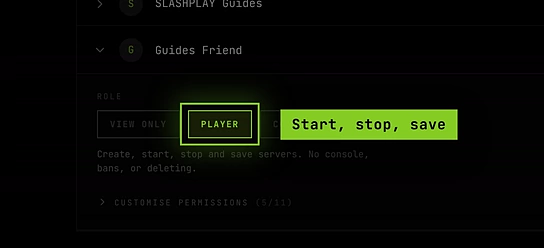
The member’s current role is shown on their row. The change applies right away: the next thing they click is checked against the new role.
Opening the owner’s row just says The owner has every permission, and nobody can change them.
Custom permissions
When a ready-made role is close but not quite right, open Customise permissions in the member’s editor. The number next to it, like (6/11), counts how many of the eleven permissions the member has.
Tick or untick any box. Each change saves immediately, and the member’s role label changes to CUSTOM so you can tell a hand-tuned member from a stock one at a glance. Clicking a ready-made role again replaces all their boxes with that role’s set.
Allowed games
The GAMES group decides which games a member may deploy.
- With ANY GAME ticked, they can deploy anything in the catalog.
- With ANY GAME unticked, a list of every game version appears, each with its hourly price, for example CS2 · CS2 VANILLA · 3.0 tkn/hr ($0.03/hr). Click a version to allow it; click again to remove it. The heading shows Allowed games: 2 picked, or Allowed games: none, so they can’t deploy when nothing is picked.

This is handy for a club that wants students to run CS2 but not a Palworld server at twelve tokens an hour. It only affects deploying new servers: starting and stopping existing ones is covered by START and STOP.
Owner-only actions
Some things only the team’s owner can do, whatever permissions anyone else has:
- Withdraw tokens from the team back to a wallet. See Fund a team.
- Hand the team over to another member, with Make owner on their row. See Hand a team over.
- Delete the team, from the Danger zone in Settings. See Team settings.
- Have their own permissions untouchable: nobody can edit the owner’s permissions or kick them.
The owner can’t leave their own team: they hand it over first, and then leave as an admin.
How locked controls look
The dashboard greys out anything you aren’t allowed to do, so you find out before you click rather than after.
- A single button or field is faded and doesn’t respond. Hover over it and a tooltip names the permission you need, for example Needs the Control servers permission. Ask a team admin.
- A whole panel on a server page, like the console or a game’s settings, shows a line at the top such as You can view this, but changing it needs the Control servers permission. Ask a team admin. You can still read everything in it.
- Deploying a game you aren’t allowed shows ACCESS TO THIS GAME REQUIRED on that game.
The names in these messages match the permission boxes, so an admin knows exactly which box to tick. Every action is also checked by SLASHPLAY itself, so a locked control can never be worked around.
The role chip
If you aren’t the owner of your active team, a small chip in the dashboard’s top bar shows your role on it: VIEW ONLY, PLAYER, CONTRIBUTOR, ADMIN or CUSTOM. Click it to see:
- Your permissions: everything you can do, each with a ✓.
- You cannot: everything you can’t, each with a ✕.
- See team →, which opens the team page.
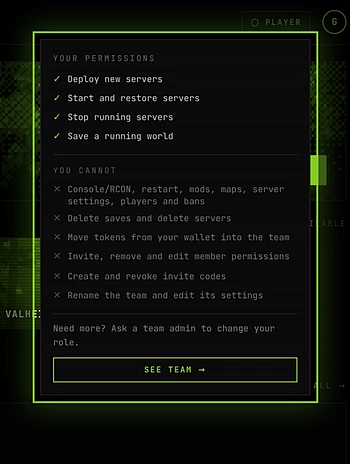
Owners don’t get a chip, because there is nothing they can’t do.
Per-server and Discord rights
Team roles are team-wide: a PLAYER can start every server on the team. The dashboard has no screen for giving one member rights on a single server only.
There are two places where rights can be added more narrowly:
- Discord roles. When a team is connected to a Discord server, you can give Discord roles access levels of their own, for the whole team or for one game server. Discord roles only ever add rights: they never take away what a member’s account already allows, and no Discord role can spend tokens or change team members. See Who can use it and Per-server Discord settings.
- CS2 in-game RCON. On a CS2 server you can let specific Steam players run
!rconcommands from chat. See RCON.
Troubleshooting
The arrow on a member’s row doesn’t open anything. You need the MEMBERS permission to edit other members. Ask the owner or an admin.
I made someone ADMIN but they can’t rename the team. That’s by design: ADMIN leaves out SETTINGS. Tick SETTINGS for them under Customise permissions.
A member can start servers but gets an error when stopping one. Stopping always saves, so they need EDIT as well as STOP. Pick PLAYER or higher, or tick EDIT.
A member sees “ACCESS TO THIS GAME REQUIRED” on the Deploy tab. They have CREATE but not that game. Tick ANY GAME, or add the game’s version to their allowed games.