 /SLASHPLAY
Choose a server size
SLASHPLAY servers come in four sizes, from Small to XLarge. See what each gives you, how the hourly price scales, and how to pick or change a size.
Read the transcript
This audio was created with Boson AI's Higgs Audio: boson.ai/higgs-audio
A server’s size decides how much CPU and memory it gets, and so how much it costs per hour. There are four sizes, the same for every game. This page shows what they are, how the price is worked out, how to pick one, and how to change it later.
The four sizes
| Size | CPU | Memory | Price |
|---|---|---|---|
| Small | 1 | 2 GB | 3 tokens/hr ($0.03) |
| Medium | 2 | 4 GB | 6 tokens/hr ($0.06) |
| Large | 4 | 8 GB | 12 tokens/hr ($0.12) |
| XLarge | 8 | 16 GB | 24 tokens/hr ($0.24) |
Every size has 2 GB of memory per CPU. You can’t mix and match, which keeps the machines evenly used and the prices simple.
Some games can’t run on the smaller sizes. For those, the deploy window and the Change size window grey out every size below the game’s minimum and say what it needs, for example needs at least Large (4 CPU · 8 GB) to run. A stopped server that is set below its game’s minimum has to be resized before it can start again.
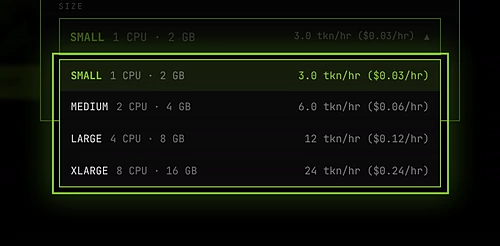
These prices are the same for every game on SLASHPLAY. A Large server costs 12 tokens an hour whether it runs CS2, Minecraft or Palworld. What changes from game to game is the size it needs to run well.
How the price is worked out
Each game has a base price at the size it’s tuned for, and that’s the price on its card. The price of any other size scales from that base, with memory counting for 70% and CPU for 30%:
price per hour = base × (0.3 × CPU ÷ game's CPU + 0.7 × memory ÷ game's memory)The result is rounded to a whole token, and is never less than 1. Memory weighs more because it’s what really limits how many servers fit on a machine.
Every game’s base price matches the table above for its size, so the formula lands on the same prices for every game.
Example: CS2 (3 tokens, tuned for 1 CPU / 2 GB, which is Small). Medium has twice the CPU and twice the memory, so it costs 3 × (0.3 × 2 + 0.7 × 2) = 6 tokens. Large is 12, XLarge is 24. This is the table above.
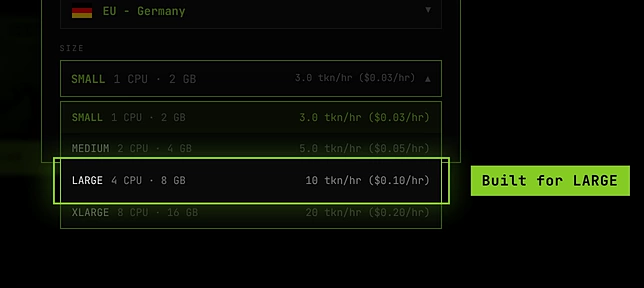
Example: Palworld (12 tokens, tuned for 4 CPU / 8 GB, which is Large). Small has a quarter of the CPU and a quarter of the memory, so it costs 12 × (0.3 × 0.25 + 0.7 × 0.25) = 3 tokens. Medium is 6 and XLarge is 24. That’s the same table as CS2.
The difference is what Palworld needs, not what it costs. Small gives it a quarter of the memory it’s built for, and a server that runs out of memory crashes. For Palworld, start on Large.
How to choose
Start small. You can always change the size later, and you only pay for what you run.
- Small is right for most small groups: a CS2 match with friends, a Minecraft world for a handful of players, a Garry’s Mod sandbox.
- Go bigger for full lobbies, lots of bots, big modpacks or plugins, large Minecraft worlds, or games tuned for more memory (like Palworld).
- Watch the Monitor tab during a real session. If memory sits near the top, or CPU is pinned at 100%, move up one size. If both stay low, you could save by moving down. See Monitor and history.
Change the size of a server
You can change a server’s size whenever it’s stopped (or crashed). A running server keeps the size it started with.
Steps
- Stop the server with Stop. See Start, stop and restore.
- Open the server page (click Manage on its card) and stay on the General tab.
- Under Settings, click the Change size button next to Size. It shows the current size and its price per hour.
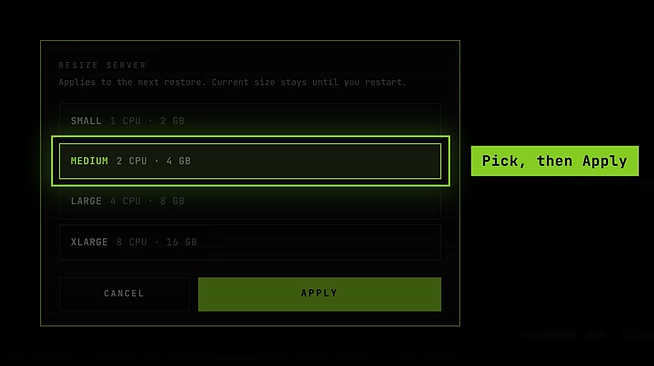
- In the Change size window, pick the new size and click Change size.
- Click Start on the server’s card. It comes back at the new size, with the same world.
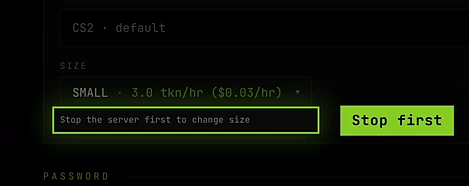
If the server is running, the text under Size says Stop the server first to change its size. You need the Control servers permission to change the size; see Roles and permissions.
Out of memory: the clearest signal
When a server needs more memory than its size allows, the system stops it instantly. The server page then shows This server crashed with the message It ran out of memory: it needed more than its N MB.
Two things to know:
- Because the stop is instant, the last few minutes of play may not have been saved.
- You were only charged for the time it was actually online.
The direct fix is to move up one memory tier. Lowering the player limit, view distance or number of mods also helps. If you’re not sure which size to pick, ask us on Discord.
Troubleshooting
The Change size button doesn’t open the Change size window. The server is still running, so clicking it only asks you to stop it first. Stop it, then change the size.
I changed the size but the server didn’t restart. That’s expected. The new size applies the next time the server starts, when you click Start.
The price in the deploy window is different from the card. The card shows the game’s base price; the window shows the real price for each size. See the formula above.