 /SLASHPLAY
Invite people with invite codes
Create invite codes for your team, share them, limit how many people can use each one, approve or reject join requests, and fix common code errors.
Read the transcript
This audio was created with Boson AI's Higgs Audio: boson.ai/higgs-audio
Invite codes are how people get into a team. You create a short code, send it to someone, they paste it on their Team tab, and you approve their request. This page covers every step, from making the code to approving the person, plus what each error means.
Before you start
- To create or revoke codes, you need the INVITES permission (owners and ADMIN have it).
- To approve or reject requests, you need the MEMBERS permission (owners and ADMIN have it).
Steps
Create a code
- Open the Team tab and enter your team.
- Open the Invites tab.
- Next to Uses per code, set how many people can use this code. It starts at 10. Use 1 for a code meant for one person.
- Click New code.
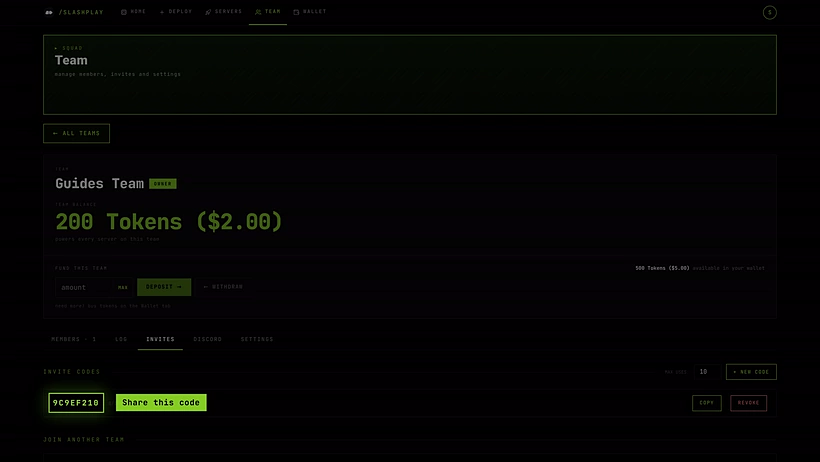
The code appears in the list: 8 letters and numbers, like 3F9A1C7E, with a counter such as 0 of 10 used.
Share it
Click Copy next to the code (it briefly reads Copied), then paste it anywhere: Discord, WhatsApp, a text message. Tell the person to open the Team tab on their dashboard, paste the code under Join another team and click Join. Codes aren’t case-sensitive, so 3f9a1c7e works too.
Approve or reject the request
When someone uses the code, they don’t get in straight away. Their request waits for you.
- Open the team’s Members tab.
- Under Join requests, each person is listed with Wants to join.
- Click Approve to let them in, or Reject to turn them down.
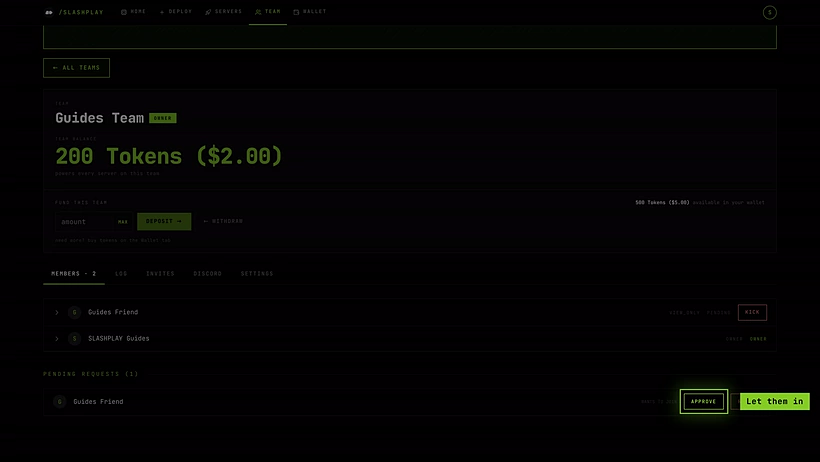
Approved members join with the VIEW ONLY role. Open their row on the Members tab to give them more. See Change a member’s role.
A rejected person isn’t told anything special: the team simply never appears in their list. They can try again with a code that still has uses left.
Revoke a code
Click Revoke next to a code. It’s deleted at once, and nobody can use it again. Requests already waiting from that code stay in Join requests until you approve or reject them.
How it works
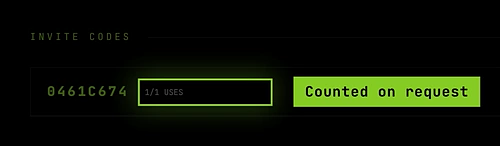
Uses are counted when someone asks, not when you approve. A code with Uses per code set to 10 accepts ten join requests. A rejected request still used up one slot. When the counter reaches its limit, like 10 of 10 used, the code stops working; create a new one if you need more.
Codes don’t expire on their own. A code you create keeps working until it runs out of uses or you revoke it. Revoke codes you’ve posted somewhere public once the right people have joined.
Only the right people can see codes. Members without the INVITES permission see You don’t have permission to manage invites for this team. instead of the list. Everyone can still use the Join another team box on the same tab to join other teams.
Approving opens the team for the new member. Once approved, the team appears in their Your teams list and becomes their active team.
Error messages
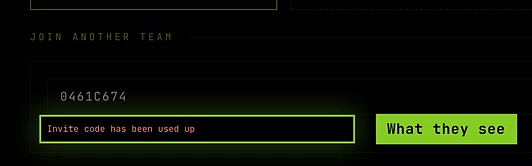
These are the messages someone sees when they try to join with a code:
| Message | What it means | What to do |
|---|---|---|
| Invalid invite code | No code matches what they typed, or it was revoked. | Check all 8 characters, or create a new code. |
| Invite code has been used up | The code reached its max uses. | Create a new code, or one with more uses. |
| Invite code has expired | The code had an end date that has passed. | Create a new code. |
| You’ve already requested to join this team | Their request is already waiting. | Approve it under Join requests. |
| You’re already a member of this team | They’re in already. | Nothing. It’s on their Your teams list. |
Troubleshooting
I don’t see the Invites controls, just a message about permission. You need the INVITES permission. Ask the owner or an admin.
My friend used the code but I don’t see them under Join requests. You need the MEMBERS permission to see and approve requests. If you have it, check they clicked Join and saw the green Request sent line, and that they used a code from this team.
I approved someone but they can’t do anything. New members start as VIEW ONLY. Give them PLAYER or higher on the Members tab.
I posted a code publicly and strangers are asking to join. Revoke the code, then reject the requests you don’t recognise.