 /SLASHPLAY
Team settings
Rename your team, set a team-wide auto-stop limit that caps how long any server can run, hand the team to another member, and delete a team with its balance refunded to the owner.
Read the transcript
This audio was created with Boson AI's Higgs Audio: boson.ai/higgs-audio
The Settings tab of a team holds its name and description, the auto-stop limit that caps how long any of its servers can run in one go, and, for the owner, the Hand over box and the button that deletes the team. This page explains each one and what it changes for the team’s servers.
Before you start
- To change the name, description or auto-stop limit you need the SETTINGS permission. Only the owner has it by default: ADMIN does not include it. See Roles and permissions.
- Only the owner can hand a team over or delete it.
Members without SETTINGS can open the tab and see the current values, but not change them.
Rename the team
- Open the Team tab, enter the team and click Settings.
- Under Team settings, click Edit.
- Change Team name (1 to 50 characters) and, if you like, the Description (up to 500 characters).
- Click Save, or Cancel to leave everything as it was.
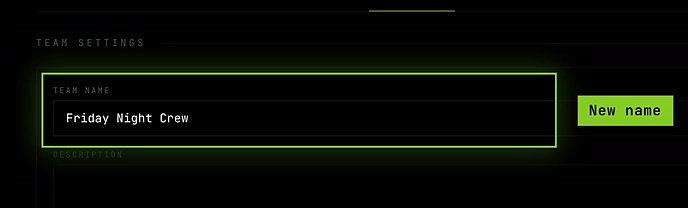
The new name shows up at once everywhere the team appears: your team list, the fleet on the Servers tab, the deploy window, and Discord messages about its servers.
Set an auto-stop limit
The auto-stop limit is a safety net for the session nobody remembered to end. With a limit of 4 hours, every server on the team stops by itself once it has been up for four hours in one stretch, saving first as always.
- Open the team’s Settings tab.
- Under Auto-stop limit, click one of No limit, 1 hour, 2 hours, 3 hours, 4 hours, 6 hours, 8 hours, 12 hours or 24 hours.
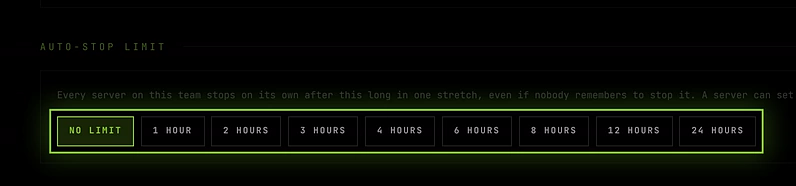
It saves the moment you click. There’s no save button.
How the limit works
- One stretch at a time. The clock starts when a server starts. Stopping and starting it again gives it a fresh run with the full limit.
- It stops safely. The server saves its world, then shuts down, exactly like Stop. Nothing is lost. Start it whenever you want to carry on.
- It applies to servers that are already running. If a server has already been up longer than the limit you pick, it stops within about half a minute.
- The team’s limit wins. Each server also has its own Maximum run time on its Schedule tab. While the team has a limit, that setting is locked on every server and shows Set by team, and the team’s limit applies to all of them, even a server that had a shorter limit of its own. Pick No limit here to let each server choose its own again. See Schedules and auto-stop.
- People can see it coming. When a server with a limit goes live, its announcement in a connected Discord says when it will stop, like stops at 22:30 · in 4 hours. When it stops, the event feed says why: it hit its maximum run time. See Announcements and event feed.

Hand the team over
An owner can’t leave their own team. To pass it on, make another member the owner. The Hand over box on the Settings tab, above the Danger zone, is where to start.
- Open the team’s Settings tab.
- Under Hand over, click Go to members.
- Click Make owner on the row of the person who should take over.
- Type
TRANSFERin capitals and click Make owner.
They become the owner. You become an ADMIN and can leave the team. The servers, the balance, the invite codes and the Discord connection stay with the team. See Hand a team over.
If nobody else is on the team, the box says there’s no one to hand it to. Invite someone first, or delete the team.
Delete a team
- Open the team’s Settings tab. As the owner, you see the Danger zone at the bottom.
- Next to Delete this team, read the line that says how much of the team’s balance will be refunded, then click Delete team.
- In the confirmation window, type
DELETEin capitals. - Click Delete team.
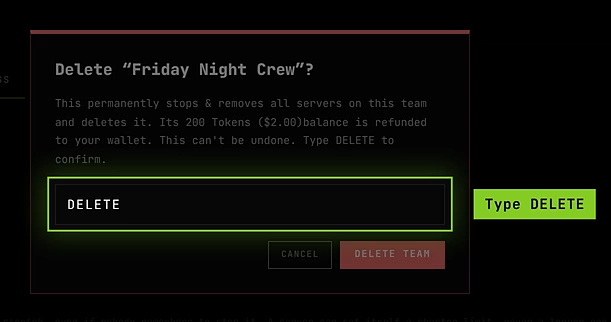
What happens:
- Running servers are stopped and all the team’s servers are removed, with their saves.
- The whole remaining balance is refunded to the owner’s wallet. Tokens other members deposited are part of that balance, so they go to the owner too.
- Members are removed from the team, and it disappears from everyone’s list.
You can delete any team you own, including the personal team you got when you signed up. To keep the team going without you, hand it over instead. If you have no teams left afterwards, the Team tab shows You’re not on a team with boxes to create or join one.
Troubleshooting
There’s no Edit button, and the auto-stop limit is just text. You don’t have the SETTINGS permission. Admins don’t have it unless the owner ticks it for them.
A server’s Maximum run time says Set by team and I can’t change it. The team has an auto-stop limit. Change it here, or set it to No limit to give each server its own setting back.
Trying to set a server’s run limit says “Your team sets the run limit for every server.” Same reason: while the team has a limit, per-server limits are switched off.
My server stopped after a few hours on its own. Check the team’s auto-stop limit and the server’s Schedule tab. The other reasons a server stops by itself are listed in Automatic stops.
There’s no Hand over box or Danger zone. Only the owner can hand a team over or delete it, and both sections only show for them.