 /SLASHPLAY
Terminal and Full Box
Open a real Linux shell inside your SLASHPLAY server, install tools with apt, edit the boot script, and learn what persists, what resets and what it costs.
Read the transcript
This audio was created with Boson AI's Higgs Audio: boson.ai/higgs-audio
Every SLASHPLAY server runs in its own Linux container, and you can get a shell inside it from the browser. Combined with Full Box, which is on for every server, that container behaves much like your own small Linux machine: you can install packages, download files and change how the game starts. This page is for people comfortable with a command line.
Before you start
- The server must be live, in debug mode, or open after a crash. Otherwise the tab says The server must be running to open a shell. and offers Start the server without launching the game, which starts it in debug mode: all its files, no game.
- The first shell on a server asks you to confirm that changes are on your own terms. See Changes on your own terms.
- You need the Control servers permission. See Roles and permissions.
Open a shell
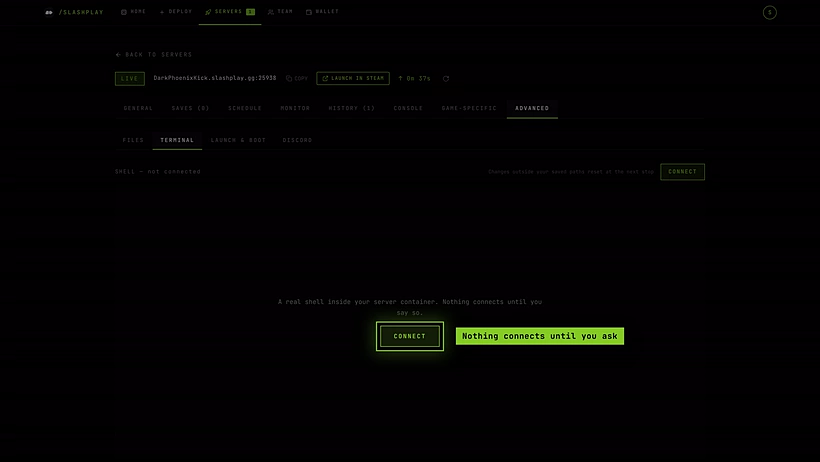
- Open the server page, then Advanced → Terminal.
- Nothing connects until you ask. Click Connect.
- When the status line says Live shell, you’re inside your server’s container. Type commands as in any Linux terminal.
- Click Disconnect when you’re done.
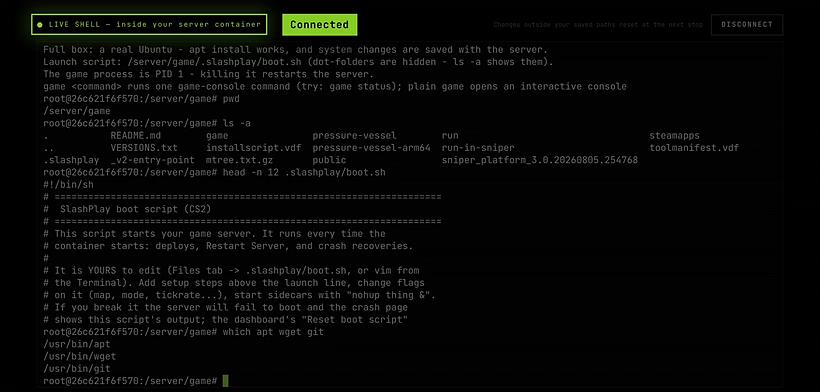
The shell closes when you leave the Terminal tab (the page asks you to confirm first) or reload the page. No sessions linger in the background. If the session ends, click Reconnect to start a new one. If you resize your browser window, reconnect for the terminal to fit the new size.
What persists and what doesn’t
The container itself is thrown away every time the server stops, and a fresh one is built on the next start. What comes back depends on where a change was made:
| Where | What happens at the next stop |
|---|---|
| Your server’s saved files (the world, configs, owned folders) | Saved with the server and restored on start. |
| SlashPlay’s shared game files (the locked files in the file manager) | Reset to the standard copy. Take ownership of a folder in the file manager to keep changes to it. |
Everything outside the game folder (installed packages, tools, /etc edits, your home folder) | Saved by Full Box and restored on start, billed as storage. |
The terminal’s own reminder, Changes outside your saved paths reset at the next stop, is about the game folder. See File manager for which game files are saved.
Full Box
Full Box is shown under Advanced → Launch & boot and is on for every server. It means:
- Install anything.
apt,wgetandgitwork, with web access on ports 80 and 443, so you can download tools, plugins and files straight onto the server. - Your system changes are kept. Everything you change outside the game folder is saved with the server and counted toward your storage like saves. The panel shows how much is currently stored.
- You control how the game starts. The start script is a file you can edit:
.slashplay/boot.sh.

The boot script
.slashplay/boot.sh is the script that starts your game. SlashPlay generates a default one from the game’s standard start command, including your launch args. You can edit it to run something before the game starts, or to change how the game is started. Changes apply the next time you click Restart.
If you break it, restore the default: click Reset boot script on the Launch & boot tab (the server must be running) and confirm. Your edits to the script are lost; nothing else is touched. Then click Restart.
Reset system changes
If your installed packages or system edits cause trouble, throw them all away:
- Stop the server.
- Click Reset system changes on the Launch & boot tab and confirm.
This deletes everything installed or changed outside the game folder. Game files and saves are not touched. The next start boots a clean system. The button is disabled when there are no saved system changes yet.
If the last system save failed, the panel says Last system save failed: with the reason.
Storage
Anything you install counts as stored data at 1 token per GB per month, from the team’s balance, for as long as the server exists. A few small tools cost almost nothing; a large toolchain or downloaded dataset can add up. Clean up what you don’t need, or use Reset system changes. See Storage costs.
Troubleshooting
Connect does nothing, or the session ends right away. Check the server is still live, then click Reconnect.
The game won’t start after I edited boot.sh. Click Reset boot script (while the server is running) and Restart. If the server is stuck crashing, check the crash box’s last output.
Something I installed is gone after a restart. If it was inside SlashPlay’s shared game files, it was reset. Take ownership of that folder in the file manager, or install it outside the game folder.
My storage cost went up. System changes are saved and billed. Remove what you don’t need, or reset system changes.