 /SLASHPLAY
Start a Counter-Strike 1.6 server
Deploy a Counter-Strike 1.6 server on SLASHPLAY, join it from Steam or the console, invite your friends and stop it again when you're done.
Read the transcript
This audio was created with Boson AI's Higgs Audio: boson.ai/higgs-audio
This guide takes you from zero to a live Counter-Strike 1.6 server on de_dust2 that your friends can join, then shows you how to stop it so it stops costing anything. It takes a couple of minutes, and there’s nothing to install besides the game.
Before you start
- A SLASHPLAY account. Sign in at slashplay.gg/dashboard with Discord or Steam. See Create your account.
- Tokens on your team. A SMALL CS 1.6 server costs 3 tokens an hour ($0.03), and you need at least one hour’s worth to deploy. New accounts start with 6 tokens. See How tokens work.
- Counter-Strike 1.6 installed through Steam on the computer you play on.
Steps
- Open Deploy. Sign in and click the Deploy tab in the top bar. Find Counter-Strike 1.6 and click Deploy on its card.
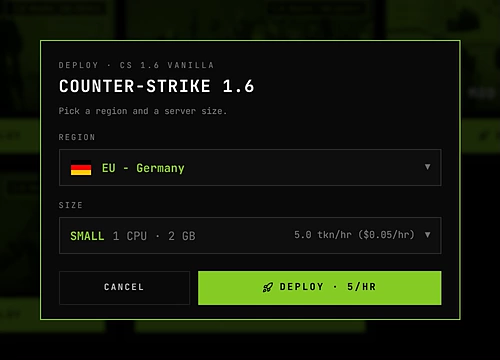
- Pick a region. Every server runs in EU - Germany today. The other regions are coming soon: choosing one lets you vote for it. See Regions.
- Pick a size. SMALL (1 CPU, 2 GB) is plenty for CS 1.6. There’s only one version, so the window doesn’t ask for one.
- Deploy. Click Deploy · 3 tokens/hr ($0.03). You land on the Servers tab and the server shows Starting. It’s usually live within a minute.
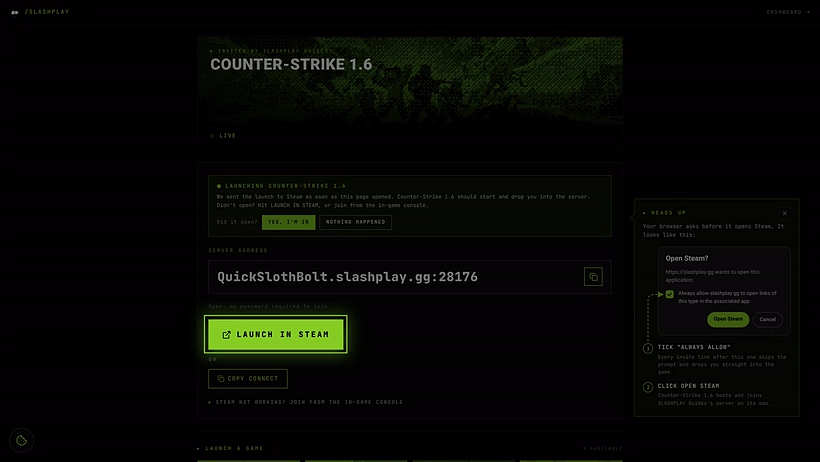
- Join. When the card says Live, click Launch in Steam. Steam starts Counter-Strike 1.6 and joins your server.
- Invite friends. Click Invite page on the card and send them that page’s URL. They don’t need a SLASHPLAY account.
- Stop when you’re done. Click Stop on the card. Next time, press Start.


Joining from the console
If Launch in Steam doesn’t work for you, join by hand:
- Turn on the console once: in Counter-Strike 1.6, open Options → Keyboard → Advanced and tick Enable developer console.
- Click Copy invite on the server card. It copies the whole connect line, for example:
connect GrandOspreyFeather.slashplay.gg:30057- In the game, press ~ (the key under Esc), paste the line and press Enter.
If you turn on a join password, the copied line includes it, like connect address; password yourpassword, so it’s still one paste.
What your friends see
The invite page shows the server’s status and address and tries to launch the game for them automatically. They can also click Launch in Steam, or Copy connect and follow Steam not working? Join from the in-game console, which walks through the same console steps as above. If the server is still starting, the page says so and updates when it’s live. See Connecting and inviting.
What happens next
While the server is live, your team’s balance pays for it by the minute. Stop saves the server’s configs, maps and addons, shuts it down and stops the hourly cost. Start brings it back with the same settings and files, but with a new address and invite link, so share the new ones.
From the server page (Manage on the card), the Console tab takes any server command, like changelevel de_nuke, and the Schedule tab can stop the server on its own after a few hours. See Schedules and auto-stop.
Troubleshooting
The server has said Starting for a few minutes. Slow boots are retried automatically. If it ends up Crashed, the boot isn’t charged: click Start the game again on the server page. See Crashes and debug mode and Troubleshooting.
Launch in Steam does nothing. Make sure Steam is running, then click again. Your browser asks before opening Steam: tick Always allow. Or join from the console.
The console doesn’t open. Turn it on first under Options → Keyboard → Advanced. On some keyboard layouts the key under Esc has a different symbol, but it’s the same key.
Friends can’t connect after I restored the server. The address changed. Copy it again from the card, or send the new invite link.