 /SLASHPLAY
Tour the dashboard
A walk through every tab of the SLASHPLAY dashboard: Home, Deploy, Servers, Team, Wallet and Account, what each one shows and where to find things.
Read the transcript
This audio was created with Boson AI's Higgs Audio: boson.ai/higgs-audio
The dashboard at slashplay.gg/dashboard is where you do everything on SLASHPLAY: deploy servers, manage them, share them with a team and pay for them. This page walks through it tab by tab, so you know where things live before you need them.
Everything on the dashboard updates on its own every few seconds. You never need to refresh the page to see a server go live.
The top bar
Along the top are five tabs:
| Tab | What it’s for |
|---|---|
| Home | Your overview: balance, a game library and your newest servers |
| Deploy | Start a new server |
| Servers | Every server you can see, running or stopped. A number badge shows how many are running |
| Team | Your teams, their members, invites, log and settings |
| Wallet | Your personal tokens: buy them and redeem codes |
On the right is your avatar. Click it to open a small menu with your name, an Online indicator, Account and Sign out.
The role chip
If you’re a member of a team you don’t own, a small chip with your role appears in the top bar, for example View only or Player. Click it to see a list headed Your permissions, what you can do, and under You cannot, what you can’t. If you need more, it says so: Need more? Ask a team admin to change your role. Owners don’t see the chip, because they can do everything. See Roles and permissions.
Home
Home is where you land after signing in.
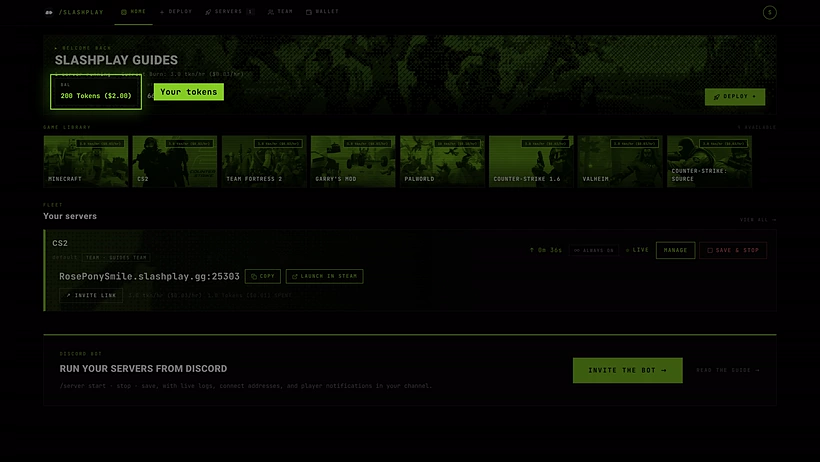
From top to bottom:
- Get started: a few quick steps. New accounts see a three-step rail: 1 Get tokens, 2 Deploy your first server, 3 Invite friends to play. It always highlights the next thing to do, and it disappears once you’ve launched your first server.
- Welcome back, with your name. Under it, either no servers running or how many servers are running and how many tokens an hour they’re spending together.
- Team balance is your balance: the tokens on every team you belong to, added up, with how many hours that lasts at the current rate underneath it.
- Deploy jumps to the Deploy tab.
- Game library is a strip of every game you can run. Click one to open the deploy window with that game already picked.
- Fleet: Your servers shows your first three servers. All servers opens the Servers tab. With no servers yet it says No servers yet. Pick a game above and it’s live in about a minute.
- Run your servers from Discord is a card with Invite the bot and How it works, for letting a Discord community start and stop servers with
/server. See Connect a Discord server.
Deploy
Deploy is where every server starts. The banner shows Deploy a server and how many tokens you have available. Below it is a grid of game cards, each with its hourly price, for example 3.0 tkn/hr ($0.03/hr), and a Deploy button.
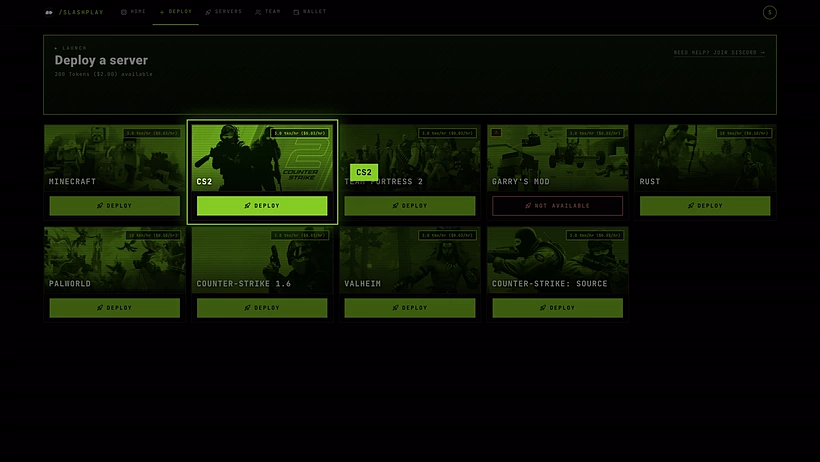
Click Deploy on a card to open the deploy window, where you pick a region and a size (and a team or a version, when there’s a choice). A card may briefly show Updating… while SLASHPLAY installs a game patch. If you have no tokens, the tab says so and shows Buy tokens. See Deploy a server.
Servers
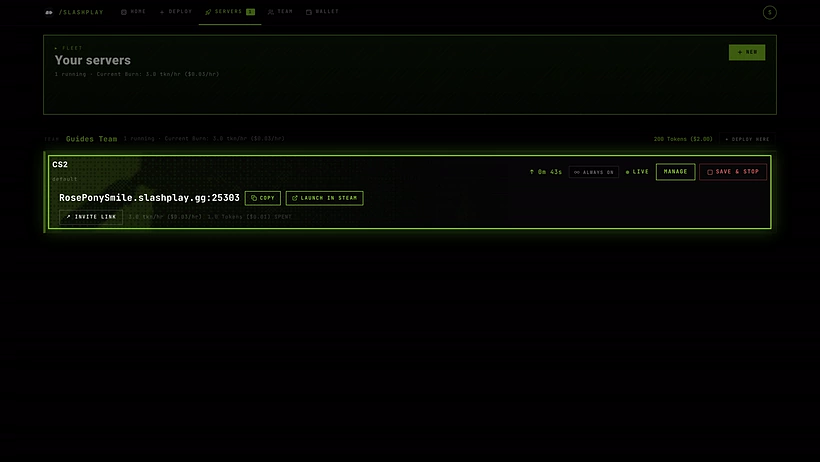
Servers lists every server you can see, grouped by team. The header shows how many are running and the combined burn, and each team group has its name and a Deploy here button.
Each server has a card:
- A live server shows its address with Copy invite and Launch in Steam, the Invite page, what it has spent so far, Manage and Stop.
- A stopped server shows when it last ran, how much it has saved, Manage and Start.
Manage opens the server page, where every detail of one server lives in tabs: General, Saves, Schedule, Monitor, History, Console, Game-specific (for games that have their own controls) and Advanced (files, terminal, launch options and Discord settings).
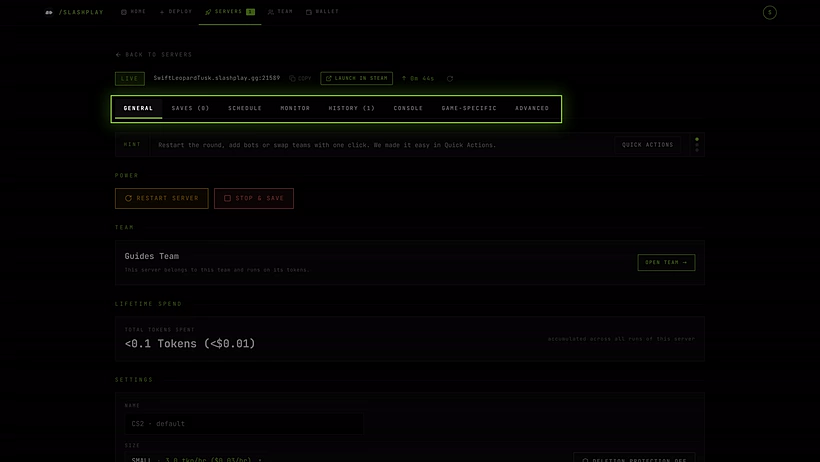
See The server page for a tab-by-tab guide.
Team
Team starts with Your teams: a card for each team you belong to, showing its balance, plus tiles to create a new team or join one with an invite code. Click Open on a team to open it.
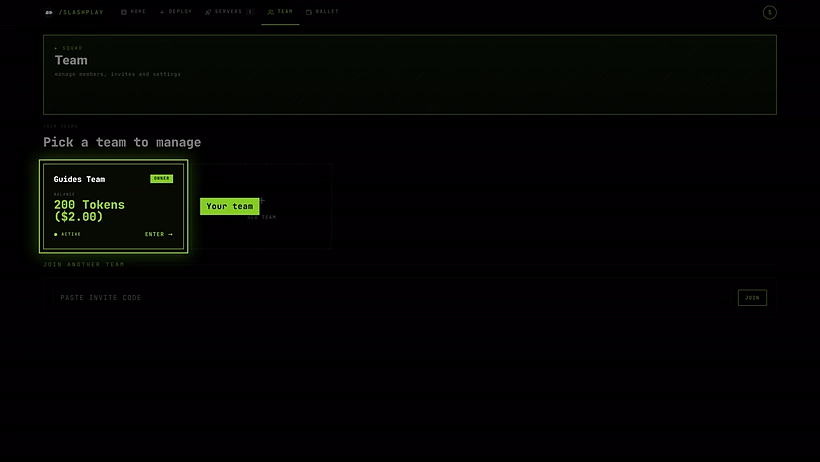
Inside a team you see its team balance, which powers every server on this team, a box to fund it from your wallet, and five sub-tabs:
- Members: who’s on the team, their roles, and pending join requests.
- Log: every server the team has run, with time played and tokens spent.
- Invites: invite codes you can share.
- Discord: the Discord servers connected to this team.
- Settings: name, description, the team-wide auto-stop limit, and (for owners) deleting the team.
What you can do here depends on your role. See Create and join teams.
Wallet
Wallet is your personal balance, separate from any team: buy here, then fund a team from the Team tab. Here you can:
- Buy tokens, in packs from 500 tokens ($5) or a custom amount. See Buy tokens.
- Redeem a code from a giveaway or promotion. See Redeem codes.
- Open the Stripe billing portal to manage payment methods and see past purchases.
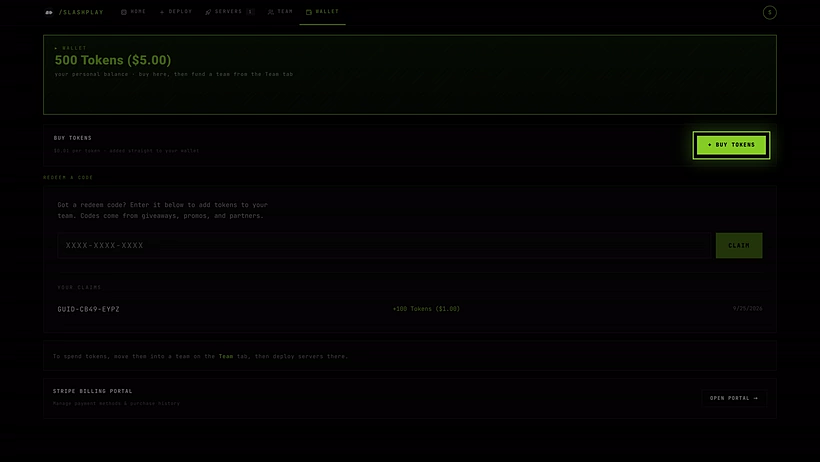
Servers never spend your wallet directly. Move tokens into a team with Deposit on the Team tab. See Fund a team.
Account
Account isn’t a tab: open it from your avatar menu. It has two sections, Profile and Cookies.
Profile shows your name, your Discord ID, your team, how many servers you have and when you joined. Under Sign-in methods you can connect or unlink Discord and Steam, and at the bottom the Danger zone lets you delete your account. Cookies holds your cookie preferences.
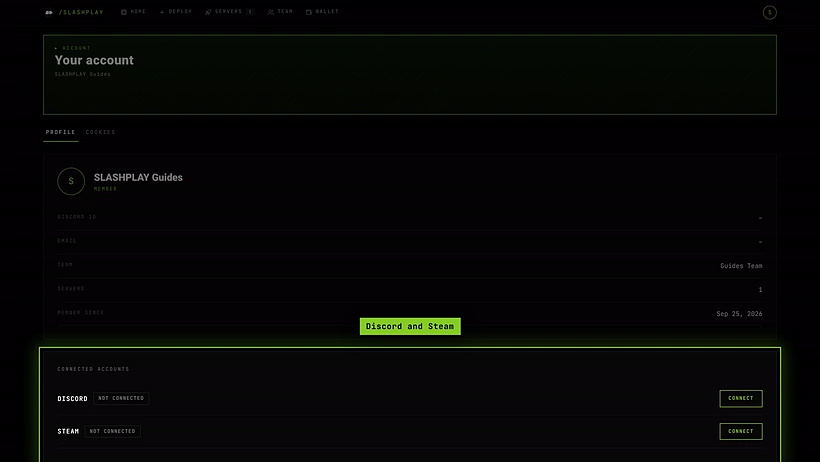 See Sign-in methods and Delete your account.
Dashboard URLs
Every view has its own URL, so you can bookmark it or send it to a teammate:
| URL | Opens |
|---|---|
/dashboard | Home |
/dashboard/deploy | Deploy |
/dashboard/deploy?game=CS2 | Deploy, with CS2 already picked |
/dashboard/servers | Servers |
/dashboard/servers/<id> | One server’s page, General tab |
/dashboard/servers/<id>/saves | That server’s Saves tab (also schedule, monitor, history, console, gamesettings, advanced) |
/dashboard/team | Your teams |
/dashboard/team/<team id> | One team, Members tab (also /log, /invites, /discord, /settings) |
/dashboard/wallet | Wallet |
/dashboard/account | Account |
/join/<invite key> | A server’s invite page, for your friends |
Troubleshooting
A button is greyed out, or a panel says “required”. Your role on that team doesn’t include that permission. Hover the control to see which one, or click your role chip. Ask a team admin to change your role.
I can’t see a server a teammate started. Check that you’re looking at the right team group on the Servers tab. You only see servers on teams you’re a member of.
Team balance shows tokens, but the deploy button says Fund & deploy. Team balance adds up every team you’re on, including teams where you aren’t allowed to deploy. The deploy window only looks at the team you deploy to, and that team needs at least one hour’s worth of tokens. Your personal wallet doesn’t count until you deposit it into a team. See Fund a team.