 /SLASHPLAY
Who can use SLASHPLAY in your Discord
Control who can run /server in a connected Discord: the master switch, access levels for each role, custom permissions, and which channels answer.
Read the transcript
This audio was created with Boson AI's Higgs Audio: boson.ai/higgs-audio
Once a Discord server is connected to your team, you decide who there can use your team’s servers with /server, and from which channels. Access is given to Discord roles, not to people, so nobody needs a SLASHPLAY account: being in your Discord with the right role is enough. This page covers the master switch, the access levels, how roles combine, the limits no role can get past, and channel restrictions.
All of this lives on the team’s Discord tab, in the connected server’s card. Changing it needs the SETTINGS permission on the team. Changes save instantly and apply to the next command anyone runs.
The master switch
The Who can use it section starts with a switch:
Members of this Discord server run /server here without a SLASHPLAY account. What each role may do is set below. Off means nobody here can use /server for this team, whatever the roles say, including per-server roles.
- On: the role levels below apply.
- Off: nobody in that Discord server can use this team’s servers through their roles. The roles you’ve set up are kept, dimmed, with the note Kept, but not in effect until the switch above is on.
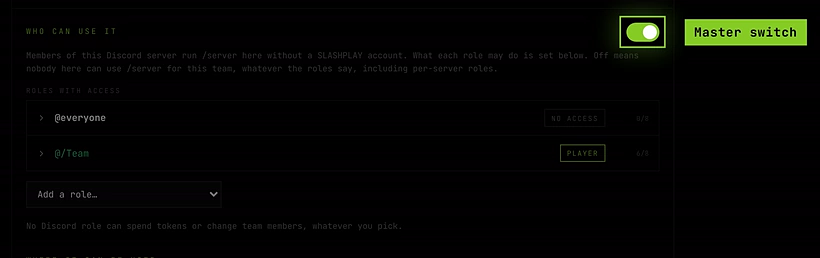
The card’s summary shows Members can’t use /server yet. while it’s off.
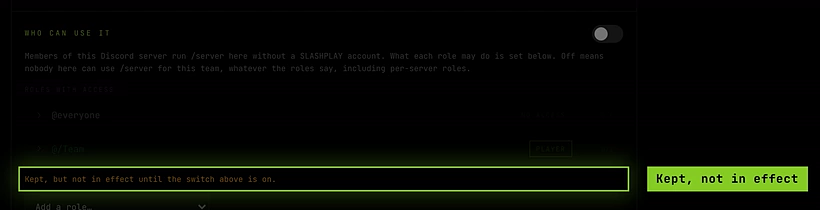
If you picked a role during setup, the switch is already on. If you chose Nobody yet, it’s off.
Roles with access
Under Roles with access, each Discord role with a level is a row showing its name, its level and how many of the eight permissions it has, like 3 of 8. @everyone is always first.
Give a role access
- Open Add a role and pick the role. A new row opens with Pick an access level to add the role. Nothing is saved until you pick one.
- Click an Access level.
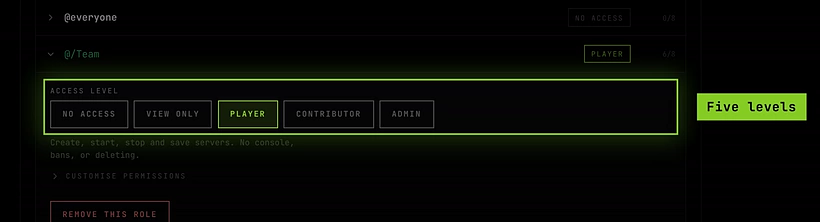
The access levels
| Level | What members with this role can do |
|---|---|
| NO ACCESS | Can’t see or do anything. This is what @everyone starts as. |
| VIEW ONLY | Can see servers, status, connect address and join password. Cannot change anything. |
| PLAYER | Create, start, stop and save servers. No console, bans, or deleting. |
| CONTRIBUTOR | Everything a player can do, plus console/RCON, mods and deleting saves. |
| ADMIN | Full control of this team’s servers. Still cannot spend tokens or change team members. |
For a club or a group of friends, PLAYER for your members’ role is the usual choice. Give CONTRIBUTOR to people you trust with the console.
Custom permissions
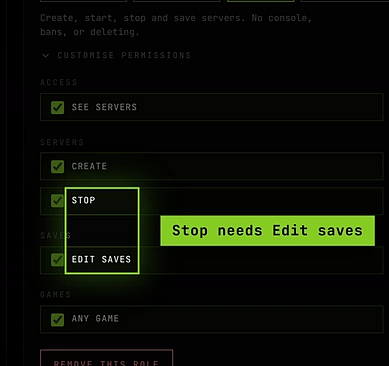
Open Customise permissions in a role’s row to tick individual permissions:
| Group | Permission | What it allows from Discord |
|---|---|---|
| Access | SEE SERVERS | See the fleet, status, connect address and join password (/server list, status, join) |
| Servers | CREATE | Deploy new servers |
| Servers | START | Start and restore servers (/server start) |
| Servers | STOP | Stop running servers (/server stop) |
| Servers | CONSOLE AND SETTINGS | Console/RCON, restart, mods, maps, settings, players and bans (/server restart, /server console) |
| Saves | EDIT SAVES | Save a running world. Needed to stop, since stopping always saves |
| Saves | DELETE SAVES | Delete saves and delete servers |
| Games | ANY GAME | Deploy any game, or only an allowed list |
A hand-tuned role shows the level CUSTOM.
Remove a role
Expand the role and click Remove role. If it granted anything, you’re asked to confirm: Remove @role? They keep whatever @everyone has. @everyone can’t be removed; set it to NO ACCESS instead.
How roles combine
Discord members often have several roles. SLASHPLAY adds them all up, the same way Discord does: a member with @students (PLAYER) and @helpers (console only) can start, stop and use the console. @everyone counts too, so whatever you give @everyone, everyone has.
Roles only ever add rights. There’s no way to give a role less than @everyone has, and a Discord role never takes away anything a person’s own SLASHPLAY account allows.
What no role can do
Whatever you pick, a Discord role can never:
- Move, withdraw or buy tokens, or touch the team’s balance in any other way. (Starting a server does run it on the team’s tokens, as usual.)
- Add, remove or change team members, invite codes or the team’s settings.
- Change Discord settings on the dashboard.
Those need a real SLASHPLAY account with the right team permissions. The card says so at the bottom: No Discord role can spend tokens or change team members, whatever you pick.
Where it can be used
The Where it can be used section decides which channels answer /server for this team:
- All channels: members can run
/serveranywhere in this Discord server. - Only these channels: only in the channels you pick. Everywhere else, SLASHPLAY does not answer for this team. Pick up to 50 channels.
Until you pick at least one channel, the section says No channels picked yet, so /server still answers everywhere.
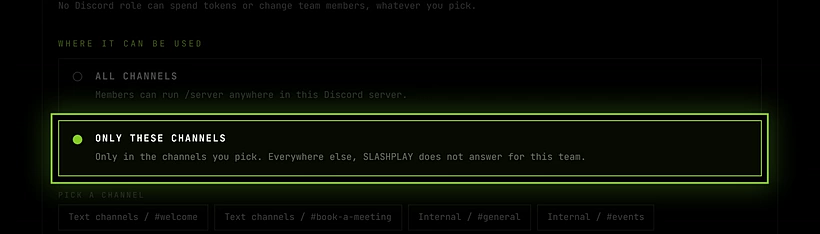
In a channel outside the list, /server list replies This channel doesn’t have SLASHPLAY access. This is a hard fence: it applies to everyone, including team members with their own linked account, and a per-server role can’t get around it. It only affects commands; announcements still go to their own channels.
Linked and unlinked members
People use the bot in one of two ways, and both can apply at once:
- Unlinked members have never linked a SLASHPLAY account. They act purely through their Discord roles, in this Discord server only. If none of their roles has access, they get You don’t have access to any SLASHPLAY servers here yet.
- Linked members ran
/link account. They act as their own SLASHPLAY account, with its team permissions, plus whatever their Discord roles add here. A coach who is VIEW ONLY on the team but has@coaches(CONTRIBUTOR) in the club’s Discord can use the console from there.
Inside a connected Discord server, only the servers of the teams connected to it exist. A linked member’s other teams don’t show up there; they can use those from a DM with the bot, from a Discord server that isn’t connected, or on the dashboard.
A few buttons always need a linked account, whatever the roles: Restart on a crash notice and Approve, Ban and Dismiss on CS2 join requests. See Link your account.
Troubleshooting
A member gets “You don’t have access to any SLASHPLAY servers here yet.”
Check the master switch is on, and that one of their roles (or @everyone) has at least VIEW ONLY.
A member can see servers but /server start says they need permission.
Their roles give VIEW ONLY. Raise the role to PLAYER, or tick START.
/server stop is refused for a role that has STOP.
Stopping always saves, so the role needs EDIT SAVES too. PLAYER has both.
Commands work in one channel but not another. The connection is set to Only these channels. Add the channel, or switch back to All channels.
I changed a role but nothing happened. Changes apply to the next command. Ask the member to run it again. If the role row is dimmed, the master switch is off.