 /SLASHPLAY
Start your first CS2 server
Deploy a Counter-Strike 2 server on SLASHPLAY in about a minute, invite your friends, and stop it again when you're done. No config files, no port forwarding.
Read the transcript
This audio was created with Boson AI's Higgs Audio: boson.ai/higgs-audio
This guide takes you from zero to a live Counter-Strike 2 server your friends can join, then shows you how to stop it so it stops costing anything. It takes about two minutes, and you never touch a config file, a firewall or a port.
The video above walks through every step (use the gear for speed, subtitles and audio language, and the chapters to jump around). Below, the same steps in writing, with the details the video skips.
Before you start
You need three things:
- A SLASHPLAY account. Sign in at slashplay.gg/dashboard with Discord or Steam. There is no separate sign-up form. See Create your account.
- A few tokens on your team. A small CS2 server uses 3 tokens an hour, and one token is one cent, so an evening of play costs a few cents. New accounts start with 6 tokens, enough for about two hours. See How tokens work.
- CS2 installed on the computer you play on, through Steam.
Step 1: Open your dashboard
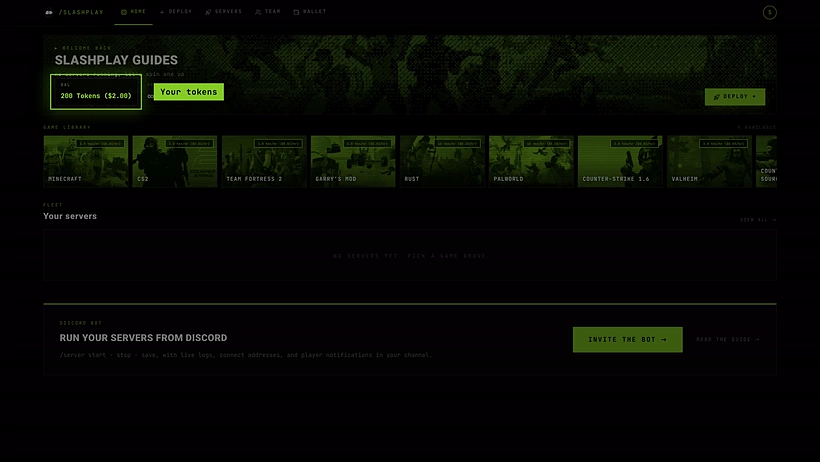
Sign in and you land on the Home tab of your dashboard. Two things matter right now:
- Your balance (Team balance), shown in tokens and in dollars.
- The Deploy tab in the top bar, where every server starts.
Step 2: Pick CS2
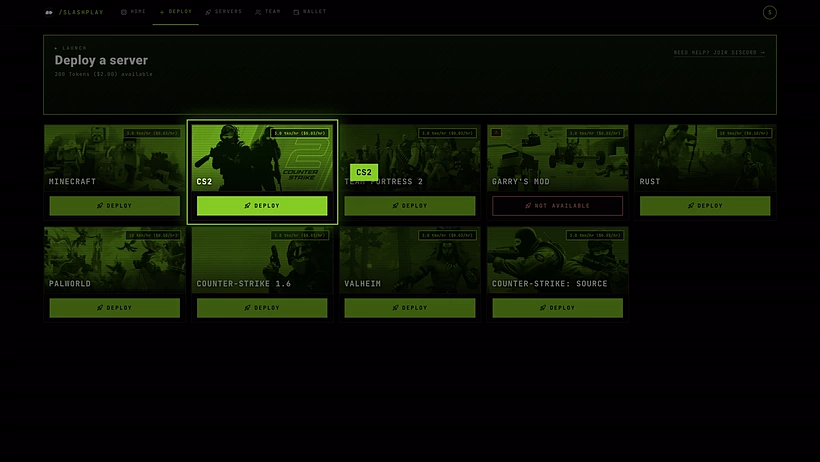
Open Deploy. Every game SLASHPLAY hosts has a card here, with its price per hour in the top corner. Find CS2 and click Deploy on its card.
Step 3: Choose version, region and size
A small window opens. It asks up to three things:
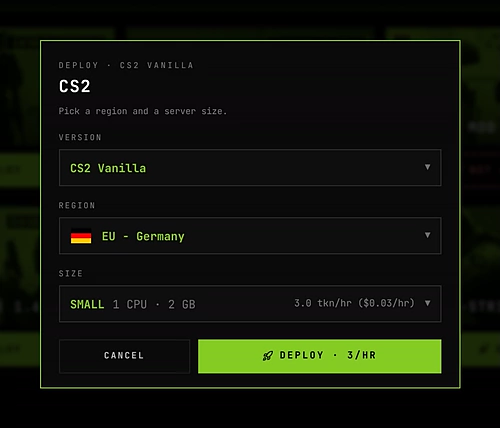
Version. Some games come in more than one flavour, and you pick it here. CS2 Vanilla is the game exactly as Valve ships it. If a game only has one version, this field is not shown at all.
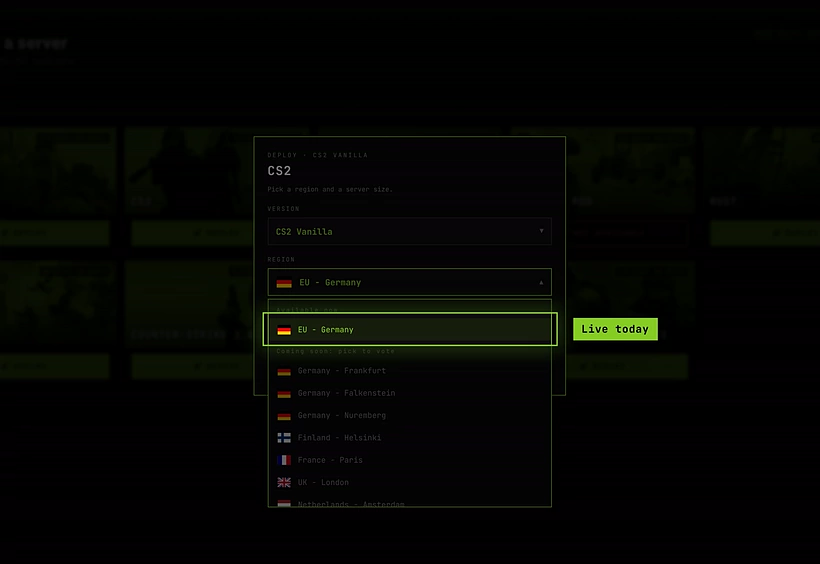
Region. Where in the world your server runs. Players far from it get higher ping, so pick the one closest to most of your players. Today every server runs in EU - Germany. The other regions in the list are coming soon: choosing one opens a short form to vote for it, and the votes decide where we open next. See Regions.
Size. How much CPU and memory the server gets. Bigger costs more per hour:
| Size | CPU | Memory | CS2 cost per hour |
|---|---|---|---|
| SMALL | 1 | 2 GB | 3 tokens ($0.03) |
| MEDIUM | 2 | 4 GB | 6 tokens ($0.06) |
| LARGE | 4 | 8 GB | 12 tokens ($0.12) |
| XLARGE | 8 | 16 GB | 24 tokens ($0.24) |
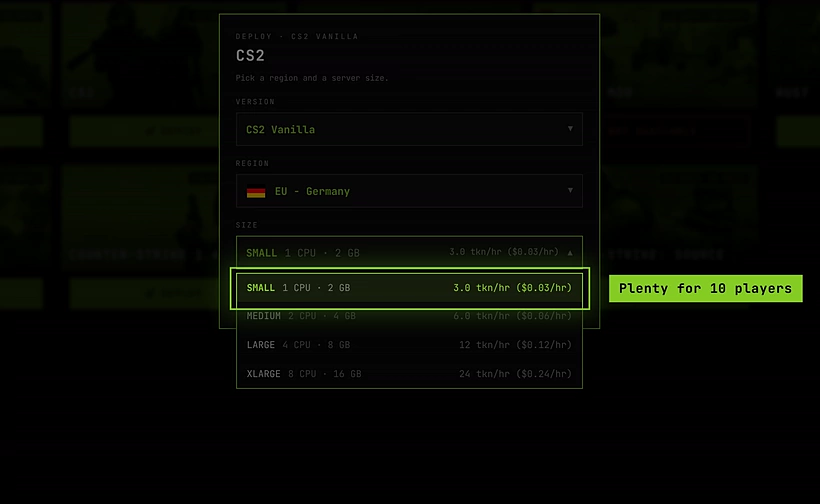
SMALL handles a normal match with friends. Go bigger for full lobbies, lots of bots, or heavy game modes. You can change the size later whenever the server is stopped, so there is no wrong choice here. See Server sizes.
Step 4: Deploy
Click Deploy · 3 tokens/hr ($0.03) (the price is the hourly cost of the size you picked). You’re taken to the Servers tab, where your new server appears straight away with the status Starting.

Booting a CS2 server usually takes 30 to 60 seconds. While it starts, the card shows a hint such as booting, usually live within a minute. If a boot is ever slow, SLASHPLAY retries it on its own; you don’t need to do anything.
Step 5: Join your server
When the status turns Live, the card shows your server’s address, for example GrandOspreyFeather.slashplay.gg:20784. Every server gets its own random, easy-to-read name.

You have two ways in:
- Launch in Steam opens CS2 and joins the server in one click. Your browser asks for permission to open Steam the first time; tick Always allow so it never asks again.
- Copy invite puts the full connect command on your clipboard. In CS2, open the developer console with ~ and paste it:
connect GrandOspreyFeather.slashplay.gg:20784If you turn on a join password (Step 7), the copied command includes it, like connect address; password yourpassword, so friends can still join with one paste.
Step 6: Invite your friends
Click Invite page on the server card. It opens your server’s invite page in a new tab: copy that page’s URL from the address bar and send it to your friends in Discord, WhatsApp, anywhere.
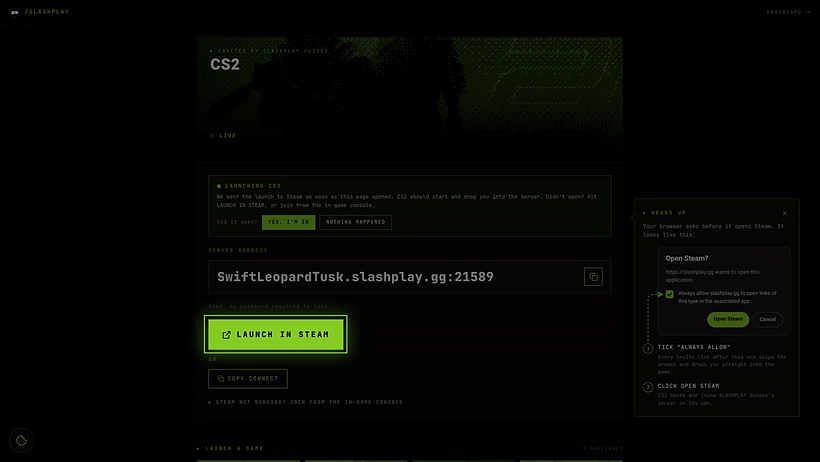
On the invite page, your friends see the server status and address, and can:
- Click Launch in Steam to start CS2 straight into your server.
- Click Copy connect and paste it into the in-game console.
- Open Steam not working? Join from the in-game console for a step-by-step walkthrough.
Your friends don’t need a SLASHPLAY account to join. The invite page updates itself: if the server is still starting, it says so and refreshes until it’s live.
Step 7: Make it yours
Click Manage on the server card to open the server page. Its tabs hold everything else you can do:
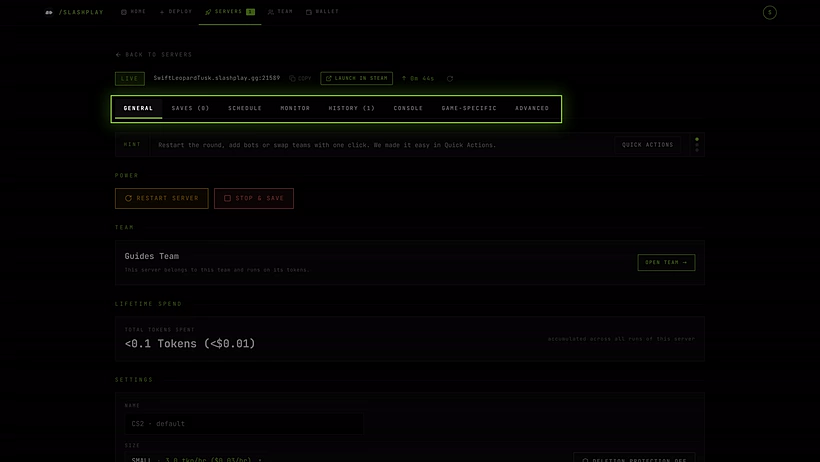
- General: restart or stop, rename the server, change its size, turn on a join password, and find the RCON details.
- Saves: backups, taken automatically every time the server stops. See Saves and backups.
- Schedule: start and stop on a weekly schedule, or stop automatically after a few hours. See Schedules and auto-stop.
- Monitor and History: CPU and memory, and every past run with what it cost.
- Console: the live server console, where you can type any CS2 server command. See The console.
- Game-specific: CS2’s own controls, described next.
- Advanced: the file manager, a terminal inside the server, and launch options.
The Game-specific tab is where CS2 gets easy. Under Quick actions you can switch game mode (Casual, Competitive, Wingman, Deathmatch, Arms Race and more), restart the round, start or end warmup, pause the match, swap or scramble teams, and add or kick bots, each with one click. Under Maps you can change the map or load any map from the Steam Workshop.
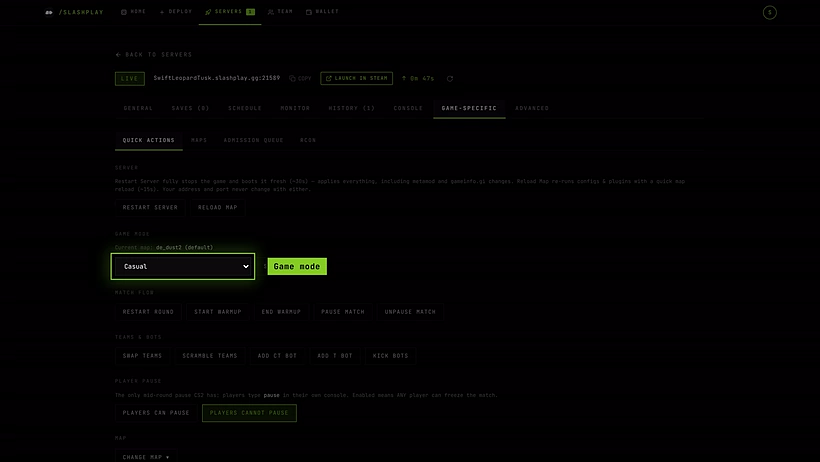
Read more in Quick actions, Game modes and maps and Workshop maps.
Step 8: Stop and save
When you’re done, click Stop on the server card (or on the server page). SLASHPLAY saves the server, shuts it down, and the hourly cost stops.

The next time you want to play, press Start on the stopped server. It comes back with the same settings, the same size and the files from your last save, usually within a minute.

How it works
When you click Deploy, SLASHPLAY picks a machine in your region, starts CS2 in its own isolated container with the latest game files, gives it a public name under slashplay.gg and a port, and waits until the game answers before showing it as Live. Your team’s balance pays for it by the minute while it’s live. Stopping saves whatever the server changed, removes the container and releases the address; restoring does the same in reverse.
That’s why there is nothing to install or forward: the server was never on your network in the first place.
Troubleshooting
The server has said Starting for more than a couple of minutes. Slow boots are retried automatically, and the hint on the card tells you what’s happening. If it ends up Crashed, the boot isn’t charged: click Start the game again on the server page. See Crashes and debug mode. The troubleshooting guide covers the rarer cases.
Launch in Steam does nothing. Your browser may have blocked the Steam prompt, or Steam isn’t running. Start Steam, then click again, or join through the console with the copied connect command.
My friends get “server is full” or can’t find it. Make sure they use the address of the current run. After a stop and restore the address and invite link change. Copy them again from the server card.
The deploy button says Fund & deploy. Your team has no tokens left. Add some from your wallet, see Fund a team.