 /SLASHPLAY
Start your first Counter-Strike: Source server
Deploy a Counter-Strike: Source server on SLASHPLAY in about a minute, join it through Steam or the console, invite friends, and stop it when you're done.
Read the transcript
This audio was created with Boson AI's Higgs Audio: boson.ai/higgs-audio
This guide takes you from nothing to a live Counter-Strike: Source server that you and your friends can join, then shows you how to stop it so it stops costing anything. It takes a couple of minutes. You won’t touch a config file, a firewall or a port.
Before you start
You need three things:
- A SLASHPLAY account. Sign in at slashplay.gg/dashboard with Discord or Steam. See Create your account.
- A few tokens on your team. A CS:Source server on SMALL uses 3 tokens an hour, and a token is one cent. New accounts start with 6 tokens, about two hours of play. See How tokens work.
- Counter-Strike: Source installed through Steam on the computer you play on.
Step 1: Deploy
- Sign in. You land on the Home tab of your dashboard.
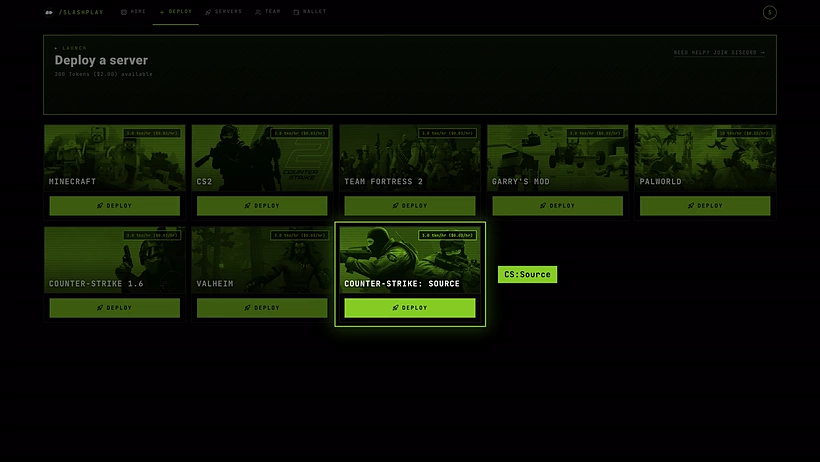
- Open the Deploy tab and find the Counter-Strike: Source card. Its corner shows the price, from 3 tokens an hour ($0.03).
- Click Deploy on the card.
Step 2: Pick a region and a size
The deploy window asks for a Region and a Size. CS:Source has only one version, so there’s no version to pick.
Region. Pick the one closest to most of your players. Today every server runs in EU - Germany; the other regions are open for votes. See Regions.
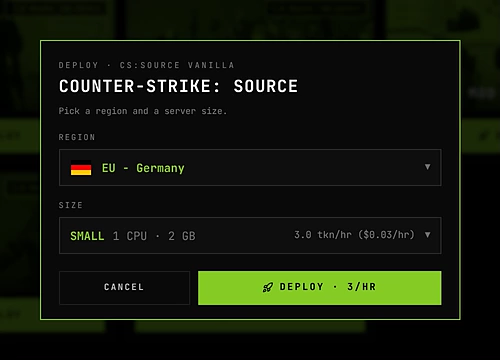
Size. How much CPU and memory the server gets:
| Size | CPU | Memory | Cost per hour |
|---|---|---|---|
| SMALL | 1 | 2 GB | 3 tokens ($0.03) |
| MEDIUM | 2 | 4 GB | 6 tokens ($0.06) |
| LARGE | 4 | 8 GB | 12 tokens ($0.12) |
| XLARGE | 8 | 16 GB | 24 tokens ($0.24) |
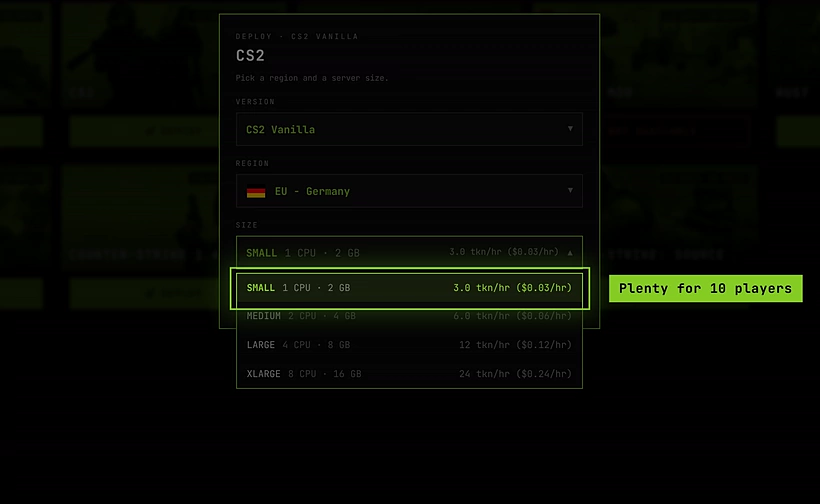
SMALL is plenty for a full 16-player server. You can change size later while the server is stopped. See Server sizes.
Click Deploy · 3 tokens/hr ($0.03). You’re taken to the Servers tab, where the new server shows Starting.
Step 3: Wait for Live
A CS:Source server usually boots in under a minute. The card shows a hint while it starts, and slow boots are retried automatically. A boot that fails is never charged.
Every server gets a random name, and when it turns Live the card shows its address, for example:
GrandOspreyFeather.slashplay.gg:20784The part after the colon is the port. It’s different for every server and it’s part of the address.

Step 4: Join
You have two ways in.
Launch in Steam. Click Launch in Steam on the server card. Steam starts Counter-Strike: Source and joins the server. The first time, your browser asks whether it may open Steam: tick Always allow and click Open Steam.
The developer console. This always works, even when Steam links don’t.
Steps
- Turn on the console once. In Counter-Strike: Source open Options → Keyboard → Advanced and tick Enable developer console. Click OK.
- Copy the connect command. Click Copy invite next to the address on the server card.
- Open the console with ~, the key under Esc and left of 1.
- Paste and press Enter.
The copied command looks like this:
connect GrandOspreyFeather.slashplay.gg:20784If you turn on a join password, the copied command includes it: connect address; password yourpassword.
Step 5: Invite your friends
Click Invite page on the server card. The invite page opens in a new tab: copy its URL and send it to your friends. They don’t need a SLASHPLAY account. The page tries to launch Counter-Strike: Source for them automatically, and has Copy connect and a step-by-step console guide if Steam doesn’t cooperate.
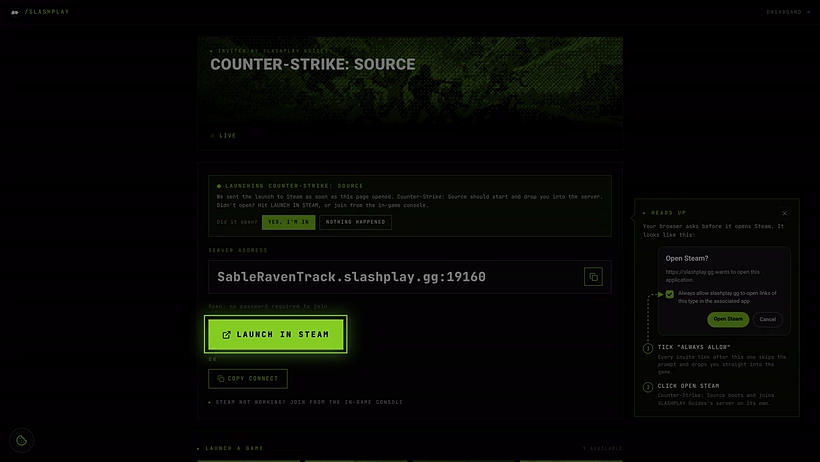
An invite link belongs to one run of the server. After a stop and restore, the address changes, so share the new link. See Connecting and inviting.
Step 6: First things to try
Click Manage on the server card, then open Game-specific:
- Quick actions → Bots: set Bot count to 10 and click Set bot count to fill the server while friends arrive. Kick bots clears them.
- Quick actions → Map: pick
de_inferno,cs_officeor another classic from the list, then click Change map. - Plugins: install CSS:DM, then Modes → Deathmatch for an instant-respawn deathmatch server. See Modes.
- Quick actions → Say: type a message and click Say to greet everyone as the server.
Every button is explained in Quick actions.
Step 7: Stop and save
When you’re done, click Stop on the server card (or on the server page). The server saves its files, shuts down, and the hourly cost stops.

Next time, click Start on the stopped server. It comes back with the same settings, the same size and the files from your last save, including any plugins and configs you added.
Troubleshooting
The server has said Starting for a few minutes. Slow boots are retried automatically and the card’s hint says what’s happening. If it ends up Crashed, the boot isn’t charged: click Start the game again on the server page. See Crashes and debug mode and Troubleshooting.
Launch in Steam does nothing. Start Steam, click again, and pick Open Steam when the browser asks. Or use the console method.
The console key does nothing. Tick Enable developer console in Options → Keyboard → Advanced first.
My friends can’t connect. Make sure they use this run’s address: it changes after every restore. If you just turned on a join password, click Restart on the General tab so it takes effect, then copy the connect command again.