 /SLASHPLAY
Counter-Strike: Source Quick actions
Every control in the CS:Source Quick actions panel: restart the round or game, change map, bots, messages and server toggles, with the command behind each.
Read the transcript
This audio was created with Boson AI's Higgs Audio: boson.ai/higgs-audio
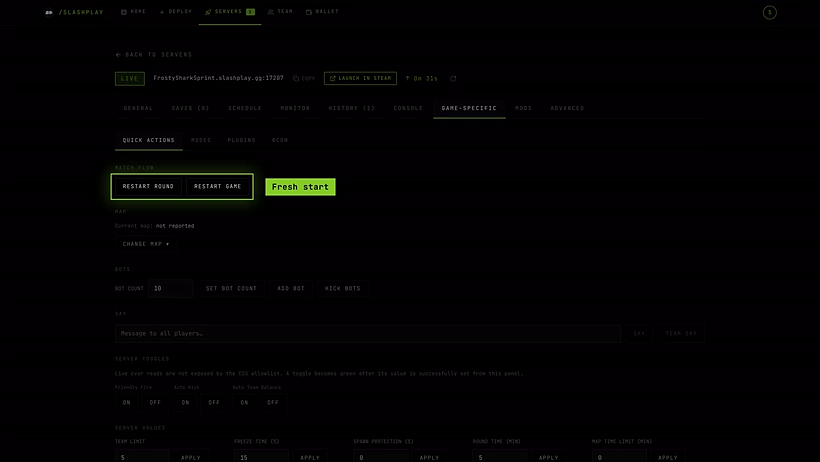
Quick actions puts the Counter-Strike: Source commands you use most behind buttons and boxes, so you can run a match without typing in the console. Every control sends one server command to your live server. This page lists them all, with the command each one sends.
Open your server’s page, click Game-specific, then Quick actions (it opens first).
Before you start
- The server must be Live. Otherwise the controls are greyed out.
- You need the Control servers permission on the team. Without it the panel says Needs the Control servers permission. Ask a team admin. See Roles and permissions.
Each command, and the server’s reply or an error, also appears in the Console tab.
Match flow
| Button | Command | What it does |
|---|---|---|
| Restart game | mp_restartgame 1 | Restarts the game after one second: scores and money reset. |
An empty server restarts automatically the moment the first player joins.
Map
Shows the Current map (or not reported if the server hasn’t told us yet). Pick one from the list, then click Change map:
| Bomb defusal | Hostage rescue |
|---|---|
de_dust2, de_dust, de_inferno, de_nuke, de_train, de_cbble, de_piranesi, de_prodigy, de_port, de_aztec | cs_office, cs_italy, cs_assault, cs_militia |
The server switches with changelevel <map>, and players stay connected through the load.
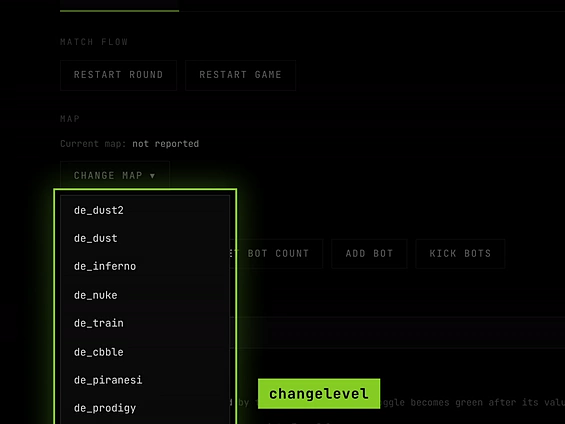
For a map that isn’t in the list (a surf map you uploaded, for example), type changelevel <mapname> in the Console tab.
Bots
| Control | Command | What it does |
|---|---|---|
| Bot count + Set bot count | bot_quota <n> | Keeps that many bots on the server, from 0 to 64. The box starts at 10. |
| Add bot | bot_add | Adds one bot. |
| Kick bots | bot_kick | Removes all bots. |
With bot_quota set, the server tops bots back up after you kick them. To get rid of bots for good, set Bot count to 0.
Say
Type into Message to all players… and click:
- Say (
say <message>) to post in chat to everyone, as the server. - Team say (
say_team <message>) for the team chat variant.
Pressing Enter sends it as Say. Messages can be up to 200 characters of plain text. Characters like ;, $, |, &, <, > and backticks aren’t allowed, and the buttons stay grey until the message is valid.

Server toggles
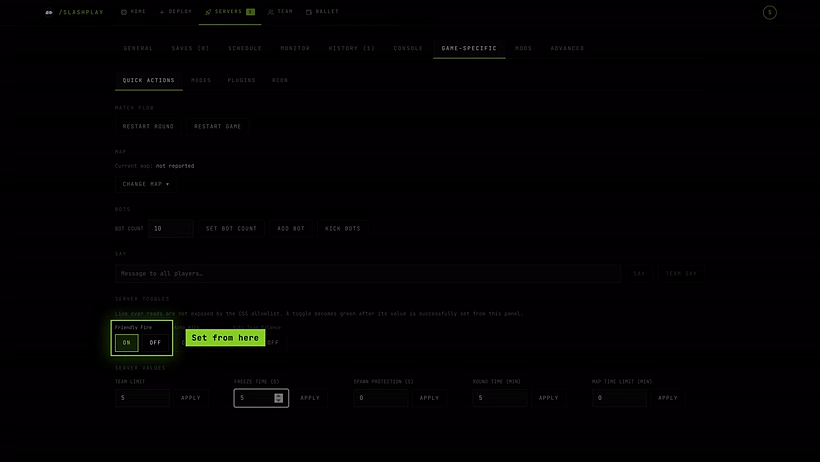
Three on/off switches:
| Toggle | Command | What it controls |
|---|---|---|
| Friendly fire | mp_friendlyfire 0/1 | Whether you can damage teammates. |
| Auto kick | mp_autokick 0/1 | Whether the server kicks idle players and team killers. |
| Auto team balance | mp_autoteambalance 0/1 | Whether the server evens out team sizes. |
The panel can’t read the server’s current values, so neither button is lit at first. A button turns green once you’ve set it from this panel.
Server values
Type a value and click Apply next to it:
| Field | Command | Allowed range |
|---|---|---|
| Team limit | mp_limitteams | 0 to 64 players difference between teams. 0 means no limit. |
| Freeze time (s) | mp_freezetime | 0 to 300 seconds of buy time at the start of each round. |
| Spawn protection (s) | mp_spawnprotectiontime | 0 to 60 seconds. |
| Round time (min) | mp_roundtime | 0 to 60 minutes, in steps of 0.1. |
| Map time limit (min) | mp_timelimit | 0 to 1440 minutes. 0 means no limit. |
The boxes start with suggested values, not the server’s live values. Apply stays grey while a value is out of range. Some settings apply from the next round.
How long changes last
Everything in Quick actions changes the running server only. After a Restart, a stop or a restore, the server boots with its normal settings again. For settings that should always apply, put them in cstrike/cfg/server.cfg with the file manager; see Plugins and mods for where things live.
Troubleshooting
The controls are greyed out. The server isn’t live, or you don’t have Control servers.
I clicked and got an error in the console. The most common one is Server is not ready: wait until the server shows Live. Other errors mean a value was out of range or the message contained a character that isn’t allowed.
My settings reset.
Quick actions changes don’t survive a restart. Use server.cfg for permanent settings.