 /SLASHPLAY
Saves and backups
How SLASHPLAY saves your world: a save on every stop, backups on demand or on a timer, health badges, starting from an older save, downloads and storage cost.
Read the transcript
This audio was created with Boson AI's Higgs Audio: boson.ai/higgs-audio
A save is a snapshot of everything your server needs to come back as it was: the world, configs, and any files the server wrote. Exactly which folders that means differs per game: see What’s kept between runs. SLASHPLAY takes one every time a server stops, and you can take more whenever you like. This page covers how saves are made, how to use and manage them, and what they cost to keep.
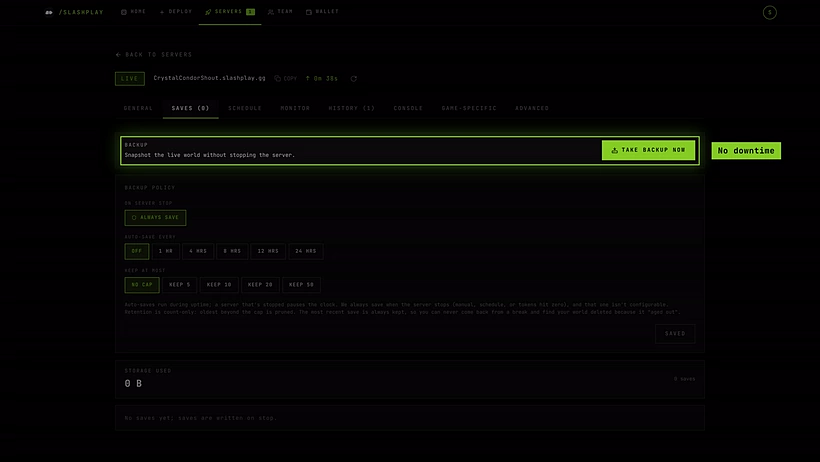
Everything here lives on the server page’s Saves tab. The number in the tab name is how many saves the server has.
Saves happen automatically
Every stop saves first. Whether you click Stop, a schedule window closes, the maximum run time is reached, or the team runs out of tokens, the server saves before it shuts down. This can’t be turned off; the Backup policy panel says so: Saves when the server stops, every time: by hand, on a schedule or when the tokens run out.
That’s why stopping a server is always safe, and why a stopped server can come back exactly as you left it.
Take a backup now
Want a snapshot before trying something risky, like a new plugin or a big build? While the server is live:
- Open the Saves tab.
- Under Backup, click Take backup now. The text reads Snapshot the live world without stopping the server.
The server keeps running and players stay connected. The Backup panel shows Last save just now, and the new save appears in the list. If it doesn’t show up within a minute, reload the page.
 If the server is stopped, the button is disabled: there’s nothing live to snapshot, and the stop already saved it.
Backup policy
The Backup policy panel sets how often the server saves itself while running, and how many saves to keep.
| Setting | Options | What it does |
|---|---|---|
| On server stop | Always saves (can’t be turned off) | Every stop saves first. |
| Auto-save | Off, Every hour, Every 4 hours, Every 8 hours, Every 12 hours, Every 24 hours | Takes a save on a timer while the server runs. The clock pauses while it’s stopped. |
| Keep at most | No limit, 5 saves, 10 saves, 20 saves, 50 saves | When there are more saves than this, the oldest are deleted. |
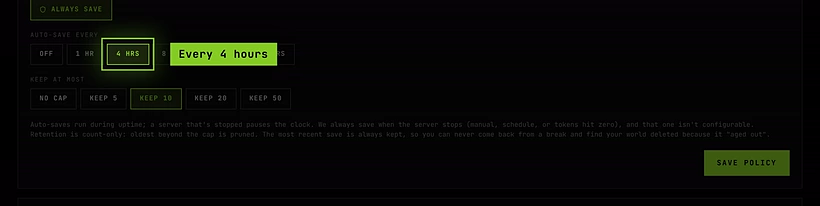
Change the options, then click Save policy. The button reads Saved when there’s nothing left to save.
Retention only counts saves; it never deletes by age. The most recent save is always kept, so you’ll never come back from a break to find your world deleted because it “aged out”.
The save list
Each row shows when the save was taken, a health badge, its size and number of files, and which run it came from. The save a plain Start will use is marked Default: it’s the newest save we’ve verified.
Health badges
After writing a save, SLASHPLAY unpacks it again to check it’s readable. The badge tells you the result:
| Badge | Meaning |
|---|---|
| VERIFIED | We unpacked it after writing it and it was readable. Safe to start from. |
| SUSPECT | Written before we started checking saves, so it isn’t proven. It’s probably fine. |
| CORRUPT | It failed its check. Starting from it will probably fail. The error is shown under the row. |
Hover a badge to read the details. A restore never picks a corrupt save by itself.
Start from a save
To bring the server back with an older world:
-
Stop the server if it’s live. The button explains why: Stop the server first. Stopping saves the world it’s running now, so nothing is lost.
-
Click Restore on the save you want.
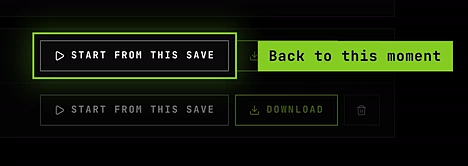
Every save can bring the server back. -
Confirm. For a SUSPECT or CORRUPT save, the confirmation warns you it may fail.
The server starts with that world. If it can’t, a Couldn’t start from that save box shows the exact reason, usually naming the file that wouldn’t unpack. This needs the Edit saves permission. See Start, stop and restore.
Download a save
Click the download button on any save to get it as a .zip you can open on your computer. Use it to keep your own copy of a world, move files to another server, or look inside a save that won’t start.
Delete a save
Click the trash button on a save and confirm. The dialog reads Delete the save from [date]? It can’t be undone. Your other saves stay. Deleting saves frees storage. It needs the Delete saves permission.
To remove a server and all its saves at once, delete the server.
What saves cost
Stored data costs 1 token per GB per month, charged continuously from the team’s balance. The Storage used panel on the Saves tab shows this server’s total (saves plus any public files) and what it costs per month in tokens and dollars.
Most saves are small. A plain CS2 save is a few kilobytes, which rounds to almost nothing. A big Minecraft world, many saves, or custom maps add up faster. Stopping a server doesn’t free its storage, because the saves are what you’d restore from. To save money, lower Keep at most, delete saves you don’t need, or delete servers you’re done with. See Storage costs.
Troubleshooting
Take backup now is greyed out. The server isn’t live, or you don’t have the Edit saves permission.
Restore is greyed out. The server is still running. Stop it first.
No saves yet; saves are written on stop. The server hasn’t stopped yet. Its first save is taken when it does.
My server keeps failing to start from its latest save. That save is probably damaged. Pick an older verified save and click Restore. See Troubleshooting.