/SLASHPLAY
Minecraft console commands
The most useful Minecraft commands for the SLASHPLAY console: ops, whitelist, bans, game mode, time, weather, game rules and saving. Typed without a slash.
Read the transcript
This audio was created with Boson AI's Higgs Audio: boson.ai/higgs-audio
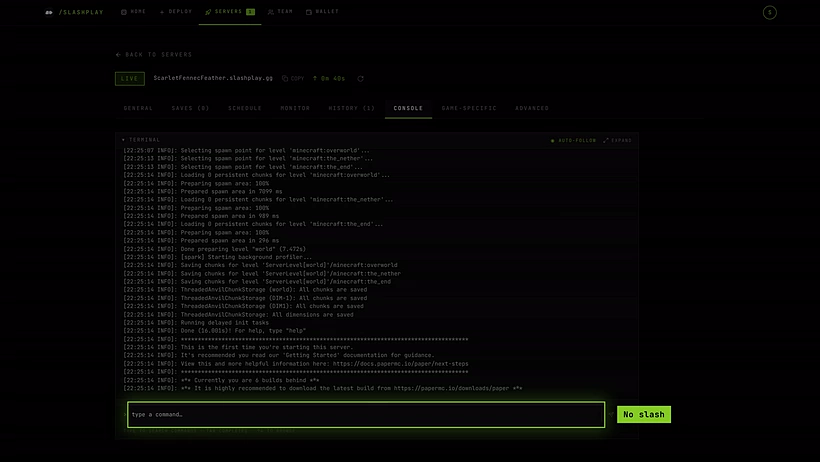
The Console tab on your server page is a direct line to the Minecraft server: whatever you type goes straight to it, the same as typing into the server window on your own PC. You use it for things you can’t do from the game until you’re an operator, like op itself, and for anything you’d rather not do in chat. This page lists the commands SLASHPLAY suggests as you type, grouped by what they’re for.
How the Minecraft console works
- No slash. In game chat you type
/time set day. In the console you typetime set day. - The server must be live. On a stopped server there is nothing to send commands to.
- You need the Control servers permission on the team. See Roles and permissions.
- Answers appear in the log. Minecraft’s reply shows up as a new line in the live output above the input box.
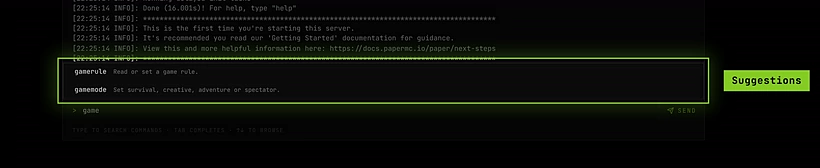
- Suggestions as you type. Start typing and matching commands appear with a short description. Tab completes, ↑ ↓ browse. Commands you use often move to the top, and Recent keeps one-click shortcuts.
- No RCON. Minecraft servers on SLASHPLAY don’t use RCON, so there are no RCON details on the server page. Use this console instead.
Every command Minecraft knows works here, not just the ones below. Plugin commands on Paper work too. See The console for the tab itself.
Players and access
| Command | What it does |
|---|---|
list | List who’s online. |
op <player> | Make a player an operator, so they can use commands in game. |
deop <player> | Take operator status away. |
whitelist <on/off/add/remove/list/reload> | Manage the whitelist. See The Minecraft whitelist. |
kick <player> [reason] | Disconnect a player. They can rejoin. |
ban <player> [reason] | Ban a player by name. |
ban-ip <ip> [reason] | Ban an IP address. |
pardon <player> | Lift a ban. |
banlist | Show current bans. |
op YourName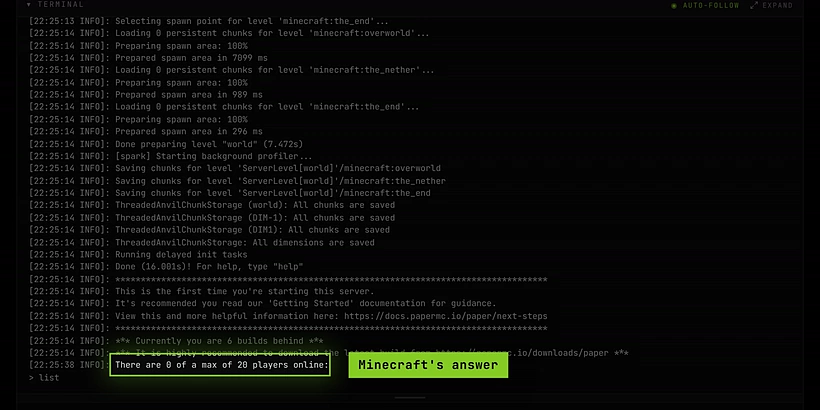
World and gameplay
| Command | What it does |
|---|---|
gamemode <mode> [player] | Set survival, creative, adventure or spectator. |
difficulty <peaceful/easy/normal/hard> | Set the world difficulty. |
time set <day/night/value> | Set the time of day. |
weather <clear/rain/thunder> | Change the weather. |
gamerule <rule> [value] | Read or change a game rule. |
seed | Show the world seed. |
gamemode creative YourNameHelping players
| Command | What it does |
|---|---|
tp <player> <target> | Teleport a player to another player. |
give <player> <item> [count] | Give items to a player. |
say <message> | Broadcast a message to everyone, shown as coming from the server. |
give YourName diamond 64Saving
| Command | What it does |
|---|---|
save-all | Write the world to disk right now. |
save-off | Pause automatic saving. |
save-on | Turn automatic saving back on. |
You rarely need these. Stop always saves the world before shutting down, and Take backup now on the Saves tab makes a snapshot of the live world. If you ever use save-off, remember save-on afterwards. See Saves and backups.
Commands to avoid
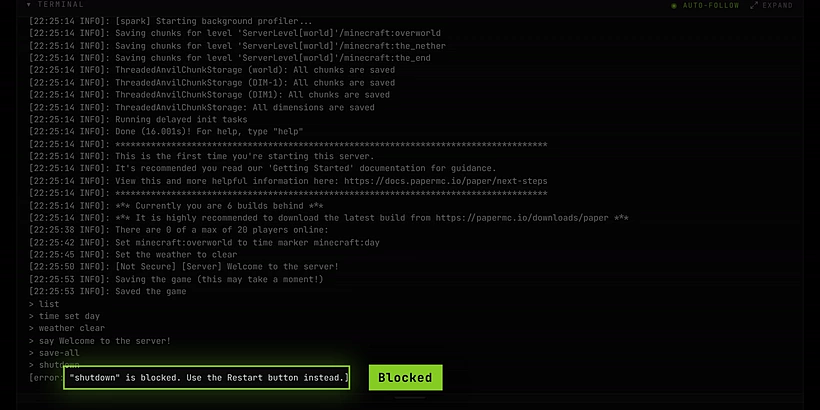
A few commands such as quit, exit and shutdown are blocked outright. The console tells you to use the buttons instead.