 /SLASHPLAY
CS2 game modes and maps
Every CS2 game mode you can switch to, how switching works, and the Maps gallery: official maps, your team's saved maps, community favourites and Workshop maps.
Read the transcript
This audio was created with Boson AI's Higgs Audio: boson.ai/higgs-audio
A CS2 server can play any of Valve’s game modes on any map that supports it. On SLASHPLAY you switch both from the Game-specific tab, without typing a command. This page explains the modes, the two places you can switch them, and everything in the Maps panel.
Both panels need a Live server and the Control servers permission.
How modes work in CS2
CS2 decides the mode from a few server settings (game_type, game_mode, and for some modes sv_game_mode_flags or sv_skirmish_id). They only take effect when a map loads. That’s why every mode switch on SLASHPLAY reloads a map, and why players get a short reconnect.
A new server starts in Casual on de_dust2.
Every game mode
The mode lists in Quick actions and Maps show these, in these groups:
| Group | Mode | What it is |
|---|---|---|
| Classic | Casual | Relaxed bomb and hostage rounds with bigger teams and friendly fire off. The default. |
| Competitive | Full 5v5 matchmaking rules, a long match with halftime. | |
| Competitive (Short) | Competitive with a shorter match. | |
| Wingman (2v2) | Small 2v2 matches on Wingman maps. | |
| Weapons Expert | A Classic variant from Valve’s mode table. | |
| Training Day | A Classic variant from Valve’s mode table. | |
| Gun Game | Arms Race | Each kill upgrades your weapon; first to finish the ladder wins. Uses Arms Race maps. |
| Demolition | Bomb rounds with a set weapon progression. | |
| Deathmatch | Instant respawns, score by kills. | |
| Deathmatch (Team vs Team) | Deathmatch where your team scores together. | |
| Deathmatch (Free For All) | Everyone against everyone. | |
| Co-op | Guardian | Players versus waves of bots. |
| Co-op Strike | Players versus a bot team on a mission. | |
| Other | Training, Custom, War Games, Danger Zone | Special modes from Valve’s table. |
| Skirmish (CS:GO-era) | Flying Scoutsman, Retakes, Stab Stab Zap, Trigger Discipline, Heavy Assault Suit, Headshots Only | Variations Valve made for CS:GO. |
Switch mode from Quick actions
Use this when you want to keep the map and change the mode.
Steps
-
Open Game-specific → Quick actions. Under Game mode you see the Current map.
-
Pick a mode from the list.
-
Click Switch mode, then Switch and reload in the confirmation.
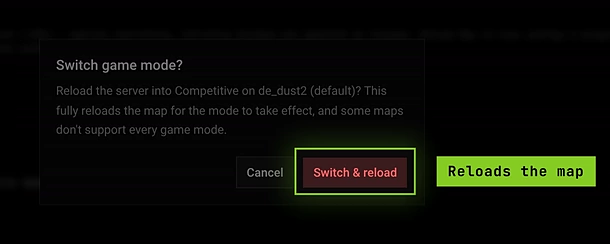
Switching reloads the current map in the new mode.
The server reloads the current map in the new mode. If you’re on a Workshop map, it reloads that Workshop map.
The Maps panel
Open Game-specific → Maps. From top to bottom:
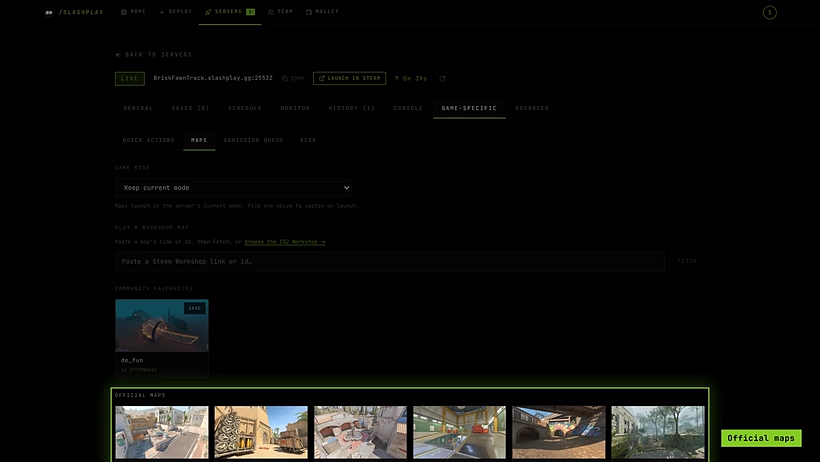
Game mode
A mode picker that starts on Keep the current mode. Leave it there and every map you launch below opens in the mode the server is already in. Pick a mode and every map you launch switches to it on the way. Under the picker, a line tells you which of the two will happen.

Play a Workshop Map
A box where you paste a Steam Workshop link or id and click Fetch. There’s also a browse the CS2 Workshop → link. This is covered step by step in Workshop maps.
Your Saved Maps
Workshop maps your team has saved. It’s a team library: everyone on the team sees the same maps, on any CS2 server. Click a tile to launch it, or Remove to take it out of the library. This row only shows up once your team has saved a map.
Community Favourites
A hand-picked row of popular Workshop maps, the same for everyone. Click to launch, or Save to copy one into your team library (it then shows Saved). The row only appears when there are favourites to show.
Official Maps
Valve’s maps, as picture tiles:
| Tile | Map id |
|---|---|
| Dust II | de_dust2 |
| Mirage | de_mirage |
| Inferno | de_inferno |
| Nuke | de_nuke |
| Overpass | de_overpass |
| Ancient | de_ancient |
| Anubis | de_anubis |
| Vertigo | de_vertigo |
| Train | de_train |
| Office | cs_office |
| Italy | cs_italy |
| Dust | de_dust |
| Baggage | ar_baggage |
| Shoots | ar_shoots |
Baggage and Shoots are Arms Race maps, so pair them with the Arms Race mode.
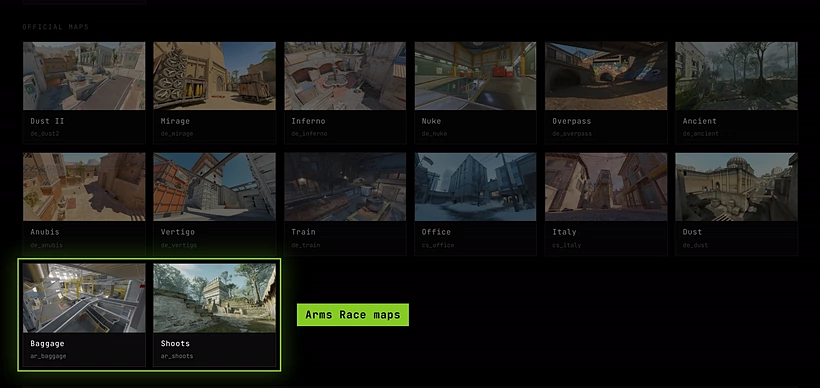
Clicking any tile launches that map right away: the tile flashes Launching… and the server changes level. Official maps load with changelevel, Workshop maps with host_workshop_map.
Change map from Quick actions
Game-specific → Quick actions → Map, then Change map, is the short version: pick from a plain list of official map ids. It always keeps the current mode. See Quick actions.
What sticks after a stop
- The map sticks. The server remembers the last map you loaded (official or Workshop), and a restore boots straight onto it.
- The mode doesn’t. After a restart or restore, the server boots in its default mode again. If you always play the same mode, set it in Launch options so every boot starts there.
Troubleshooting
I launched a map but the mode didn’t change. The Maps picker was on Keep the current mode. Pick a mode first, then click the map.
The map loaded but the mode feels wrong (no respawns, wrong weapons). That map may not support the mode. Arms Race needs Arms Race maps, Wingman needs Wingman maps. Try a map made for the mode.
Tiles do nothing. The server must be live and you need Control servers. Check the Console tab for the command and any error.
Saved maps are missing, or I see a different set. The library belongs to a team, not to a server. If you’re a member of several teams, the library you see may be another of your teams’ libraries rather than the one that owns this server. Anyone on the team can save the map again with Save.