 /SLASHPLAY
Connect and invite friends
Find your server's address, join with one click through Steam or a copied connect command, and share an invite page your friends can use without an account.
Read the transcript
This audio was created with Boson AI's Higgs Audio: boson.ai/higgs-audio
Once your server shows Live, it has an address, and anyone with that address can join. This page shows you where to find it, the fastest ways in for each game, and the invite page that walks your friends through joining. Your friends don’t need a SLASHPLAY account for any of it.
Your server’s address
The address is shown on the server’s card in the Servers tab and at the top of its server page, but only while it’s live. It looks like this:
GrandOspreyFeather.slashplay.gg:30057The first part is the server’s random three-word name, then .slashplay.gg, then a port number after the colon. Ports are high numbers and are part of the address: leave them in.
Minecraft is the exception: its address has no port, just GrandOspreyFeather.slashplay.gg. Minecraft finds the port on its own.

Copy invite
Copy invite next to the address puts a ready-to-paste line on your clipboard. What it copies depends on the game:
- Source and GoldSrc games (CS2, Counter-Strike: Source, Counter-Strike 1.6, Team Fortress 2, Garry’s Mod) copy the full console command,
connect GrandOspreyFeather.slashplay.gg:30057. If a join password is on, it’s included:connect GrandOspreyFeather.slashplay.gg:30057; password yourpassword. Paste the whole line into the game’s console. - Every other game (Minecraft, Valheim, Palworld) copies just the address, which you paste into the game’s own server screen.
Launch in Steam
For the Source and GoldSrc games above, Launch in Steam starts the game through Steam and joins the server in one click, with the password filled in if there is one. The first time, your browser asks whether to open Steam: tick Always allow so it never asks again.
Share the invite link
Click Invite page on a live server’s card. It opens the server’s invite page in a new tab. Copy that page’s address from your browser’s address bar and send it to your friends in Discord, WhatsApp or anywhere else.
The invite page is built for people who have never heard of SLASHPLAY. It shows Invited by and your name, the game, and the server’s status: Live, Starting or Not live. It checks the server every few seconds, so a friend who opens it while the server is booting sees Server is booting; give it 30–60 seconds. and watches it turn live without reloading.
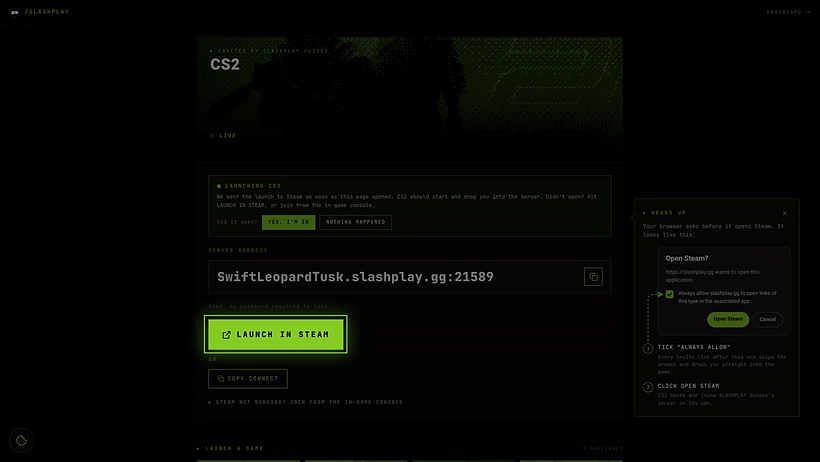
When the server is live, the page shows the address in a big box (click it to copy), and either Open: no password required to join or a Password field. Then it shows the way in for that game.
Steam games: CS2, Counter-Strike: Source, Counter-Strike 1.6, Team Fortress 2, Garry’s Mod
- A big Launch in Steam button starts the game and joins the server. On a computer, the page tries this once by itself shortly after it opens, then shows a Launching notice asking Did it open? with Yes, I’m in and Nothing happened.
- A Heads up guide explains the browser’s prompt: tick Always allow, then click Open Steam.
- Below Or, Copy connect line copies the full console command, password included.
- Join from the in-game console opens a three-step guide, described below.
Minecraft
- Copy address, with the hint paste into Minecraft → Multiplayer → Add Server.
- A How to join guide: in Minecraft Java Edition, open Multiplayer and click Add Server, paste the address, click Done, then double-click the server to join.
Minecraft servers use a whitelist instead of a password. See Minecraft whitelist.
Valheim
- Open in Steam starts Valheim through Steam. It doesn’t join the server by itself.
- Copy address, with the hint launch the game then connect to the address above. Valheim always needs its password, shown on the page.
Palworld
- Copy address. Paste it into Palworld’s join screen.
On a phone
Steam games launch from a PC, so on a phone the page says On your phone? … launches from Steam on a PC. Open this invite on the computer you play on.
When the server isn’t live
If the server has been stopped, the page shows the status Not live and This invite is no longer joinable. Ask the person who invited you for a fresh link.
Join from the console
Every Source and GoldSrc game has a developer console where you can paste a connect command. The invite page’s console guide walks through it:
- Turn on the console (one time). In CS2: Settings → Game → Enable Developer Console (~) → Yes. In the other games: Options → Keyboard → Advanced, then tick Enable developer console.
- Press ~, the key under Esc, left of 1.
- Paste it and press Enter.
Friends don’t need an account
Anyone with the address or invite link can join, subject to the password or whitelist you set. They only need the game itself. An account is only needed to manage servers, and that’s decided by your team.
Troubleshooting
Launch in Steam does nothing. Your browser may have blocked the prompt, or Steam isn’t running. Start Steam and click again, or copy the connect command and paste it into the console.
My friends can’t find the server. Check they’re using the address from the current run. Each time the server starts, the address and invite link change; copy them again from the card.
My friend gets a wrong password error. A password change only applies after a restart. See Join passwords.
The invite page says Not live, but my server is running. The link is from an earlier run. Click Invite page on the card again to get the current one.