 /SLASHPLAY
Start your first Minecraft server
Deploy a Minecraft Java Edition server on SLASHPLAY, join it from the Multiplayer menu, make yourself operator and lock it with the whitelist.
Read the transcript
This audio was created with Boson AI's Higgs Audio: boson.ai/higgs-audio
This guide takes you from zero to a live Minecraft world your friends can join, then shows you how to stop it so it stops costing anything. It takes a few minutes, and you never install Java, edit a config file or touch your router.
Before you start
You need three things:
- A SLASHPLAY account. Sign in at slashplay.gg/dashboard with Discord or Steam. See Create your account.
- A few tokens on your team. A small Minecraft server uses 3 tokens an hour, and one token is one cent. New accounts start with 6 tokens, enough for about two hours. See How tokens work.
- Minecraft: Java Edition on the computer you play on. Bedrock Edition (phones, consoles, the Windows Bedrock app) can’t join these servers.
Step 1: Pick Minecraft
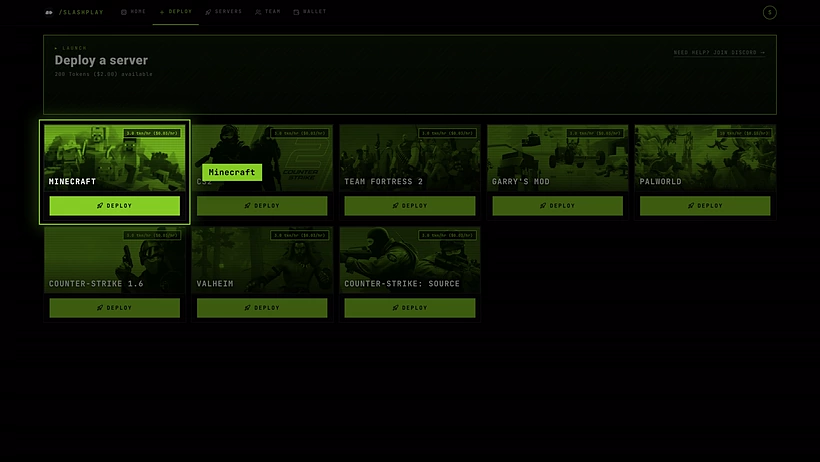
Sign in and open the Deploy tab in the top bar. Every game has a card with its hourly price in the corner. Find Minecraft and click Deploy on its card.
Step 2: Choose version, region and size
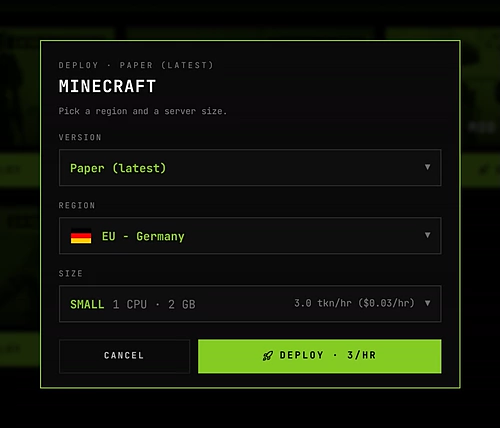
A small window opens. Minecraft is the game where you’ll see all three questions:
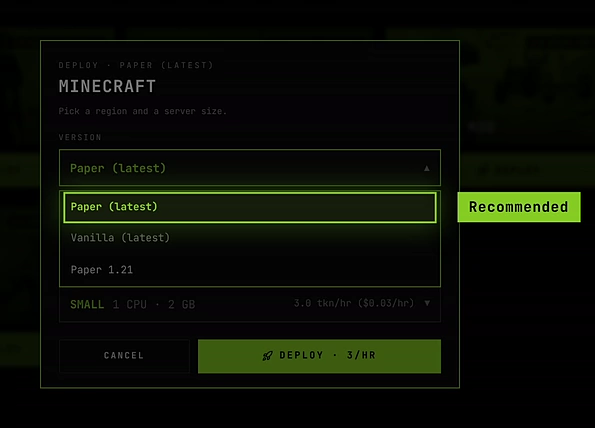
Version. Minecraft comes in three flavours:
- Paper (latest), the default: the newest Minecraft on Paper, a faster server that also runs plugins. Pick this if you’re not sure.
- Vanilla (latest): the newest Minecraft exactly as Mojang ships it. No plugins.
- Paper 1.21: Paper that stays on Minecraft 1.21, for plugins or friends that need that version.
You can’t switch an existing server to another version later, so it’s worth a minute to read Paper or Vanilla?.
Region. Today every server runs in EU - Germany. The other regions in the list are coming soon: choosing one opens a short form to vote for it. See Regions.
Size. How much CPU and memory the server gets:
| Size | CPU | Memory | Cost per hour |
|---|---|---|---|
| SMALL | 1 | 2 GB | 3 tokens ($0.03) |
| MEDIUM | 2 | 4 GB | 6 tokens ($0.06) |
| LARGE | 4 | 8 GB | 12 tokens ($0.12) |
| XLARGE | 8 | 16 GB | 24 tokens ($0.24) |
SMALL is enough for a few friends. Pick MEDIUM or bigger for more players or plugins. You can change the size any time the server is stopped. See Server sizes.
Step 3: Deploy and wait
Click Deploy · 3/HR (the number is the hourly cost of the size you picked). You land on the Servers tab, and your new server appears with the status Starting. The first start also creates your world. It usually takes about a minute. If a boot is slow, SLASHPLAY retries it on its own, and a boot that fails costs nothing.
Step 4: Join your server
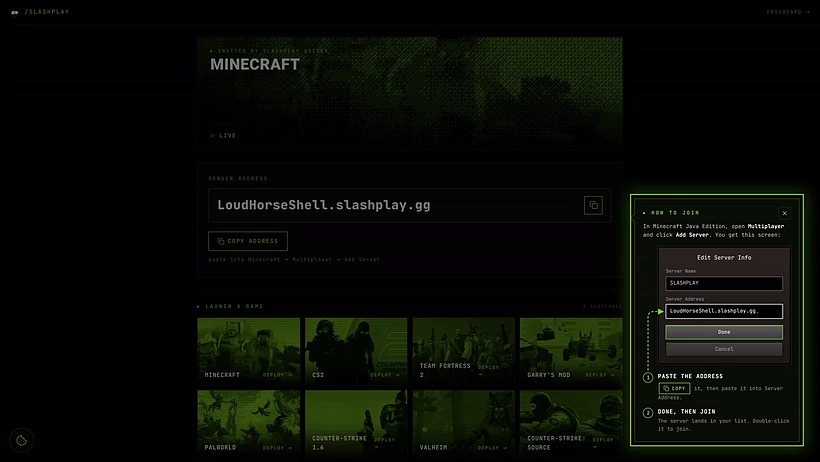
When the status turns Live, the card shows your address, for example GrandOspreyFeather.slashplay.gg. There’s no :port at the end, and you don’t need one. Click Copy.

Now in Minecraft Java Edition:
- Click Multiplayer, then Add Server.
- Paste the address into Server Address. The server name is up to you.
- Click Done, then double-click the server in the list to join.
To invite friends, click Invite page on the server card and send them that page’s URL. The invite page shows the address with a Copy address button and the same Add Server steps. Your friends don’t need a SLASHPLAY account. See Connecting and inviting.
Step 5: Make yourself operator
Operators (ops) can use admin commands in game, like changing game mode or teleporting. Nobody is an op on a new world, so give it to yourself:
- Click Manage on the server card, then open the Console tab.
- Type your Minecraft username after
op, without a slash, and click Send:
op YourName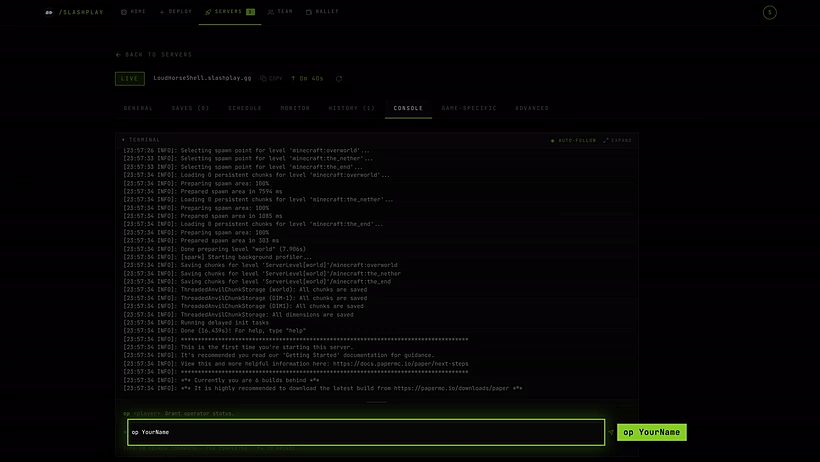
The console answers with a line saying you are now a server operator. From now on you can type commands in the game chat with a /, like /gamemode creative. More in Minecraft console commands.
Step 6: Lock it with the whitelist
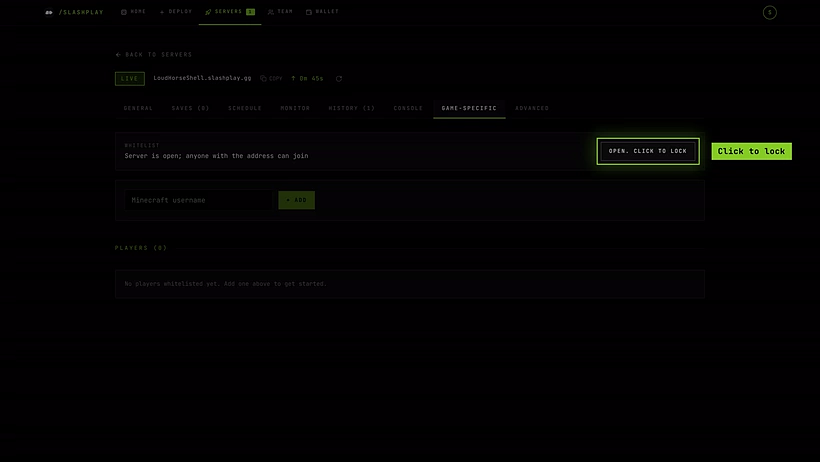
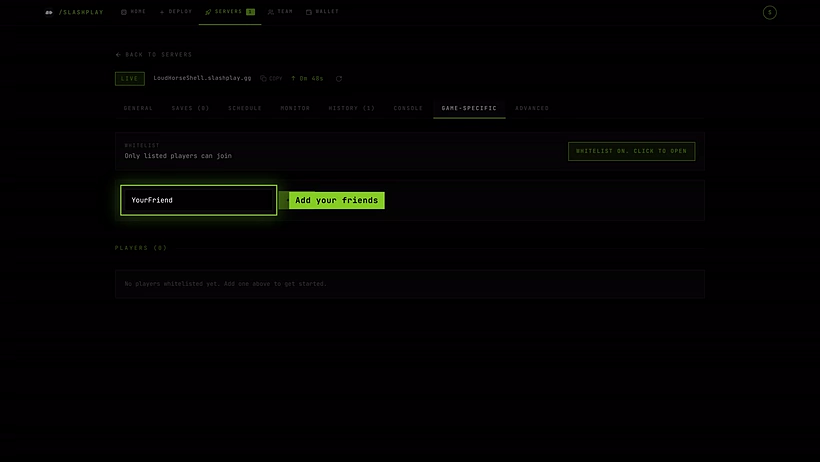
Anyone who has your address can join while the whitelist is off. To keep it to your friends, open the Game-specific tab. The whitelist is right at the top:
- Type each friend’s Minecraft username and click Add. Add yourself too.
- Turn on the Whitelist switch. Its description changes to Only listed players can join.
If someone who isn’t listed tries to join, they show up under Waiting to join, where one click on Approve lets them in. See The Minecraft whitelist.
Step 7: Stop and save
When you’re done, click Stop on the server card or the server page. SLASHPLAY saves your world, shuts the server down, and the hourly cost stops.

Next time, press Start on the stopped server. It comes back with the same world, whitelist, ops and plugins, usually within a minute.

A stopped server’s saves cost a little storage: 1 token per GB per month. A normal world is small, but a huge explored map grows over time. See Storage costs.
Troubleshooting
Minecraft says the server is outdated, or my client is outdated. Your game and the server must run the same Minecraft version. The “latest” versions follow new Minecraft releases. Update your game, or pick the matching version in the launcher’s Installations. See Paper or Vanilla?.
I can’t connect at all. Check that the server card says Live and that you’re using the address from this run: it changes after every restore. Use Java Edition, not Bedrock.
Friends get “You are not whitelisted on this server”. The whitelist is on and they aren’t on it. Approve them under Waiting to join or add them by name.
The server crashed and says it ran out of memory. Stop it, pick a bigger size, and restore. See Troubleshooting.