 /SLASHPLAY
Keep a change to a game file with a script
Add a script to any file in the file manager and SlashPlay applies your change before every start, so it survives game updates. Includes the Metamod script for CS2's gameinfo.gi.
Read the transcript
This audio was created with Boson AI's Higgs Audio: boson.ai/higgs-audio
Some changes go into files the game replaces when it updates. Installing Metamod on CS2 is the usual one: it needs a line in gameinfo.gi, and every CS2 update brings a fresh gameinfo.gi without it. If you take ownership of the file to keep your line, your copy stops getting updates, and an old copy can stop the server from starting after the next one.
A script solves this. You attach it to the file, and it runs every time the server starts, before the game. It makes your change to whatever copy of the file is there, so the file stays SlashPlay’s, keeps getting updates, and still has your line.
Before you start
- The server must be live, in debug mode, or open after a crash, like for any change in the file manager.
- You need the Control servers permission. The first change on a server asks you to confirm that changes are on your own terms. See Changes on your own terms.
Steps
- Open Advanced → Files on the server page and find the file.
- Open More actions → Add a script on its row. The script opens in an editor with its first line already set to your file.
- Write the change, using the helpers listed under What a script can do.
- Click Add script.
- Click Restart to run it now. Otherwise it runs at the next start.
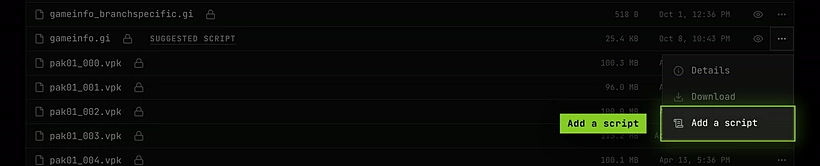
The file now has a lit script icon next to its name. Click it to open the script again, turn it off with Run on every start, or delete it.

See which files a script changes
The script icon shows the connection between a script and the files it changes. It comes only from the scripts in .slashplay/scripts: a file is connected when a script’s edit line names it.
| Icon | Meaning |
|---|---|
| Lit script icon on a file | A script that’s on changes this file at every start. Hover it to see which script. |
| Dim script icon on a file | A script names this file, but it’s turned off. |
| Lit script icon on a folder | A script changes a file somewhere inside. Click it to open the folder and follow it down. |
| No script icon | No script changes it. |

The connection follows the script, wherever you change it. Delete the script from .slashplay/scripts, and its files stop lighting up. Change the path after edit, and the light moves to the new file. The file manager reads the scripts folder each time it shows a folder, so a change made from the Terminal shows after you open another folder or click Refresh.
Metamod on CS2
SlashPlay has a ready-made script for game/csgo/gameinfo.gi. As long as no script changes the file, its row shows a Suggested script button, and the editor and the Take ownership window point to it too. Click Suggested script (or See the script), read it, and click Add script:

edit game/csgo/gameinfo.gi
add_line_after "Game_LowViolence" "Game csgo/addons/metamod"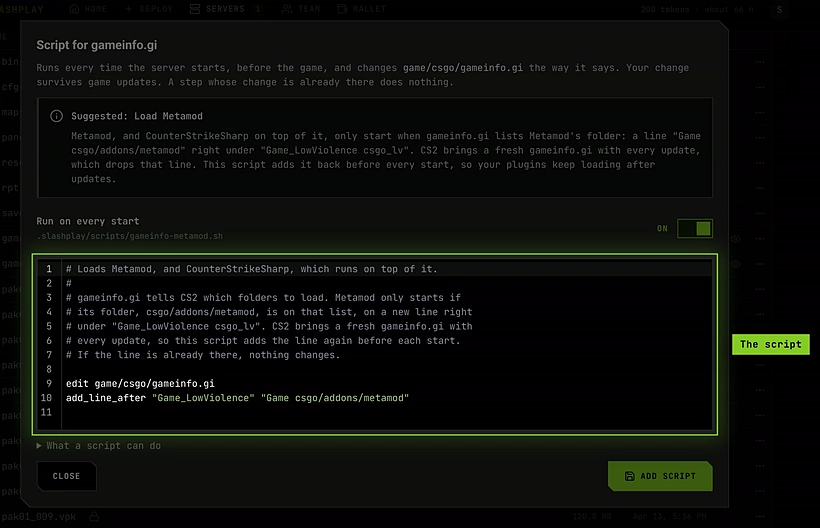
This is the line Metamod’s install guide asks for: Game csgo/addons/metamod on a new line right under Game_LowViolence csgo_lv. It’s what loads Metamod, and CounterStrikeSharp, which runs on top of it. The script adds the line before every start, and does nothing when it’s already there.
If you already own gameinfo.gi, keep Also give gameinfo.gi back ticked. Your old copy is replaced with CS2’s current one, and the script adds the line to it.
What a script can do
A script starts with edit and the file’s path, then one step per line. Put text with spaces in double quotes.
| Step | What it does |
|---|---|
edit <file> | Chooses the file the next steps change. |
add_line <line> | Adds the line at the end of the file. |
add_line_after <text> <line> | Adds the line under the first line that contains the text, with the same indent. |
add_line_before <text> <line> | Adds the line above the first line that contains the text. |
replace_line <text> <line> | Replaces the first line that contains the text. |
remove_line <text> | Removes every line that contains the text. |
replace_text <old> <new> | Replaces the old text everywhere in the file. |
Each step does nothing when its change is already there, so a script can run on every start without adding the same line twice. Lines are compared with any run of spaces and tabs counted as one, so Game csgo/addons/metamod also matches the same line written with tabs. Line endings and indentation are kept.
A script is a shell script, so anything you can run in the Terminal also works in it, and lines starting with # are comments.
How it works
- Scripts are saved in the server’s
.slashplay/scriptsfolder, which is part of every save. Turning one off renames it to end in.off. - They run in name order, on every start: after a stop, a Restart, a crash, and in debug mode.
- What each step changed shows in the Console when the server starts.
- If a step fails, for example because the line it looks for is gone after a game update, that script stops, the console says why, and the game starts anyway.
- A script that runs longer than 2 minutes is stopped.
Troubleshooting
My plugins stopped loading after a game update. Open the Console and look for the lines from your script at the start. If it says no line contains the text it looks for, the update changed the file. Open the file, find where your line belongs now, and change the text in the script.
The script ran, but my change isn’t in the file.
Check that the path after edit matches the file manager’s path exactly, and that the script is on.
A file doesn’t light up, though I wrote a script for it.
The edit line doesn’t name that exact path, or the script isn’t in .slashplay/scripts. A dim icon means the script is turned off. If you just changed the script from the Terminal, click Refresh.
The server still crashes with “unable to load gameinfo.gi”.
You probably own an old copy of the file. Click the open padlock on gameinfo.gi, choose Give back, and restart.