 /SLASHPLAY
Run Your Game Servers From Discord
The SLASHPLAY Discord bot puts your game servers where your community already hangs out. Start and stop servers, pull logs, run console commands, and check your balance, all without leaving Discord. Everything the bot does is backed by the same SLASHPLAY dashboard you already know, so your Discord controls and your web controls always stay in sync.
Looking for the latest steps? Our docs have an always up-to-date, step-by-step version of this guide: Connect a Discord server to your team.
This guide walks you through adding the bot, connecting your account, linking a server, and every command you’ll use day to day.
Step 1: Add the Bot to Your Server
➕ Invite the SLASHPLAY bot: click, pick your Discord server, approve.
You’ll need the Manage Server permission on the Discord side to add a bot. The bot asks for the bare minimum: view channels, send messages, embed links, and read message history, just enough to answer commands and post notifications. No admin rights, no moderation powers.
Once it’s in, start typing / and the SLASHPLAY commands appear.
You can also invite the bot any time from the Connect Discord page on your dashboard.
Step 2: Connect Your Account
In any channel, run:
/link accountThe bot replies with a private button. Click it, approve access on the SLASHPLAY site, and you’ll be sent straight back to Discord. From that moment on, the bot can act on your behalf, securely and only for the things you authorized.
Your authorization is stored encrypted and is scoped to your account only. You can revoke it any time with
/link logout.
Step 3: Connect Your Discord Server (Optional)
Connecting a Discord server to your team does two things: it posts live game events into a channel, and it lets the people in that server use /server without a SLASHPLAY account of their own.
It’s all done on the dashboard (no codes to copy, no commands to type):
- Go to Team → Discord and click Connect a Discord server.
- Discord asks which servers you’re in. We keep only the ones where you have Manage Server.
- Pick your server from the list. Done.
A Discord server can host several teams, and a team can be connected to several Discord servers. Each connection has its own roles, channels and notifications.
Letting your members in
Under Who can use it, switch on Let this Discord server’s members use SLASHPLAY, then give each Discord role an access level:
| Access level | What it allows |
|---|---|
| View only | See servers, addresses and join passwords; change nothing |
| Player | Start, stop and save servers |
| Contributor | Also restart, use the console, and delete saves |
| Admin | Full control of the team’s servers |
Anyone holding a role you’ve granted can now run /server: no signup, no authorization screen. This is what makes the bot usable for a clan, a class, or a club where most people will never want an account.
Guild access can never spend tokens, change team members, or edit team settings, whichever level you pick. Those need a real SLASHPLAY account.
Announcements
Under Announcements, choose the channel to post in and optionally a role to ping. Whenever a server goes live, the bot posts a join card with the address, the password and who started it. Send a test posts a sample so you can check it before it matters.
Managing Servers, Start to Finish
Here’s what a normal session looks like, entirely inside Discord.
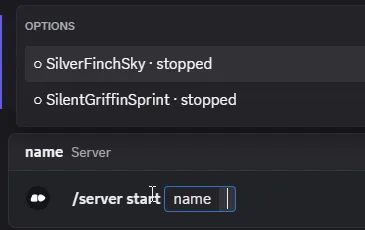
Start a server. Type /server start and the bot autocompletes your team’s servers with their live status. Pick one and hit enter:
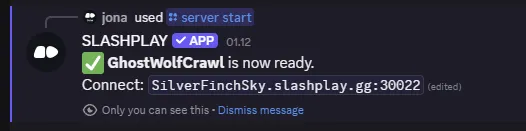
Get your connect address. When the server is ready, the bot hands you the connect address to paste into your game. Share it with friends and you’re playing:
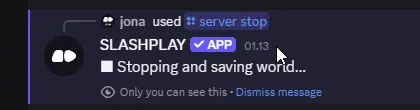
Stop when you’re done. /server stop saves your world first, then powers the server down, so the next start picks up exactly where you left off:
All replies are private (only you can see them), so your server list, addresses, and balance are never broadcast to the whole channel.
Everything the Bot Can Do
Getting connected
| Command | What it does |
|---|---|
/play | Open the dashboard to manage your servers |
/link account | Connect your SLASHPLAY account |
/link logout | Disconnect your account from the bot |
Connecting a Discord server, choosing who can use it, and picking an announcement channel are all done on Team → Discord (see Step 3).
Managing servers
Once your account is connected, the /server command is your control panel:
| Command | What it does |
|---|---|
/server list | List your team’s servers |
/server status | Check a server’s current status |
/server start | Start a server (with a save restore) and get its connect address |
/server stop | Stop a server (your world is saved first) |
/server restart | Restart a server |
/server logs | Pull recent server logs |
/server console | Send a console/RCON command |
/server join | Get the connect details to share with friends |
Every server option autocompletes from your team’s actual servers, live status included; no copying IDs around.
Account & utilities
| Command | What it does |
|---|---|
/balance | Show your team’s token balance |
/whoami | Show your SLASHPLAY identity |
Notifications (linked servers)
With a Discord server connected on Team → Discord, the bot posts live events into your chosen channel:
- Player joins: batched into a tidy feed, so a rush of joins doesn’t spam the channel
- Server status changes: starting, ready, stopped, and crash notices with a restart button
- Save completions: know your world is safely stored
- CS2 admission knocks: with approval mode on, join requests show up as approve/deny buttons right in Discord
- Server went live: a join card with the address, the password and who started it, optionally pinging a role
Tune each of these on Team → Discord.
Right-click shortcuts
The bot also adds two context-menu actions (right-click → Apps):
- SLASHPLAY profile: right-click a user to see their SLASHPLAY identity.
- Use as RCON command: right-click any message to send its text to a server as a console command.
Tips
/playalways works. If you ever get lost,/playdrops you back on the dashboard where you can do everything visually.- Replies are private. The bot answers most commands ephemerally, so your server list and balance aren’t broadcast to the whole channel.
- Connect addresses change. When you stop and start a server, it gets a fresh connect address; always grab the latest one from
/server startor/server join.
You’re Ready to Play
That’s it: add the bot, run /link account, and your game servers live right inside Discord. Spin one up, share the connect address, and let your community jump in.
Need a hand? Join our Discord community or read what SLASHPLAY is all about.