 /SLASHPLAY
Join a friend's server
Got a SLASHPLAY invite link or a server address from a friend? Here's how to join in CS2, Minecraft, Valheim and every other game, no account needed.
Read the transcript
This audio was created with Boson AI's Higgs Audio: boson.ai/higgs-audio
A friend sent you a link like slashplay.gg/join/…, or an address like GrandOspreyFeather.slashplay.gg:30057, and you want to play. You’re in the right place. You don’t need a SLASHPLAY account, and you don’t pay anything: the person who runs the server does.
All you need is the game itself, installed on the computer you play on.
If you got an invite link
Open the link on the computer you play on. The page shows who invited you, which game it is, and whether the server is up:
- LIVE: the server is running. Follow the steps for your game below.
- STARTING: it’s booting. Keep the page open; it turns LIVE by itself within a minute or so.
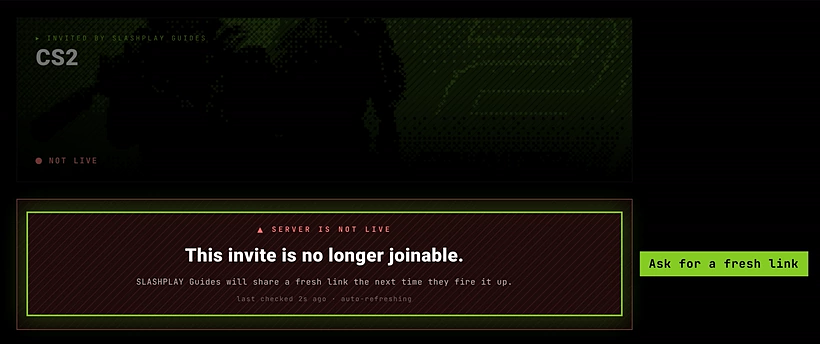
- NOT LIVE: the server was stopped, or the link is from an earlier session. Ask your friend for a fresh link.
Join by game
CS2, Counter-Strike: Source, Counter-Strike 1.6, Team Fortress 2, Garry’s Mod
These are Steam games, and joining is one click:
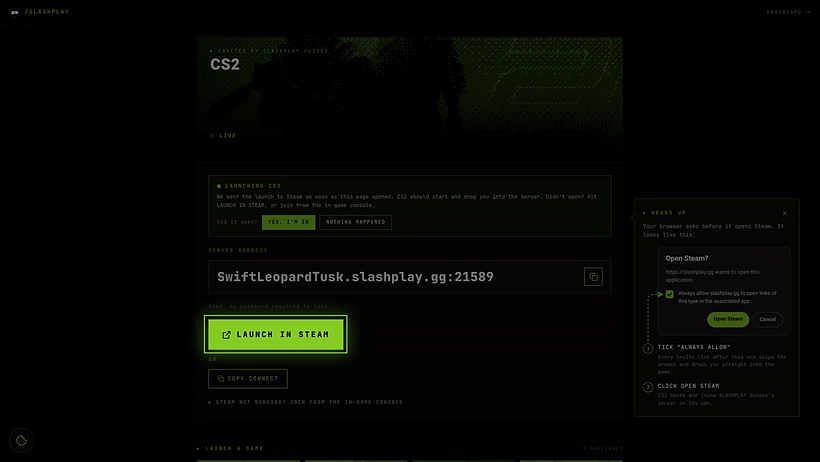
- On the invite page, click Launch in Steam. On a computer, the page tries this on its own a moment after it opens.
- Your browser asks whether to open Steam. Tick Always allow, then click Open Steam.
- The game starts and connects to the server, with the password filled in if there is one.
If nothing happens, use the console instead:
- On the invite page, click Copy connect. It copies a line like
connect GrandOspreyFeather.slashplay.gg:30057. - Turn on the developer console once. In CS2: Settings → Game → Enable Developer Console (~) → Yes. In the other games: Options → Keyboard → Advanced, then tick Enable developer console.
- In the main menu, press ~ (the key under Esc), paste the line and press Enter.
The page’s Steam not working? Join from the in-game console link shows the same three steps.
Minecraft (Java Edition)
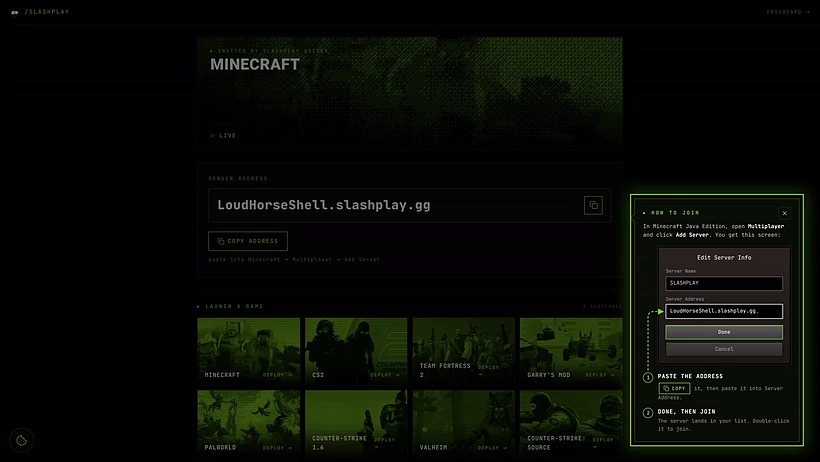
- On the invite page, click Copy. Minecraft addresses have no port number, and they don’t need one.
- In Minecraft: Java Edition, open Multiplayer and click Add Server.
- Paste the address into Server Address, click Done, then double-click the server to join.
If Minecraft says You are not whitelisted on this server, the server only lets in players on its list. Your try shows up on your friend’s dashboard, where they can approve you with one click; then join again.
Bedrock Edition (phones, consoles, the Windows Bedrock app) can’t join these servers.
Valheim
- On the invite page, click Copy and note the Password. Valheim servers always have one.
- Start Valheim, pick your character, and open the Join game tab.
- Click Add server, paste the address and connect, then type the password when Valheim asks for it.
Palworld
- On the invite page, click Copy.
- In Palworld, choose Join Multiplayer Game, paste the address into the box at the bottom and click Connect.
If you only got an address
An address works just like the invite link, minus the help:
- Steam games: in the game’s console, type
connectfollowed by the address, for exampleconnect GrandOspreyFeather.slashplay.gg:30057. If the server has a password, add; password theirpasswordto the end. - Minecraft, Valheim and Palworld: paste the address into the game’s server screen, as above.
Keep the port (the number after the colon). It’s part of the address.
On a phone?
Steam games start from Steam on a PC, so the invite page on a phone tells you to open the link on the computer you play on. Send it to yourself, or type it into that computer’s browser.
Troubleshooting
It says wrong password. Your friend may have changed the password without restarting the server yet, or sent an old one. Ask them to check the password on their server page.
The game can’t find the server. Check the address is from today’s session: it changes every time the server starts. And check your game is up to date; CS2 and Minecraft servers run the newest version.
Minecraft says my client, or the server, is outdated. Your game and the server need the same Minecraft version. Ask your friend which version they picked, and choose it in the Minecraft Launcher under Installations.
Launch in Steam opened the game but didn’t join. Close the game and click Launch in Steam again once Steam is fully started, or use the console steps.
Want your own server?
Running one takes about a minute and costs a few cents an hour. Start with Create your account, then Start your first server.
Related
- Connect and invite friends, the host’s side of the invite page
- Join and connect to a CS2 server
- The Minecraft whitelist
- What is SLASHPLAY?