 /SLASHPLAY
Control who joins with the Minecraft whitelist
Use the Whitelist panel to lock your Minecraft server, add friends by username, approve join requests, and kick or remove players. No join password needed.
Read the transcript
This audio was created with Boson AI's Higgs Audio: boson.ai/higgs-audio
Minecraft servers have no join password. Instead, Minecraft uses a whitelist: a list of usernames allowed on the server. When the whitelist is on, only those players can join, even if someone else has your address. This page shows you how to manage it from the dashboard, without typing any commands.
Before you start
- The server must be running. The whitelist is changed live on the server. On a stopped server the panel says Start the server to manage the whitelist.
- You need the Control servers permission on the team. Without it you can see the panel but not change it. See Roles and permissions.
- Your friends’ exact Minecraft usernames. Java Edition names are 3 to 16 letters, digits or underscores.
Open the whitelist
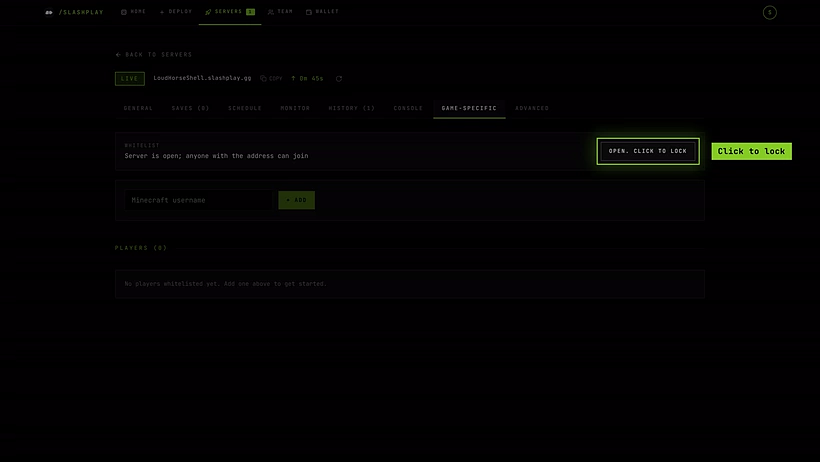
Click Manage on your server’s card and open the Game-specific tab: the whitelist is the first thing on it. The panel has four parts: the on/off switch, pending join requests, the add box, and the player list. It refreshes itself every few seconds.
Steps
-
Add yourself first. Type your own username in the Minecraft username box and click Add (or press Enter). If you lock the server before you’re on the list, you lock yourself out too.
-
Add your friends the same way, one name at a time. Each name appears under Players a moment later, with its Minecraft ID below it.
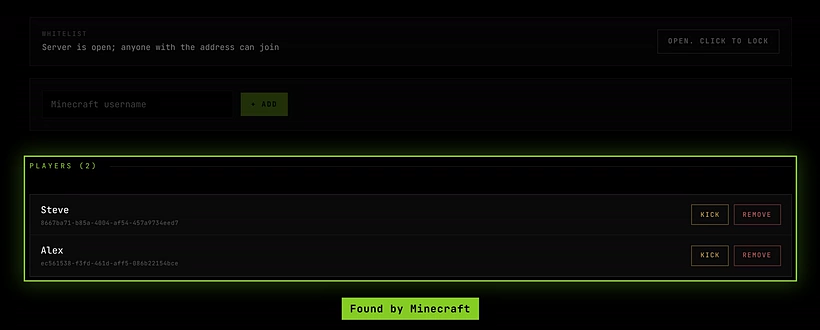
Each name Minecraft finds shows up with its ID. -
Turn the whitelist on. The description next to the Whitelist switch tells you the current state:
- Server is open; anyone with the address can join, switch off. Turn it on to lock the server.
- Only listed players can join, switch on. Turn it off to let everyone in again.
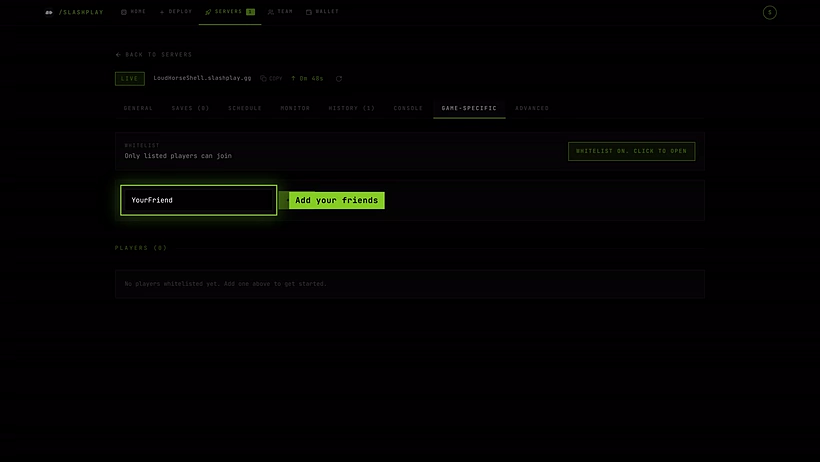
Whitelist on: only the players on the list get in. -
Approve people who knock. When someone who isn’t listed tries to join, Minecraft turns them away with You are not whitelisted on this server! and their name appears under Waiting to join, with how many times they tried. Click Approve to add them. They can then join straight away.
Kick or remove a player
Every name under Players has two buttons:
| Button | What it does |
|---|---|
| Kick | Disconnects the player right now. They stay on the whitelist and can join again. |
| Remove | Disconnects the player and takes them off the whitelist. With the whitelist on, they can’t come back until you add them again. |

Using the console instead
The panel sends normal Minecraft commands to the server, so you can do the same from the Console tab. Type them without a slash:
whitelist add Steve| Command | What it does |
|---|---|
whitelist on / whitelist off | Turn the whitelist on or off |
whitelist add <name> | Add a player |
whitelist remove <name> | Remove a player (doesn’t disconnect them) |
whitelist list | Show everyone on the list |
kick <name> | Disconnect a player |
Changes made in the console, or by an operator in game with /whitelist, show up in the panel within a few seconds. See Minecraft console commands.
How it works
The whitelist lives in the server’s own files (whitelist.json, with the on/off setting in server.properties), and both are part of every save. Your list and the lock survive Stop and Start, even though the address changes. Entries under Waiting to join are read from the server’s recent log, so they only cover the last half hour or so of the current run.
Troubleshooting
The panel says “Usernames are 3 to 16 letters, digits or underscores”. The name has a space or another character Minecraft doesn’t allow. Check the spelling with your friend.
I added a friend but they still can’t join. Check that their name appears under Players. If it never shows up, Minecraft couldn’t find that username: check the spelling and add it again. If a slightly different name shows up, you added someone else by mistake: Remove it and add the correct one.
I locked the server and now I can’t join. Add your own username in the panel. You don’t need to be in game to do it.