 /SLASHPLAY
Play Steam Workshop maps on CS2
Load any public CS2 Steam Workshop map on your SLASHPLAY server by pasting its link, save it to your team library, and fix the usual Workshop problems.
Read the transcript
This audio was created with Boson AI's Higgs Audio: boson.ai/higgs-audio
The Steam Workshop has thousands of community CS2 maps: aim maps, surf, retakes practice, remakes of old favourites. You can play any public one on your server by pasting its link. There’s nothing to upload and no file to download yourself: the server fetches the map from Steam when you launch it, and your players’ CS2 does the same when they join.
Before you start
- Your server is Live.
- You have the Control servers permission on the team. It’s needed both to launch maps and to save them to the library.
- The map is public on the Workshop. Friends-only, private or removed items can’t be fetched.
Steps
-
Find the map. Open the CS2 Workshop in your browser (the Maps panel has a browse the CS2 Workshop → link) and open the map’s page.
-
Copy the link. Copy the page URL from the address bar. It looks like
https://steamcommunity.com/sharedfiles/filedetails/?id=123456789. The number at the end is the map’s id; you can paste just that instead. -
Open the Maps panel. On your server’s page, open Game-specific → Maps.
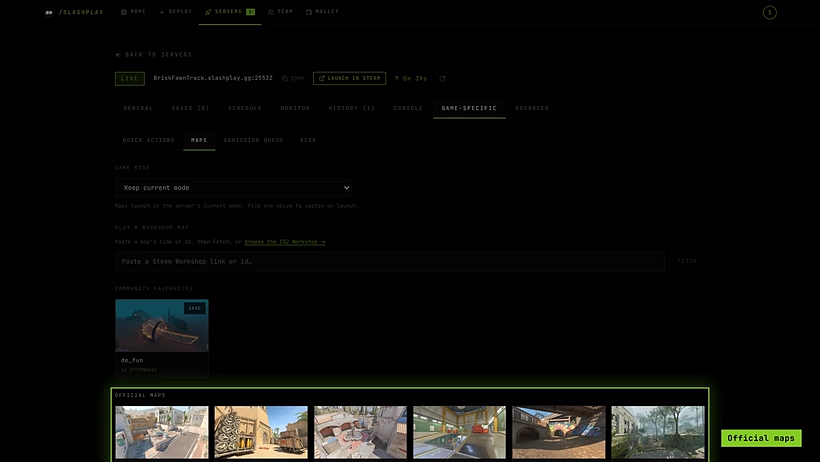
Game-specific → Maps. -
Paste and Fetch. Paste into Play a Workshop Map (Paste a Steam Workshop link or id…) and click Fetch, or press Enter. A tile appears with the map’s picture, title and id.

Paste the map's page link, or just its id. 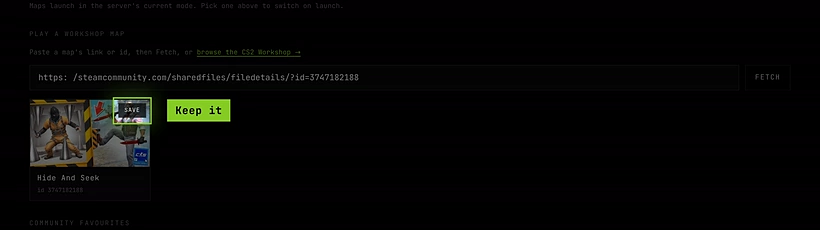
Click the tile to play it now, or Save to keep it. -
Pick a mode (optional). Leave Game Mode on Keep the current mode, or choose the mode the map was made for, for example Deathmatch for an aim map or Wingman (2v2) for a Wingman map.
-
Launch it. Click the tile. It flashes Launching… and the server loads the map with
host_workshop_map <id>. -
Save it (optional). Click Save in the tile’s corner to keep it in your team library. It shows Saved from then on.
The first launch of a map takes longer than an official map, because the server downloads it from Steam first. Big maps can take a minute or more.
What your players see
Players connect exactly as usual. If they don’t have the map yet, CS2 downloads it from the Workshop for them while connecting, then loads in. Nobody needs to subscribe to the map in advance.
On a big map the first join can sit on the loading screen for a while. That’s the download, not a broken server.
Your team library

Saved maps appear under Your Saved Maps at the top of the Maps panel, on any CS2 server of the same team. From there:
- Click a tile to launch it (with the mode from the Game Mode picker).
- Click Remove to take it out of the library. This doesn’t touch any server; it only removes the tile.
Community Favourites, further down, is a hand-picked row of popular maps. Save copies one into your team library.
After a stop and restore
The server remembers the last map it loaded, Workshop maps included. When you restore a stopped server, it boots straight back onto that Workshop map, and downloads it again if needed. The game mode is not remembered: see Launch options to boot into a mode every time.
Loading a Workshop map from the console
The Maps panel is a shortcut for one console command. You can type it yourself in the Console tab, or run it from game chat with !rcon (see RCON). Replace 123456789 with your map’s id:
host_workshop_map 123456789To switch mode at the same time, set the mode first, on the same line:
game_type 1; game_mode 2; host_workshop_map 123456789That example loads the map in Deathmatch. The numbers for each mode are in Launch options.
Troubleshooting
“Paste a Steam Workshop link or numeric id.”
The box couldn’t find an id in what you pasted. Copy the full Workshop page URL, or just the number after id=.
“Workshop item not found or not public.” The item is private, friends-only, removed, or not a Workshop item at all. Check the page opens in a private browser window. Only public items work.
“Lookup failed. Try again.” Steam didn’t answer in time. Wait a few seconds and click Fetch again.
The tile launched but the server is still on the old map. The download can take a while. Watch the Console tab for progress or an error. If the map was made for a different game (for example a CS:GO map that was never updated), CS2 can’t load it.
Players get stuck loading or drop out while joining. Their game is downloading the map. Ask them to wait and reconnect if it times out. A player whose Steam can’t reach the Workshop can’t get the map.
The Save button does nothing. Saving needs Control servers on the team. Ask a team admin.