 /SLASHPLAY
The console
Watch your server's live output and send it commands from the browser, with autocomplete, recent-command shortcuts, and what's blocked and who can type.
Read the transcript
This audio was created with Boson AI's Higgs Audio: boson.ai/higgs-audio
The Console tab on the server page shows everything your server prints, live, and lets you type commands into it as if you were sitting at the server’s own terminal. Use it to change a setting on the fly, give someone operator rights in Minecraft, send a message to all players, or see why something isn’t working.
Before you start
- The server must be live to send commands.
- Sending commands needs the Control servers permission. Without it you can still read the output. See Roles and permissions.
Watch the live output
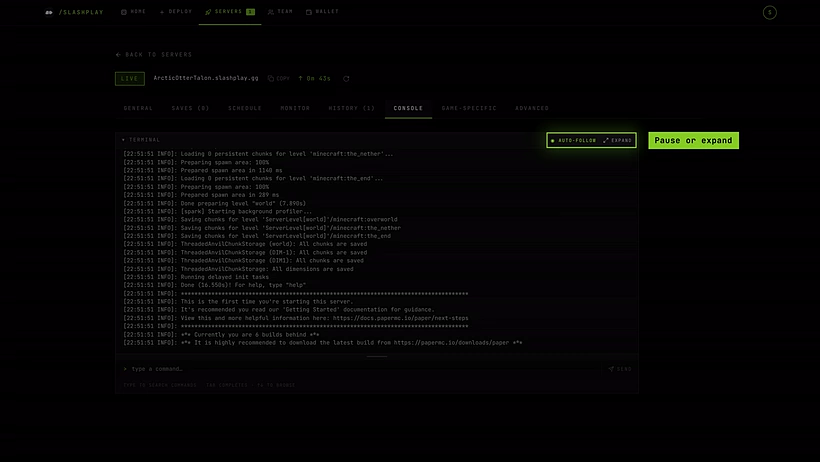
The dark panel at the top (Console) streams the server’s output as it happens: startup messages, players joining and leaving, chat, errors.
- The Auto-follow switch keeps the view scrolled to the newest line. Turn it off when you want to scroll back and read something without it jumping away. Turn it on again to resume.
- Expand fills the screen with the console (it reads Exit full screen while expanded). Press Esc to exit.
- Drag the handle under the panel to make it taller or shorter; double-click the handle to reset it.
Right after a restart, a banner explains that the output shown is from the previous run and that fresh boot lines will follow as the game comes up.
Send a command
- Click the input under the output. It reads Type a command….
- Type the command, for example
say Match starts in 5 minutes. - Press Enter or click Send.
Your command appears at the bottom of the output, with the server’s reply. On CS2 and the other Source games the reply comes right under your command; Minecraft prints its reply in its own log, just above.
Not sure which command you need? The console command reference has every command for every game we host, with defaults and examples to copy.
Autocomplete
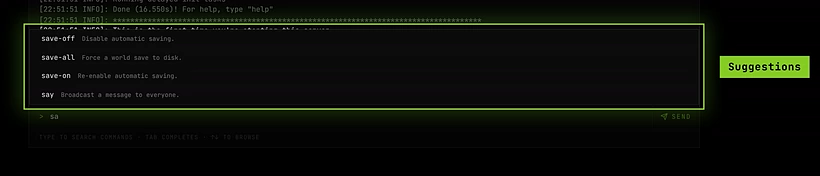
For CS2, Counter-Strike: Source, Counter-Strike 1.6 and Minecraft, the console knows the common commands. As you type, matching commands appear in a list, with a short description of the one you’re on. The footer sums it up: Type to search commands · Tab completes · ↑↓ to browse.
- Tab fills in the highlighted command.
- ↑ and ↓ move through the list.
- Enter always sends what you typed, unless you’ve arrowed onto a suggestion. If you know your command, the list never gets in your way.
Commands you use often on this server move up the list. For other games there are no suggestions, but you can type any command.
Recent shortcuts
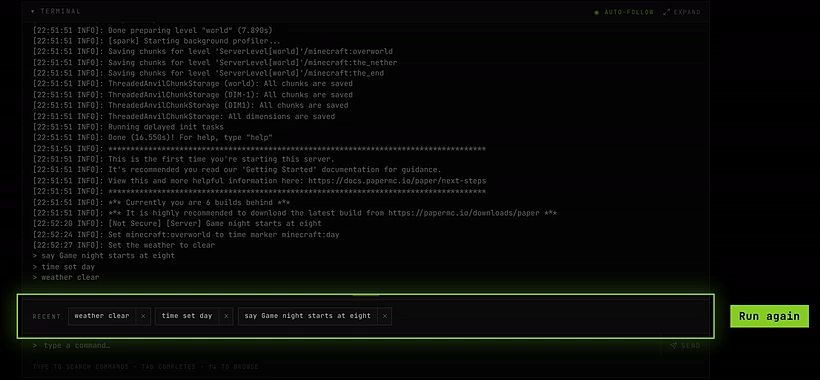
The Recent row above the input shows buttons for commands already run on this server, up to ten. Click one to run it again. You can remove a shortcut you no longer want. A few commands are never kept as shortcuts, even though you can type them, because one stray click could wreck a match: host_timescale and sv_cheats.
Blocked commands
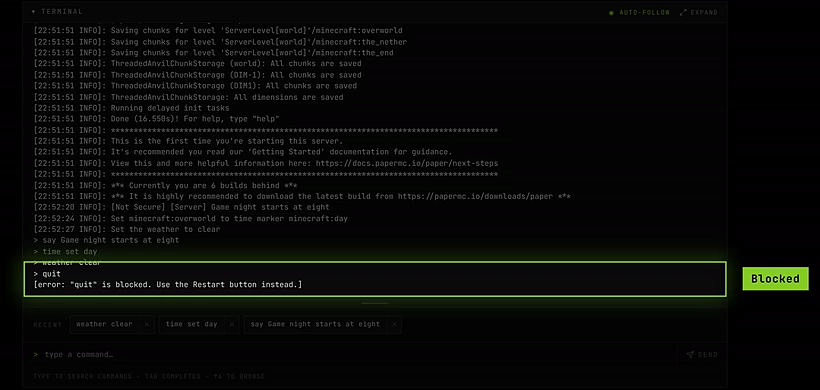
A handful of commands would take the server down in a way SLASHPLAY can’t track, so the console refuses them and tells you what to use instead:
| Command | What to use |
|---|---|
quit, exit, shutdown, _restart | ”…” is blocked. Use the Restart button instead. Use Restart or Stop on the General tab. |
host_timescale below 0.05 or above 10 | The server would stop answering. The message explains the safe range. In CS2, use mp_pause_match to pause (it takes effect at the next round). |
rcon_password | Edit or Generate next to the RCON password (see below). A password set from the console would leave the dashboard on the old one. |
Everything else goes through.
How commands reach the server
You don’t need to know this to use the console, but it explains a few behaviours:
- Source and GoldSrc games (CS2, Counter-Strike: Source, Counter-Strike 1.6, Team Fortress 2, Garry’s Mod) receive console commands over RCON, the game’s remote admin connection. That’s why the reply comes back straight under your command. Useful commands per game: CS2, Team Fortress 2, Garry’s Mod and Counter-Strike 1.6.
- Minecraft receives commands on the server’s own input, exactly as if typed at its terminal. Use commands like
op <name>,whitelist add <name>,say,time set dayorgamerule, without a leading slash. See Minecraft console commands. - Palworld and Valheim show their live log here, but can’t receive commands from the console today. On Palworld, use the in-game admin commands; on Valheim, the admin lists and the in-game console. If a game can’t receive a command, the console shows the error instead of a reply.
For a full RCON client outside the browser, the RCON address and password are shown under the console and on the General tab (to members with Control servers). See CS2 RCON or Counter-Strike: Source RCON.
Change the RCON password
The RCON password has Edit and Generate next to it, in the RCON section of the General tab (for CS2, on the RCON panel of the Game-specific tab). Edit sets one you type: 8 to 64 characters, letters and digits only. Generate sets a new random one. You need Control servers.
When the new password takes effect depends on the game:
| Game | On a live server |
|---|---|
| CS2, Counter-Strike: Source, Team Fortress 2, Garry’s Mod | At once, no restart. The page says Saved, in use now. |
| Counter-Strike 1.6 | At the next restart. Its RCON is the older GoldSrc kind, which the dashboard can’t send commands over. |
| Rust, Palworld | At the next restart. The game reads the password when it starts. |
On a stopped server the new password is used from its next start, whatever the game. It stays through restarts, stops and restores, and it never changes the join password. Two servers can’t share an RCON password.
If a live server doesn’t take the new password, nothing changes: the page says why, and the old password stays in use.
When the server is stopped
A stopped server has no live output. The console says Server is stopped, so there’s no live log. The History tab has its past runs. and the input reads The server must be live to send commands. If the server crashed, the crash box at the top of the page shows the last lines it printed.
Troubleshooting
The input is greyed out. Either the server isn’t live, or you don’t have Control servers. The placeholder tells you which.
My command did nothing. Check the spelling; the game prints an error for unknown commands. Some settings only apply on the next map or round.
The console looks the same after a restart. The old output stays on screen until new lines arrive. Watch for the booting banner.
I need the output from an earlier session. The console only shows the current run. The History tab lists past runs. See Monitor and history.