 /SLASHPLAY
Schedules and auto-stop
Start and stop a SLASHPLAY server on a weekly schedule, cap how long any run can last, see what it will cost, and learn every reason a server stops by itself.
Read the transcript
This audio was created with Boson AI's Higgs Audio: boson.ai/higgs-audio
A server costs tokens for every hour it’s live, so the best way to control cost is to control when it runs. The Schedule tab on the server page gives you two tools: a scheduler mode that can start and stop the server on a weekly timetable, and a maximum run time that stops any run that goes on too long. This page covers both, plus every reason a server can stop on its own.
Changing the schedule needs the Control servers permission. See Roles and permissions.
Scheduler modes
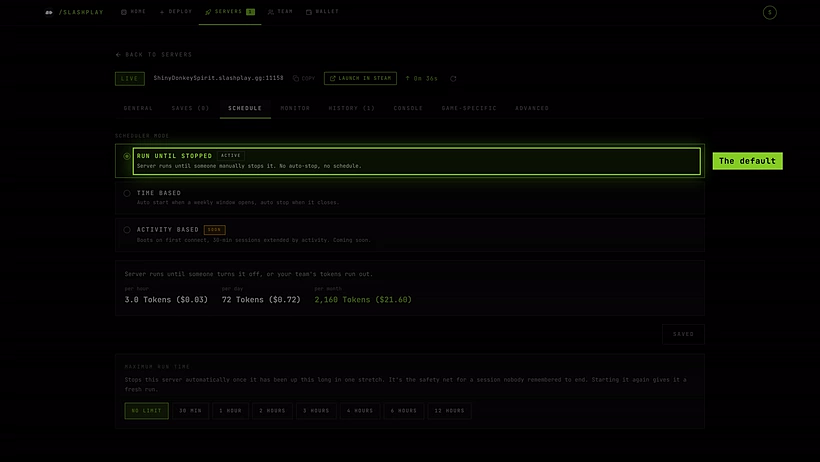
Pick one of three modes under Scheduler mode:
| Mode | What it does |
|---|---|
| Run until stopped (default) | The server runs until someone stops it, or the team runs out of tokens. No schedule. |
| Time based | The server starts by itself when a weekly window opens and stops when it closes. |
| Activity based | Coming soon. Would boot when someone connects and stop after 30 minutes without activity. Not available yet. |
Selecting a mode previews it right away; nothing is saved until you click Save schedule at the bottom. Picking Activity based only previews what’s coming: it hides the save button, since it isn’t live yet.
In Run until stopped, the tab shows what the server costs per hour, per day and per month if left running, so you can see what forgetting it would cost.
Set up a weekly schedule
Use this for regular sessions: a club that plays every Tuesday and Thursday evening, or a survival world that should be up every weekend.
- Open the server page and go to the Schedule tab.
- Pick Time based.
- Check the timezone. It starts on the one saved for you (originally your browser’s), and the panel shows what your computer says for comparison. Change it if your group plays in another timezone. All window times are in this timezone.
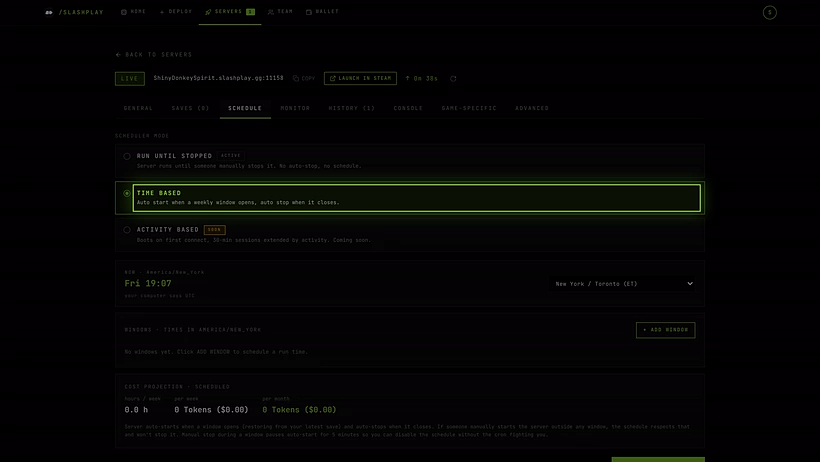
- Click + Add window.
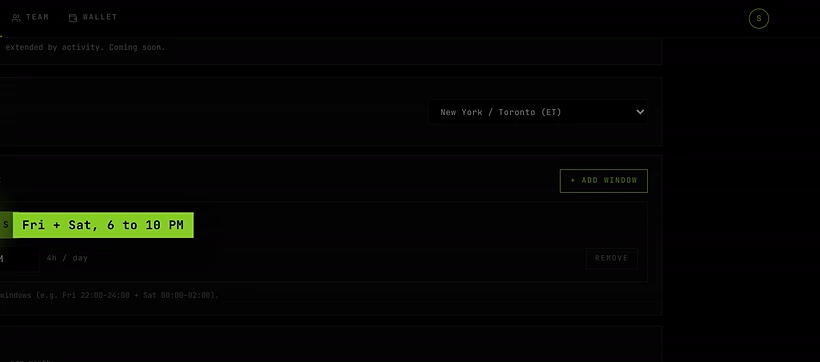
- Click the days the window applies to (at least one).
- Set the start and end times. Times move in 15-minute steps. The row shows how long the window lasts per day.
- Add more windows if you need them. Remove one with Remove window.
- Click Save schedule.
Under the windows, What it costs shows what the schedule will cost per week and per month at the server’s current size.
How a schedule behaves
- When a window opens, the server starts by itself, restoring from its latest save. When the window closes, it saves and stops.
- Manual starts are respected. If someone restores the server outside any window, the schedule leaves it alone and won’t stop it.
- Manual stops win for a moment. If you stop the server during a window, auto-start pauses for 5 minutes. That gives you time to change or turn off the schedule without it starting the server again.
- If a scheduled start fails, SLASHPLAY retries after 1 minute, then 5, then 15. After three failures in the same window it stops trying and the server page shows This server couldn’t start with the reason. See Troubleshooting.
Overnight sessions
A window can’t cross midnight: the end must be after the start. For a session from Friday 22:00 to Saturday 02:00, add two windows: Friday 22:00 to 24:00 and Saturday 00:00 to 02:00. If you get it wrong, the row says End must be after start. For overnight, add a second window. and the note next to Save schedule reads Fix the windows above to save.
Maximum run time
Maximum run time stops the server automatically once it has been up for a set time in one stretch. It’s the safety net for a session nobody remembered to end.
Options: No limit, 30 minutes, 1 hour, 2 hours, 3 hours, 4 hours, 6 hours, 12 hours.
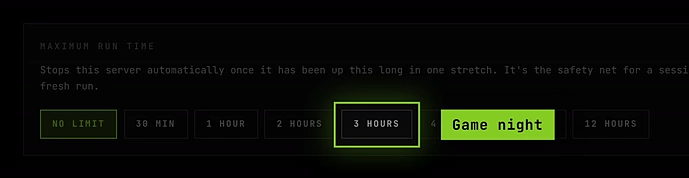
- It counts from when the current run started. Starting the server again gives it a fresh run.
- While the server is live, the panel shows when this run will stop and what a full run costs.
- It works in every scheduler mode, alongside a schedule.
When the team sets the limit
A team owner or admin can set an Auto-stop limit for every server on the team, in the team’s settings. When they do, the team’s limit wins: the server’s control is locked, marked Set by team, and explains that the team stops every server after that long. To set servers individually, the team limit has to be turned off. See Team settings.
Every reason a server stops by itself
A server only stops without someone clicking Stop for these reasons, and it always saves first:
| Reason | What triggered it |
|---|---|
| The team ran out of tokens | The team’s balance reached 0. The server never runs into debt. |
| It hit its maximum run time | Its own maximum run time, or the team’s auto-stop limit. |
| It’s outside its scheduled hours | A time-based window closed. |
If your team has Discord connected, the event feed says which one it was. There is no idle auto-stop today: a live server with nobody on it keeps running until one of the above happens. See Automatic stops.
A crash is different: that’s the server failing, not an automatic stop, and it may not save. See Troubleshooting.
Troubleshooting
My schedule didn’t start the server. Check the timezone and days, and that the team has enough tokens for at least one hour. If starts failed, the server page explains why.
The server stopped while we were playing. Check the maximum run time here and the team’s auto-stop limit. The History tab shows when each run ended.
I stopped the server, but it started again. A schedule window was open. Manual stops pause auto-start for only 5 minutes. Switch to Run until stopped or change the windows.
The maximum run time options are locked. Your team sets the limit for all servers. Ask the team owner or an admin.